If you want to move from ChatGPT to Gemini (or back) from the UK without losing your prompts and history, the honest answer is that you cannot use the one-click importer everyone keeps recommending: Google’s official “Import AI chats” tool, launched on 26 March 2026, is rolling out almost everywhere except the UK, the EEA and Switzerland. So this is the practical, UK-specific way to do it instead, and it takes about ten minutes.
I have lost count of how many guides tell British readers to open Gemini, tap Settings, and hit “Import from another AI app”. It is genuinely good advice, just not for us. Google confirmed the feature on its “How to switch to Gemini” blog post, and outlets including MacRumors reported on 26 March 2026 that the importer is unavailable in the UK, the EEA and Switzerland, with no timeline given, citing local data rules. If you are reading this from Manchester or Cardiff, that menu item simply will not appear for you. Let me walk you through what actually works.
Why the official tool skips the UK (and what that means for you)
The importer does two clever things where it is available: it pulls a “memory” summary of what your old assistant knows about you, and it can swallow a full chat export as a .zip of up to 5GB so you can search old threads inside Gemini. Google’s own help pages describe both. The catch is that this involves shipping a large bundle of your personal conversations into Google’s training-eligible systems, which is exactly the sort of processing that gets extra scrutiny under UK and EU data law. That is almost certainly why Google held it back here. It is the same caution that shapes a lot of AI rollouts in Britain, something I dug into when looking at the new Gemini UK features and the one default I would switch off.
The practical upshot: you do not get the magic button, but you do not actually need it. The two things people really want when they switch are continuity (the assistant remembers your projects and style) and a safe copy of past chats. You can get both manually, and arguably with more control over what you hand over.

The memory prompt method: move what your assistant knows about you
This is the one I reach for first, because it travels light and works in both directions. The idea is simple: you ask your current assistant to write down everything it has learned about you and your work, then you paste that summary into the new one as opening context. No export, no upload, nothing leaving your control that you have not read first.
Open ChatGPT (or Claude, or whichever you are leaving) and give it a prompt along these lines: “You are helping me move to another AI assistant. Go through what you know about me from our past conversations and memory, and write a durable summary I can paste elsewhere. Cover my projects, my preferences for how you respond, my tone, recurring tasks, and anything you have been told to remember.” Read what comes back, trim anything you would rather not carry over, then paste it into Gemini’s first message. Do the reverse to go back the other way.
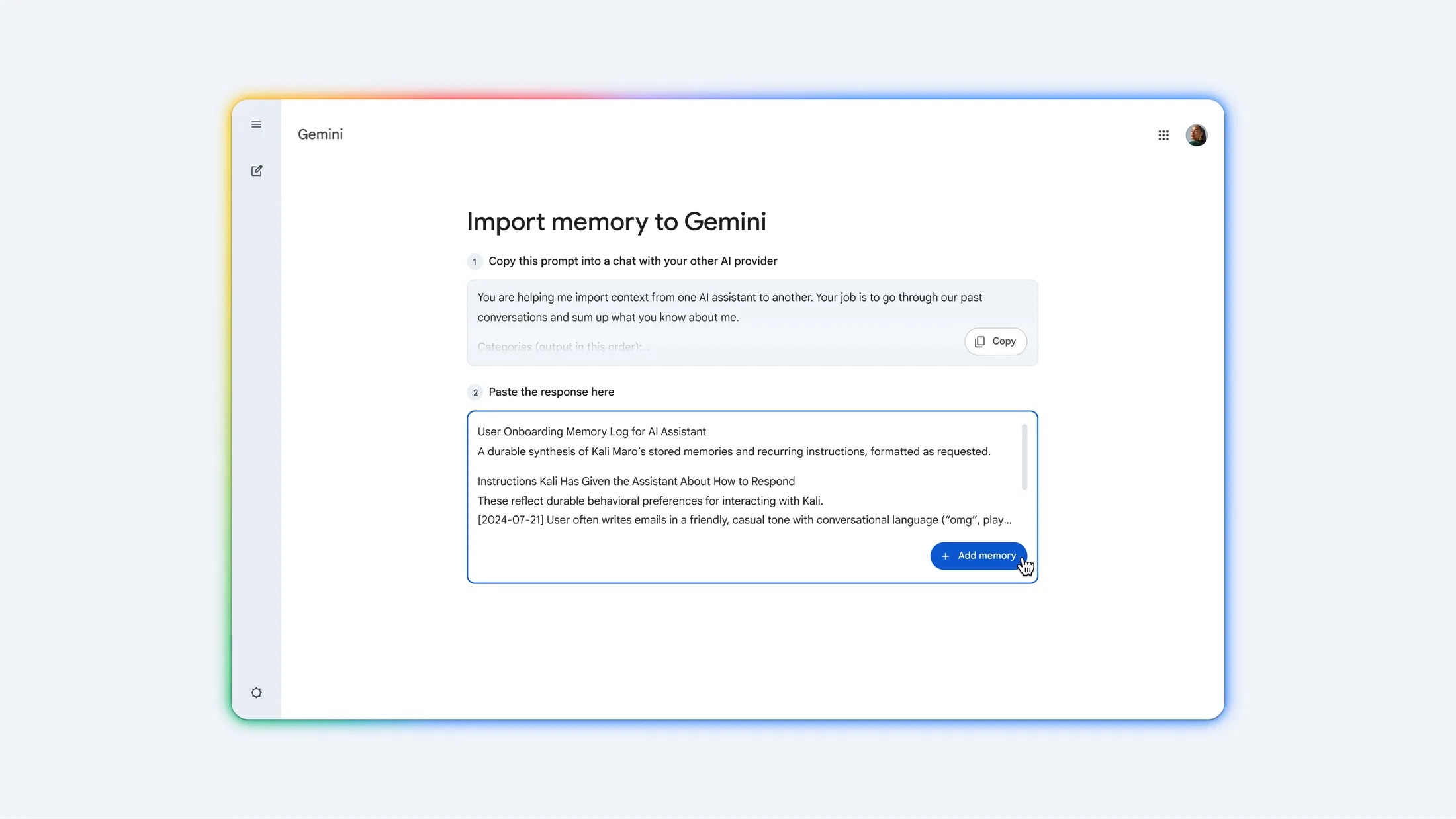
Here is where you will get stuck, or at least where the result can disappoint. An assistant only “knows” you if memory was switched on and you have actually used it for a while. If you keep memory off, or you mostly start fresh chats, the summary will be thin. It is also worth being a little wry about this: the assistant is summarising itself, so it tends to flatter the relationship. Treat the output as a useful starting brief, not gospel, and edit it before pasting. If you have never thought about what these tools store, my piece on how to make an AI company delete your data and your UK rights in 2026 is a good companion read.
The importer Google withheld from us was never really about your old chats. It was about continuity. And continuity is the one thing you can rebuild by hand in a single paragraph.
The data export method: keep a real archive of your old chats
The memory prompt handles “what it knows about me”. This handles “I do not want to lose the threads themselves”. Both ChatGPT and Claude let you download your full conversation history, and that export is yours to keep regardless of which assistant you settle on.
In ChatGPT, go to Settings, then Data controls, then Export data. ChatGPT confirms the request and emails you a link to a .zip archive of your conversations, usually within minutes to a few hours. Open the HTML file inside it and you can scroll or search your whole history offline. Claude offers the equivalent under its data controls, and the export likewise arrives by email. Keep the .zip somewhere sensible: it is your safety net, and it means switching never has to feel like burning the boats.
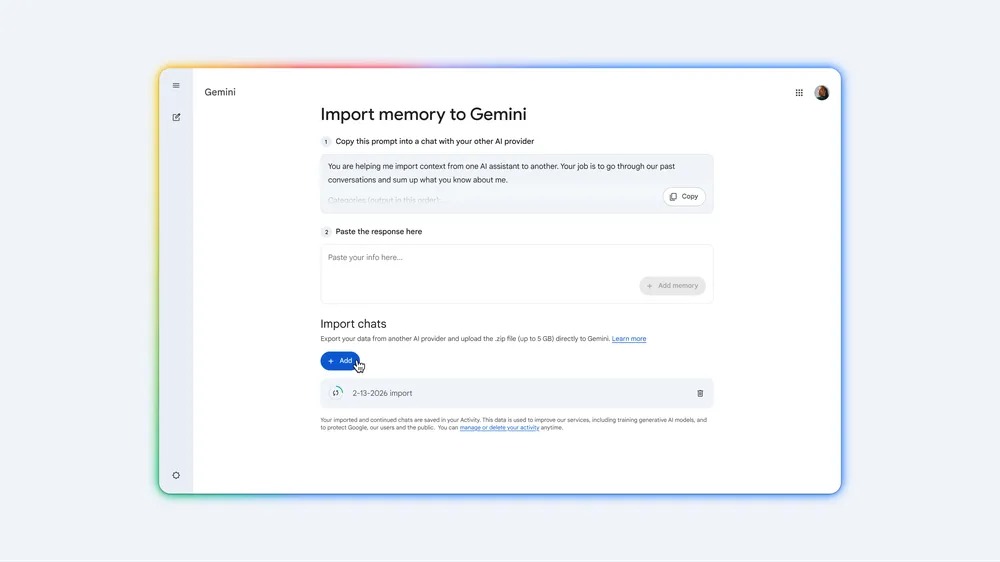
The honest limitation: a UK export is an archive, not an import. You get a searchable record, but you cannot feed that .zip into Gemini the way the blocked tool would. So the realistic UK workflow is a pair: use the export as your searchable backup, and use the memory prompt to carry your context across. Together they cover almost everything the one-click tool promised. If you are weighing up whether Gemini is even where you want to land, I went through that in detail in Gemini vs Claude vs Copilot: which AI is worth paying for in the UK.
The short version: your UK switch in steps
- In your current assistant, ask for a durable summary of what it knows about you and how you like it to respond.
- Read it, trim anything private or wrong, and paste it into the new assistant as your first message.
- Separately, request a full data export (ChatGPT: Settings, Data controls, Export data; Claude has the same) and save the .zip.
- Spend ten minutes re-stating your two or three most important standing instructions in the new app so they stick.
- Do not delete the old account until you are sure the new one has your context and you have your archive.
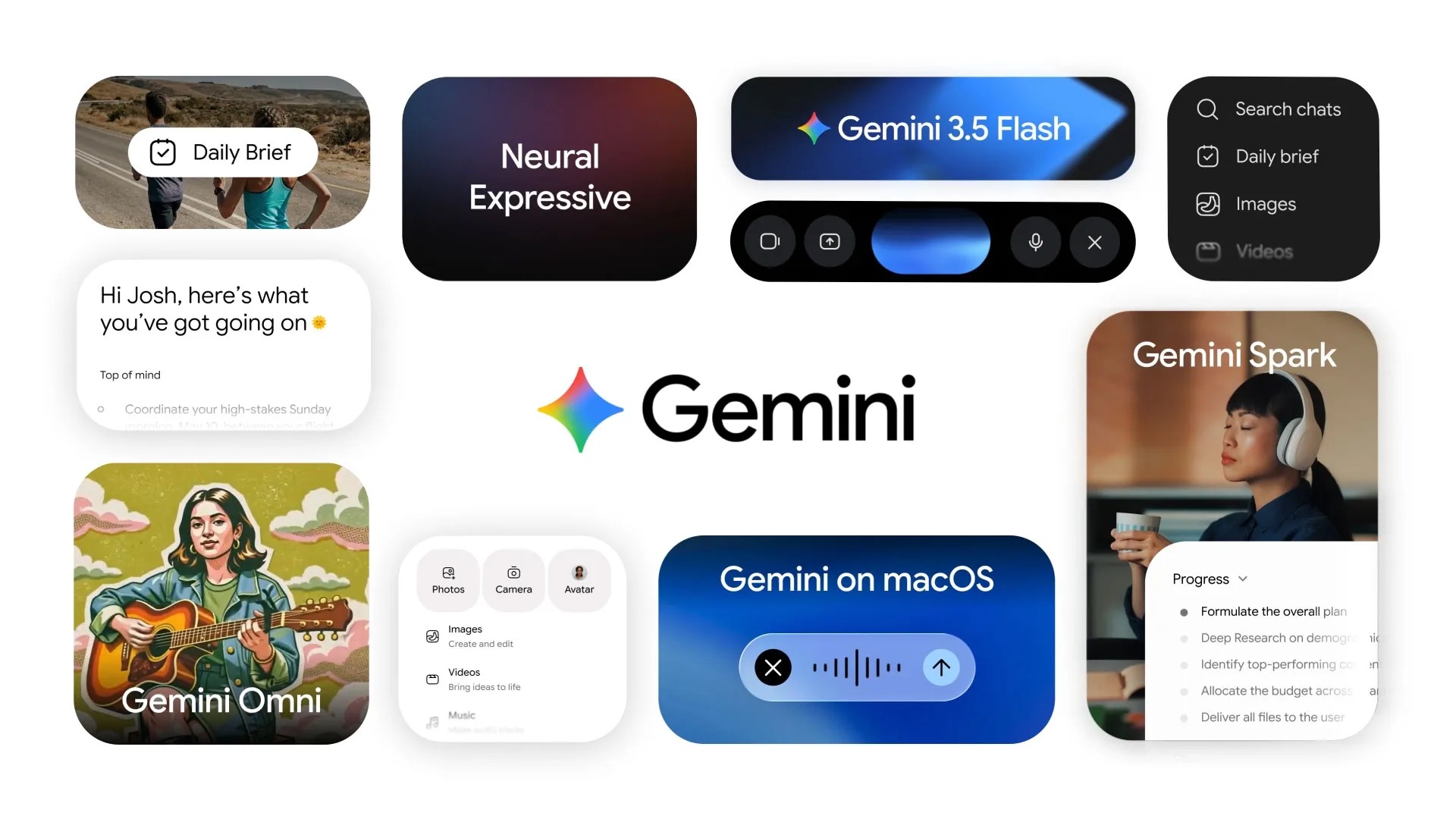
One thing worth doing whichever way you jump: set the new assistant up properly on your phone so the context you just moved actually gets used. If Gemini is your destination, my walkthrough on how to set up and use Gemini on your Pixel or Samsung in the UK covers the defaults, and using Gemini in Gmail and Docs is the natural next step if you live in Google’s apps.
Below is Google’s own clip of the Gemini app handling longer pieces of work, which gives you a feel for where your imported context lands once you have done the legwork.
If you switch often, the manual route has an upside the importer does not: it makes you decide, every time, what is actually worth carrying over. I rather like that. A clean summary of your real projects beats a 5GB dump of half-finished chats you will never reopen. And because the export is just a file on your device, you are not locked to anyone. My broader take on whether any of this is worth paying for sits in do you actually need a paid AI subscription in 2026.
Was the faff worth it?
For me, yes, and not just because we are stuck with the manual route. Being locked out of the one-click tool forced me to look at what I was actually moving, and most of it was noise. The memory prompt carried the parts that mattered in about a paragraph, the export gave me a searchable backstop, and I never felt I had abandoned anything. Until Google brings the importer to the UK, this is the route that works, and it leaves you more in control of your own data than the button would have. If British readers keep being told to tap a menu that is not there, at least now you know the version that is.
Buyer action
Where to buy or check next
Use this as the final check before ordering a phone, changing network or trusting a headline monthly price.













Reader discussion
Leave a comment
Comments are moderated. Keep it useful, accurate, and on topic.