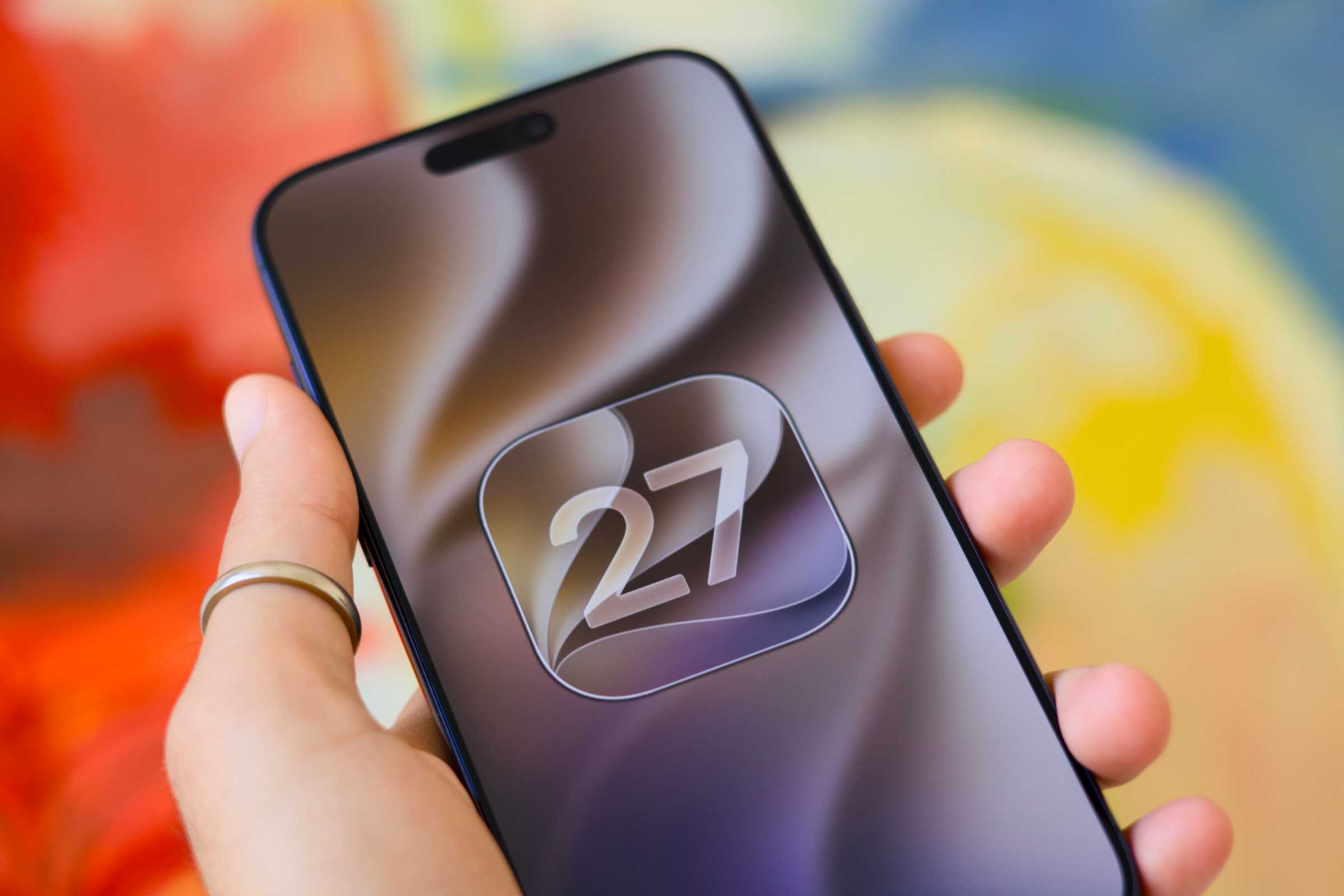
The iOS 27 public beta is the version most people should wait for, and Apple says it lands in July 2026, though it has not pinned a date yet. If you want to try it the moment it drops, the single most important job is to make a proper archived backup first, because an iCloud backup alone will not let you go back to iOS 26 if you change your mind. Apple unveiled iOS 27 at its WWDC keynote on 8 June 2026 and shipped the developer beta the same day, per MacRumors and Macworld, with the full release expected around mid-September.
Before you tap install
- The free public beta arrives in July 2026; Apple has not given an exact date, so treat “July” as the window (MacRumors, Macworld, 8 June 2026).
- Make an archived backup on a Mac with Finder before installing, or you cannot cleanly return to iOS 26.
- Enrol once at beta.apple.com, then update via Settings, General, Software Update, Beta Updates.
- Supported on iPhone 11 and later, plus iPhone SE (2nd generation and later), per 9to5Mac (8 June 2026).
- The rebuilt Siri AI is a separate, later beta and the EU is excluded on iPhone; the UK is not (Apple Newsroom, 8 June 2026).
Should you put the iOS 27 public beta on your only iPhone?
Honestly, no, not if it is the phone you rely on for banking, two-factor codes and work email. A public beta is more stable than the developer build, but it is still unfinished software: apps crash, battery life dips and the odd feature stops working until the next build. I learned this the hard way when my authenticator app went sideways mid-beta and I could not log in to anything for an afternoon. If you have an older spare iPhone, that is the ideal test bed. If it is your only device, weigh up whether a few weeks of rough edges is worth an early look.
The good news is that almost everyone can run it. iOS 27 supports the same line-up as iOS 26, so iPhone 11 and later plus the second-generation iPhone SE and newer are all eligible, according to 9to5Mac on 8 June 2026. If you are weighing up whether an older handset is worth keeping on the beta track, our look at iOS 27 on the iPhone 11 for UK owners goes deeper on what ageing devices actually gain.
How to make a backup you can actually roll back to
This is the step people skip, and it is the one that bites them. An iCloud backup taken while you are on the beta will not restore onto iOS 26, because, as Apple puts it on its support pages, “backups created while using beta software might not be compatible with earlier versions of iOS.” To downgrade later you need a backup made before you installed the beta, kept somewhere it will not be overwritten. That means a local, archived backup on a Mac.
Plug your iPhone into a Mac with a cable and open Finder, then select your iPhone in the sidebar. Tick “Encrypt local backup” and set a password you will remember, because, as Apple notes on its UK backup page, that is the only way your Health and Activity data comes across, and you cannot recover the backup without that password. Click Back Up Now and let it finish. The catch most guides miss: a standard local backup can still be replaced by your next one. To freeze it in place, MacRumors recommends opening Manage Backups, right-clicking the backup you just made and choosing Archive, which stamps it with a date and stops it being overwritten. That archived copy is your safety net.
If you are switching phones around to free up a test device, our walkthrough on moving to a new phone without losing your data covers the same backup discipline from the other direction, and it is worth a read before you start juggling handsets.
Installing the beta on your iPhone, step by step
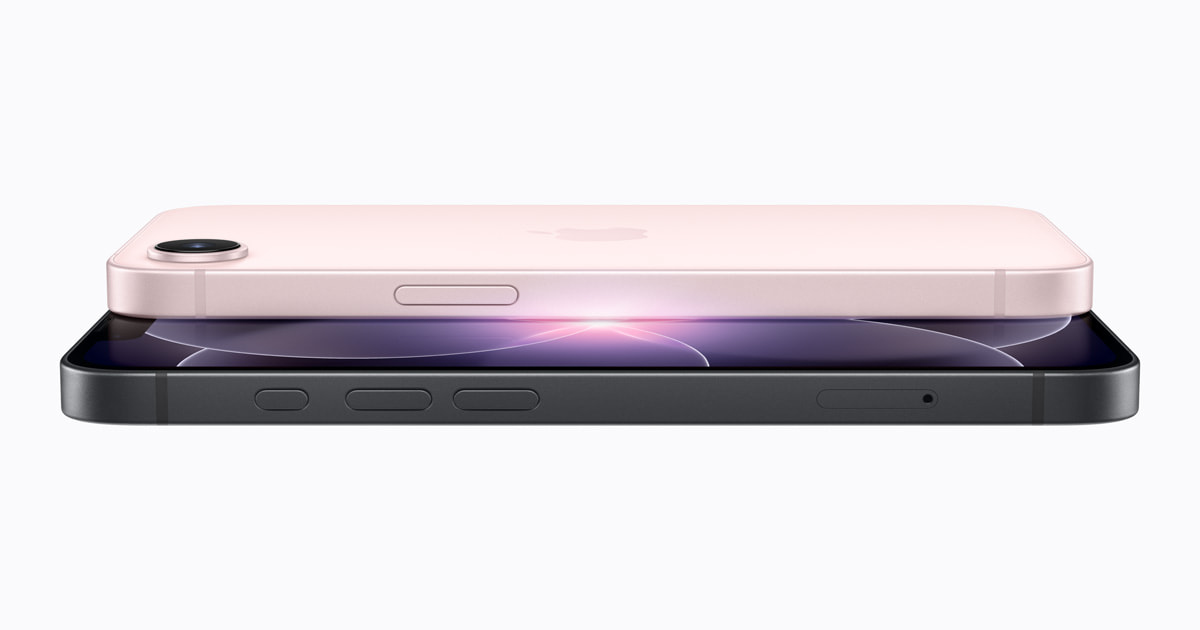
Once your archived backup is safe, installation is genuinely quick. First, enrol your Apple ID in the Apple Beta Software Program at beta.apple.com. It is free, it only needs your Apple ID, and you do not need a paid developer account, which is the difference between this and the earlier iOS 27 developer beta install that some keen UK readers jumped on in June.
Then, on the iPhone itself, go to Settings, then General, then Software Update, then Beta Updates, and select the iOS 27 Public Beta. This toggle replaced the old downloadable profile method back in iOS 16.4, so if a guide tells you to install a configuration profile, it is out of date. Once Beta Updates is set, the public beta appears as a normal software update on the same screen when Apple releases it in July. Tap to download and install, keep the phone on Wi-Fi and charge, and you are in.
The backup is not the boring bit before the fun bit. It is the entire reason you get to treat a beta as reversible rather than permanent.
What about the new Siri and Apple Intelligence?
This is the part UK readers keep asking about, and it comes with a regional catch. At WWDC on 8 June 2026, Apple announced a rebuilt assistant it calls Siri AI, with on-screen awareness, personal-context search across your messages and photos, a dedicated Siri app with conversation history, and far broader in-app actions. Reporting from TechCrunch on 9 June 2026 says the cloud side leans on a custom Google Gemini model, which is why this Siri feels a generation ahead of what shipped before. If you want the bigger picture, our guide to the new Siri for UK iPhone owners and our head-to-head with Google Gemini both go deeper.
Here is the catch, and it is the bit I would not want you to miss. Apple has confirmed that, because of the EU’s Digital Markets Act, Siri AI will not ship in the European Union on iPhone with iOS 27, so EU users only get it on Mac and Vision Pro. The UK is not in the EU and is on Apple’s list of launch English locales, so UK iPhones are not caught by that block. The thing to know is timing: Siri AI itself arrives as a separate beta later in the year, not on day one of the public beta, and the most advanced features lean towards the iPhone 17 Pro models and iPhone Air. If you are deciding whether the assistant alone is worth chasing, weigh it against what is already on the best iPhones in the UK right now.
How to back out of the beta safely
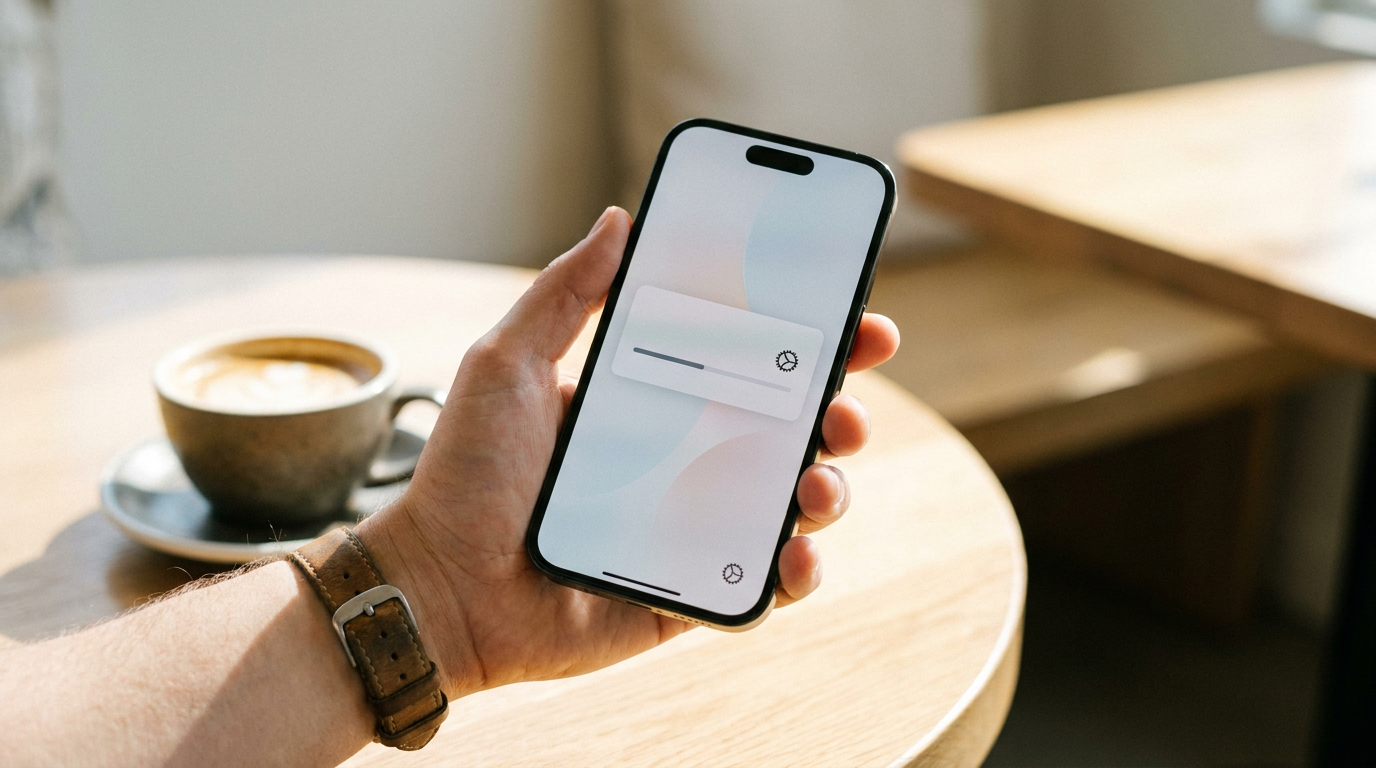
There are two ways out, and they are not the same, so pick the one that matches how much of a hurry you are in. The gentle route keeps your data and your phone untouched: go to Settings, General, Software Update, Beta Updates and tap Off. Nothing changes immediately. Your iPhone simply stops pulling new beta builds and, when Apple ships the final iOS 27 in September, it updates to that public version like any normal phone. This is the option I recommend for most people, because there is no wiping involved and no risk of losing anything.
The harder route is a full restore back to iOS 26, which you would only do if the beta is genuinely unusable. Connect the iPhone to your computer, put it into recovery mode and restore, which, as Apple’s support documentation explains, erases the device and installs the current non-beta version of iOS. You then restore the archived backup you made earlier. Two caveats: this only works while Apple is still signing the iOS 26 build you want, and a backup taken on the iOS 27 beta will not restore onto iOS 26, which is exactly why that pre-beta archived backup matters. If recovery mode refuses to play ball, the deeper DFU mode is a fallback, though Apple’s own steps stop at recovery mode.
Where to check the official details next
Everything here ties back to a handful of official pages, and they are the ones to bookmark before you start. Enrol and read the small print at beta.apple.com. Apple’s UK support article on backing up your iPhone with a Mac walks through the encrypted-backup step, and its guide to uninstalling beta software covers the recovery-mode restore. The Settings path and opt-out toggle are documented on Apple’s developer support pages too. For pricing, you are spending nothing: the public beta and the Apple Beta Software Program are free, and Apple Intelligence carries no subscription, so there is no retailer to check, only the official Apple pages above (last checked: 2026-06-22). If you would rather wait for the polished release, our take on whether to buy an iPhone now or hold on may help you time it.
Hannah’s bottom line
If you only take one thing from this, make it the archived backup. The iOS 27 public beta is fun to poke around in, and the new Siri is worth the wait once it lands later in the year, but betas only stay low-risk when you can undo them. Spend the ten minutes on a proper Finder backup before you tap install, keep it archived so it cannot be overwritten, and you can dip in and out of iOS 27 all summer without ever feeling trapped on it. That, not the install itself, is the part that keeps your iPhone yours.










Reader discussion
Leave a comment
Comments are moderated. Keep it useful, accurate, and on topic.