
If you want to set up passkeys but you are not sure where to start, here is the honest version: it is easier than the password it replaces, and your phone has quietly been ready for a while. The technology is the simple part. The catch nobody warns you about is what happens when you change device, or want to log in somewhere that is not your usual phone. This guide from MobileTechWorld, published on 19 June 2026, gives you the exact settings on iPhone, Android and Windows, using the official paths from Apple, Google, Microsoft and the FIDO Alliance, and tells you where it breaks.
First, the reassurance. The National Cyber Security Centre, the UK’s own cyber authority, recommends using passkeys in place of passwords wherever a service supports them. Its position is that a passkey is at least as secure as the strongest password paired with two-step verification, and usually more secure, because it cannot be phished, intercepted or reused. When the people whose job is national cyber-defence are nudging the country this firmly towards passwordless sign-in, it is worth a Sunday afternoon of your time.
The short version
- A passkey replaces your password with your phone or laptop’s own unlock: a fingerprint, face scan or PIN. The FIDO Alliance defines it as a credential based on public key cryptography that is phishing-resistant by design.
- On iPhone, passkeys live in iCloud Keychain. On Android they sit in Google Password Manager. On Windows they save to your device through Windows Hello.
- The NCSC, the UK’s cyber authority, recommends passkeys over passwords wherever a site offers them.
- The real snag is recovery and cross-device sign-in. Lose access to the account that holds your passkeys and you are leaning on backup methods, so keep one in place.
What a passkey actually is, in plain English
Forget the cryptography for a second. When you create a passkey, your device makes two linked keys. One stays locked on your phone or in your account’s secure store and never leaves it. The other goes to the website. To sign in, the site sends a challenge, your device answers it with the private key, and you approve with your face, fingerprint or PIN. You never type a secret, so there is no secret for a scammer to steal, copy or trick out of you on a fake login page.
That phishing resistance is the whole point. The FIDO Alliance, the industry body that wrote the standard, describes a passkey as a credential that lets you sign in “with the same process that they use to unlock their device”, using standard public key cryptography. Because the private key never travels, a copied or guessed password simply is not a thing that can happen. If you have ever worried about reused passwords, this is the proper fix, and it pairs well with the broader hygiene I covered in our guide to making a company delete your data under UK rights.
How to set up passkeys on iPhone with iCloud Keychain
On an iPhone, passkeys are handled by iCloud Keychain, and the first job is making sure that is switched on. Go to Settings, tap your name at the top, then iCloud, then Passwords (on iOS 17 or earlier this is labelled Passwords and Keychain) and turn on Sync this iPhone. Apple requires two-factor authentication on your Apple Account first, so if you have not set that up, it will prompt you. You may need your passcode or Apple Account password to confirm.
Next, tell iOS to offer passkeys when you sign in. Go to Settings > General > AutoFill & Passwords and make sure AutoFill Passwords and Passkeys is on with iCloud Passwords & Keychain selected. From then on, when a website or app that supports passkeys asks you to set one up, you simply tap to create it and approve with Face ID or Touch ID. There is no password to invent. If you are also turning on the wider iOS protections, our rundown of the iOS features UK users should actually turn on is a sensible companion.
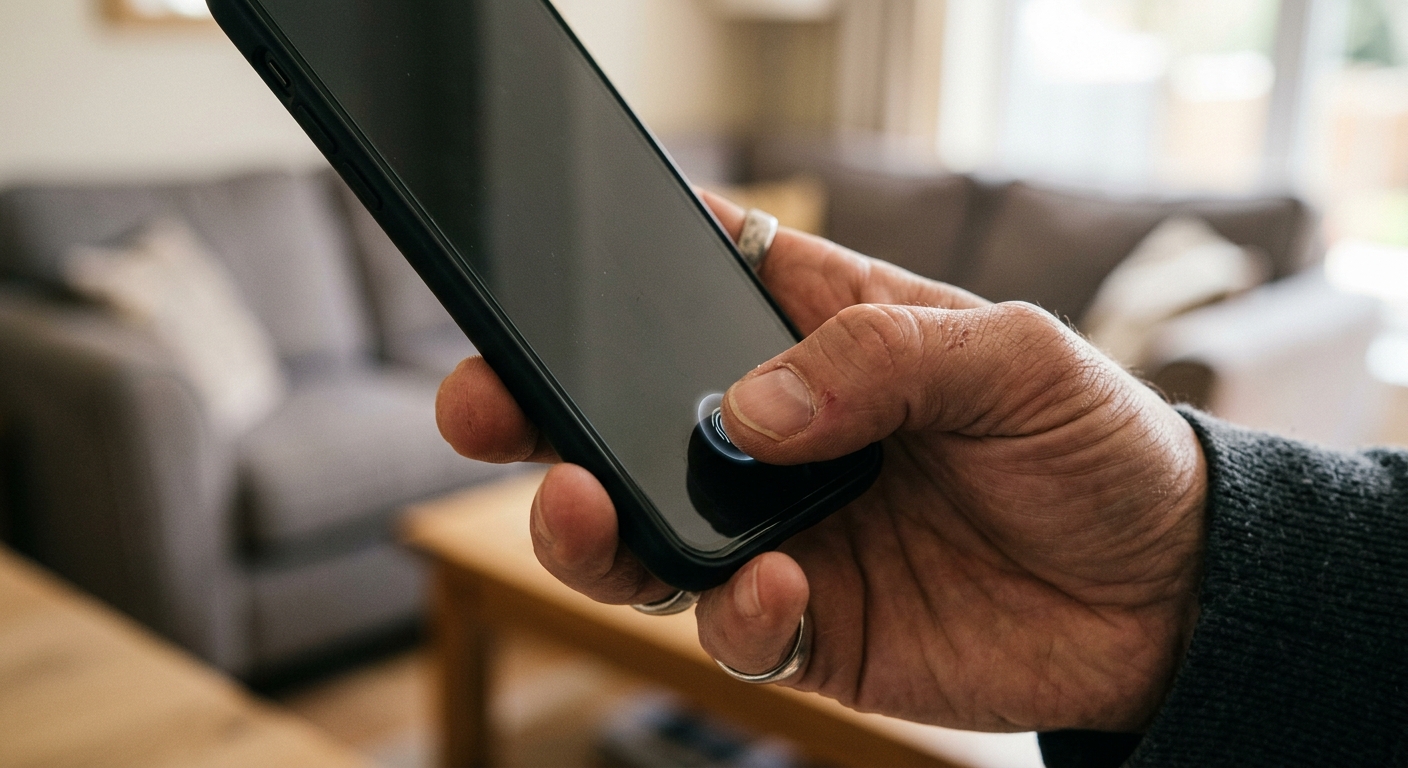
The step that tripped me up was assuming a passkey is locked to one iPhone. It is not. Because it lives in iCloud Keychain, it syncs to your iPad and Mac signed into the same Apple Account, which is exactly what you want. The flip side is that your Apple Account is now the keyring for your digital life, so its recovery details matter more than ever.
Setting up passkeys on Android and your Google Account
On Android, passkeys are stored and synced by Google Password Manager, and the quickest way to start with your Google Account is to visit g.co/passkeys, or open your Google Account and go to Security > How you sign in to Google > Passkeys and security keys, then tap Create a passkey. Google requires a screen lock and Android 9 or later, because the passkey is protected by your fingerprint, face or PIN. When you create one, the system asks you to confirm with that screen-lock method, and you are done.
For other apps and sites, the flow is the one Google describes in its Android passkeys help: sign in, look for the option to create a passkey in the app’s settings, tap Create a passkey and unlock to confirm. On Android 14 and later you can even choose a different passkey provider, such as Samsung Pass or a third-party manager, in System settings. If you are moving handsets, line this up alongside our walkthrough on moving to a new Android phone in the UK, because your passkeys come with you once you are signed back into Google.
If you have already set up Google’s assistant features on your handset, the menus will feel familiar from our guide to setting up Gemini on a Pixel or Samsung. The two-minute explainer below, from Google’s official Chrome for Developers channel, is the clearest short walkthrough of how the whole thing works under the bonnet.
One Android wrinkle: because passkeys ride on your Google Account, the same recovery thinking applies as it does to finding a lost handset, which our explainer on using Google Find Hub in the UK covers.
Passkeys on Windows with Windows Hello
Windows is where most people will sign in to their Microsoft account with a passkey, and it leans on Windows Hello, the built-in face, fingerprint or PIN unlock. First make sure Hello is set up: go to Settings > Accounts > Sign-in options and, under Windows Hello, add a PIN and, if your laptop has the hardware, a fingerprint or face scan.

To create a passkey for your Microsoft account, Microsoft’s own create-and-save-a-passkey support page sends you to your advanced security options, where you choose Add a new way to sign in or verify, then Face, Fingerprint, PIN or Security Key, and follow the prompts. The passkey saves locally to your Windows device through Windows Hello. To see and tidy what you have, open Settings > Accounts > Passkeys, where you can review saved passkeys and, under Advanced options, turn passkey providers on or off. If you live in Windows day to day, this slots neatly next to our guide on using Microsoft Copilot in Windows 11.
Where it breaks, and the catch nobody mentions
Here is the part the glossy launch videos skip. Passkeys are tied to an ecosystem. iPhone keeps yours in iCloud Keychain, Android keeps them in Google Password Manager, and the two do not magically share. So when you need your Google account on a friend’s Windows laptop, or your Apple ID on an Android tablet, you fall back on the FIDO Alliance’s Cross-Device Authentication: the laptop shows a QR code, you scan it with the phone that holds the passkey, approve with your fingerprint, and you are in. It works well, but the first unexpected time it feels like a hurdle rather than the seamless future you were promised.
The technology is the easy bit. The thing that will actually catch you out is recovery: a passkey is only as safe as the account that holds it, so the day you change phones is the day you find out whether you set that up properly.
That leads to the genuine catch. A passkey removes the password but not the need for a recovery plan. Lose the only device that holds a passkey with no backup sign-in method on that account, and you can lock yourself out. The fixes are simple, so do them now: keep iCloud Keychain or Google sync on so passkeys exist on more than one device, keep at least one alternative sign-in method on important accounts, and make sure your Apple, Google or Microsoft recovery email and phone number are current. It is the same join-the-dots thinking behind household account control I unpicked in our look at Disney+ password sharing rules in the UK.

Two smaller gotchas. Not every site supports passkeys yet, so you will live in a hybrid world of passkeys here and passwords there for a while, and that is fine. And shared or family devices need a little thought, because a passkey created under one person’s account is theirs, not the household’s. If privacy on shared phones is on your mind, our piece on how WhatsApp Advanced Chat Privacy works is worth a read alongside this.
Is it worth the faff?
Yes, and it is not close. I expected the usual security trade-off, where the safe option is also the annoying one, and that is not what happened. Once the switch is done, signing in with a glance or a fingerprint is faster and calmer than typing a password and waiting for a text code, and the phishing risk that has caught out so many people simply evaporates. With the NCSC backing the move and the big three platforms all building it in, this is no longer early-adopter territory.
My one firm instruction is this: do not skip the boring recovery step. Spend ten minutes confirming your account recovery details and keeping sync switched on, and passkeys will feel like a quiet upgrade rather than a trap. Start with the two or three accounts you care about most, your email, your bank if it offers it, and your main platform account, then let the rest follow as sites catch up. The password era is ending, the UK’s own cyber authority backs the shift, and for once the safer path is also the easier one.
Buyer action
Where to buy or check next
Use this as the final check before ordering a phone, changing network or trusting a headline monthly price.













Reader discussion
Leave a comment
Comments are moderated. Keep it useful, accurate, and on topic.