
If you want to speed up your Samsung Galaxy phone in the UK without spending a penny, the work happens in three places: storage, background apps and One UI’s own Battery and device care tools. Samsung UK’s support pages spell out the exact menu paths, and the current software, One UI 8.5 on Android 16, keeps almost all of them in the same spot. This guide is the practical version: what to tap, in what order, and when the problem is the hardware rather than the software.
- The current stable Samsung software is One UI 8.5, based on Android 16, which finished rolling out to all 44 eligible Galaxy devices in early June 2026.
- Most cleanup tools live under Settings > Battery and device care (older phones show it as Device care).
- Clearing an app’s cache via Settings > Apps > [app] > Storage > Clear cache is safe and does not delete your data or logins.
- A free Samsung Members account and the Samsung UK two-year warranty matter when a clean-up does not fix a genuinely failing phone.
Speed up your Samsung Galaxy with a Device care scan first
Before you change anything, let One UI tell you where the bottleneck is. Open Settings, then tap Battery and device care. The phone runs a diagnostic and hands back a score out of 100 across battery, storage and memory, with an Optimise now button that closes stalled background tasks and clears junk in one pass. On a phone that has been chugging for months, that single tap often buys back noticeable responsiveness. Run it, then check whether you are even on current software, because a pending update is one of the most common reasons a Galaxy feels slow.
To update, go to Settings > Software update > Download and install. One UI 8.5 reached every supported Galaxy phone by early June 2026, and Samsung has confirmed the next version, One UI 9 on Android 17, began as a beta on the Galaxy S26 series in May 2026 with a stable release expected over the summer. If you own an S26, our explainer on the One UI 9 beta for UK Galaxy S26 owners covers what is changing and whether to opt in. On older handsets, install the update before you start tweaking, because each One UI release ships performance and memory fixes that a manual clean-up cannot replicate.
Free up storage so the phone can breathe
A Galaxy that is close to full slows down because the file system has nowhere to work. Go to Settings > Battery and device care > Storage to see the breakdown by photos, videos, apps and the junk bucket Samsung labels Trash. Empty that first, then look at the largest apps. As a rule of thumb, keep at least 10 to 15 per cent of total storage free; a 128GB phone running with 4GB left will stutter no matter how new it is.
Photos and video are almost always the biggest offenders. Turning on cloud backup in Google Photos or Samsung Cloud lets you delete local copies while keeping the originals online, and the Files app surfaces large and duplicate items under its Analyse storage view. One specific One UI win: open an individual app via Settings > Apps > [app] > Storage and you can Clear cache on its own. That wipes temporary files without touching your messages, logins or saved content, which is exactly why it is the safe first move. If you are about to upgrade anyway, our guide on how to move to a new Android phone in the UK shows how to carry only the data you actually want across.
Clear cache and rein in background apps
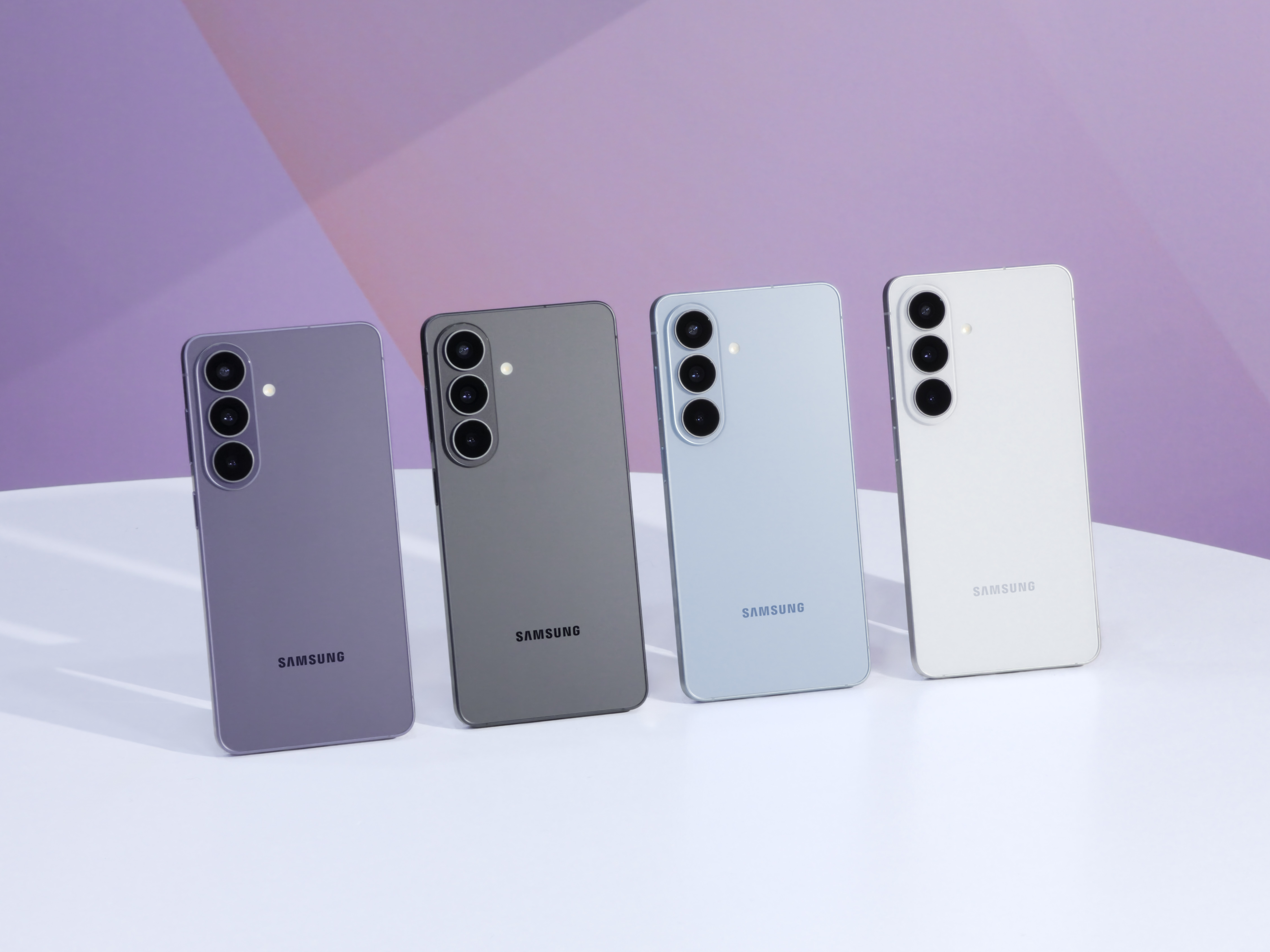
App cache is the rubbish that builds up as you use a phone: thumbnails, half-loaded web pages, temporary downloads. Samsung UK’s own advice is the per-app route above, Settings > Apps > [app] > Storage > Clear cache, because it is reversible and harmless. Do it for the worst hoarders first, usually your browser, social apps and anything that streams. Avoid Clear data unless you are happy to sign back in and reconfigure, since that resets the app to its installed state.
The bigger drag is apps that never truly stop. In Settings > Battery and device care > Battery you will find Background usage limits, where Sleeping apps and Deep sleeping apps let you park software you rarely open so it cannot wake itself and chew through memory. Putting a handful of needy apps into Deep sleeping apps is one of the most effective single changes you can make. Turn on Adaptive battery in the same menu and One UI learns which apps you actually use and throttles the rest. This is the same battery-and-memory thinking we applied in our look at the Android 17 features that matter for UK users.
One UI and Good Lock tweaks that cut the lag you can feel
Some slowness is real, and some is just animation. Galaxy phones default to fairly leisurely transitions, and trimming them makes the whole interface feel quicker even when nothing else changes. Enable Developer options by tapping Settings > About phone > Software information > Build number seven times, then in Settings > Developer options set Window animation scale, Transition animation scale and Animator duration scale to 0.5x. Nothing is removed; the phone simply stops dawdling between screens.
For more control, install Good Lock free from the Galaxy Store. Its Home Up and Theme Park modules let you tighten animation speed and tidy the home screen, while keeping everything official Samsung code rather than a third-party launcher. Higher up the range, the S25 and S26 series add a Light performance profile under Settings > Battery and device care > Performance profile that trims CPU and GPU load for cooler, steadier running. If you are weighing a newer handset to get those options, our verdict on whether the Galaxy S26 is worth it in the UK sets out where the money goes.
Remove the bloatware you never open
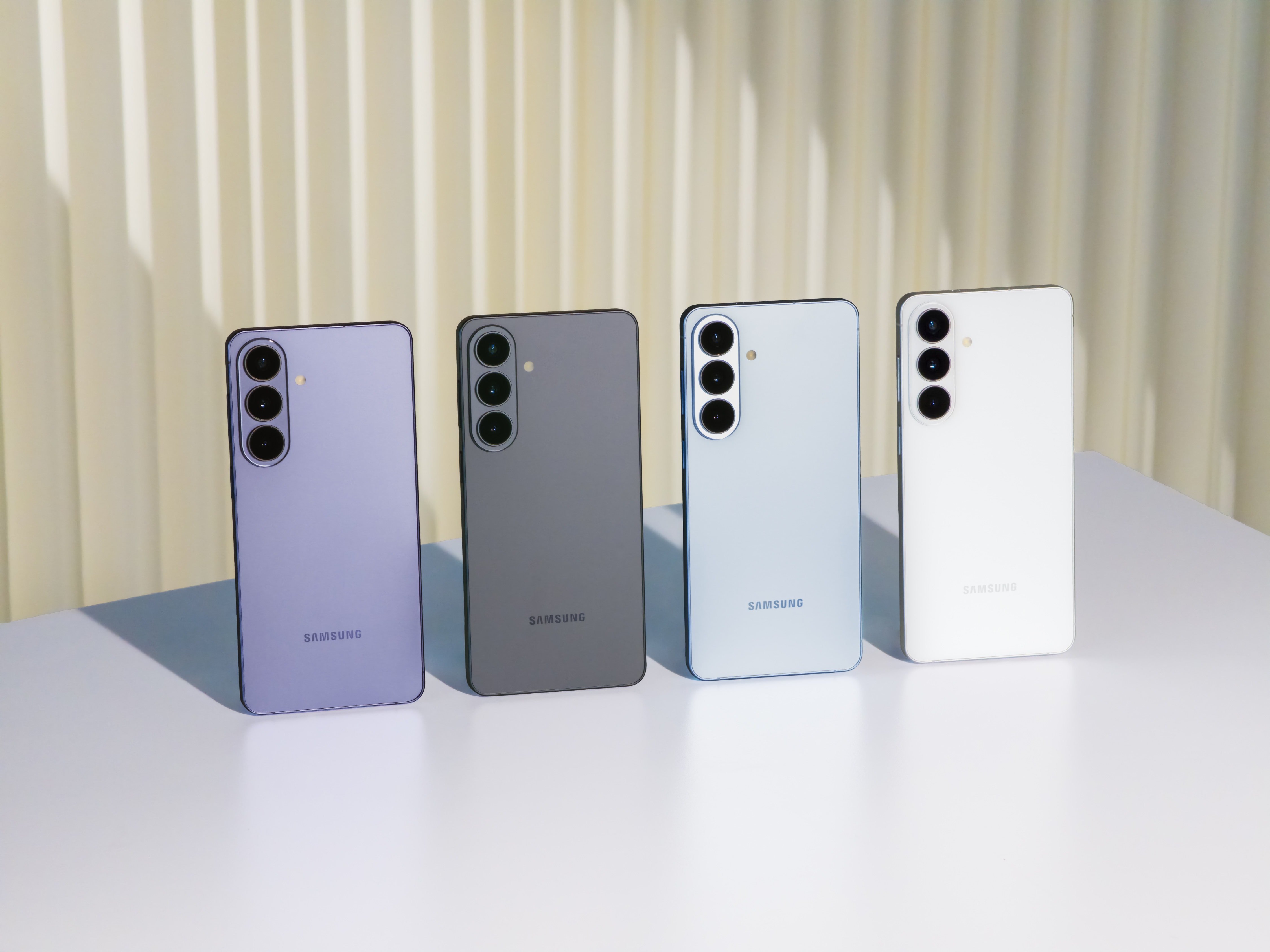
Most Galaxy phones ship with pre-installed apps you will never touch, and even when you cannot uninstall them you can stop them running. Press and hold an app icon, then choose Disable where it is offered, or go to Settings > Apps, open the app and tap Disable or Uninstall. A disabled app vanishes from the app list and stops receiving updates and background wake-ups, which frees both storage and memory. Network carrier and partner apps are the usual candidates; system components without a Disable option are best left alone.
Trimming the home screen helps too. Each live wallpaper and active widget runs in the background, so a static wallpaper and a couple of fewer widgets lighten the load on an older Galaxy without removing anything you rely on.
Disabling the apps you never open frees storage and memory at once, and you can switch any of them back on later.
Be selective rather than aggressive. Disable the obvious dead weight, leave anything you are unsure about, and remember that everything you switch off can be re-enabled later from the same Apps menu. If keeping accessories and trackers connected matters to you, our walkthrough of Google Find Hub in the UK explains which background services genuinely earn their keep.
When it is the hardware, not the software
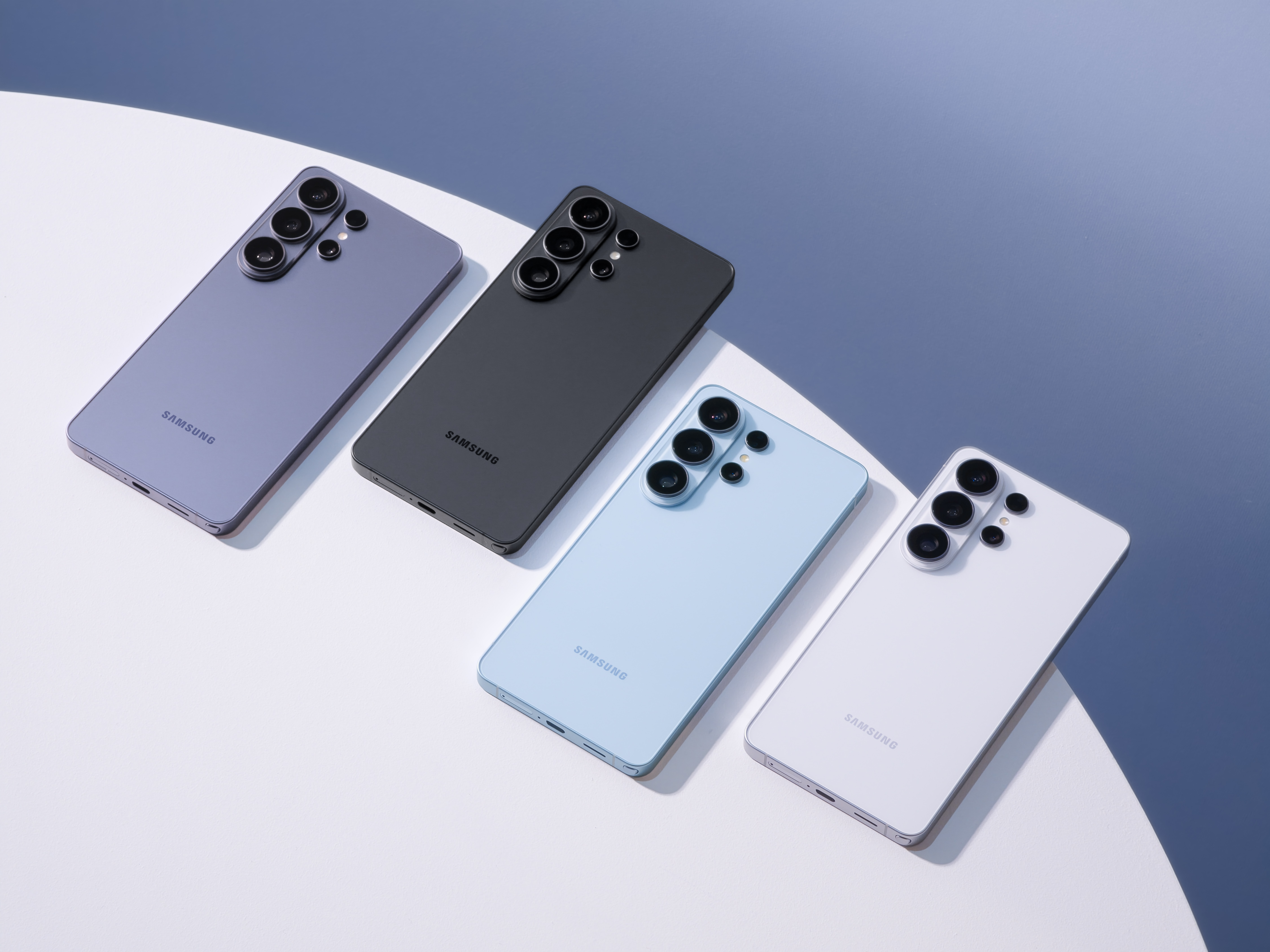
There is a point where no setting will help, and the honest answer is the hardware. The clearest sign is the battery. Check Settings > Battery and device care > Battery for the health and capacity reading; once a battery falls below roughly 80 per cent of its original capacity, the phone throttles itself to avoid sudden shutdowns, and that feels exactly like sluggish software. A Samsung-authorised battery replacement, often around £60 to £90 in the UK depending on model, is far cheaper than a new phone and can add two more years of usable life.
A factory reset is the last software lever. Back up first, then Settings > General management > Reset > Factory data reset; it wipes years of accumulated cruft and is worth trying before you spend money. The free Samsung Members app runs hardware diagnostics and books repairs, and the standard Samsung UK two-year manufacturer warranty may cover a genuine fault at no cost. If the phone is simply old, Samsung UK’s trade-in scheme gives credit against a new Galaxy, and our pick of the best mid-range Android phones in the UK under £500 shows what that credit buys today. When you do move on, our guide to switching mobile network with a PAC code keeps your number with you.
For almost every UK Galaxy owner, an hour of housekeeping beats a new phone. Run Battery and device care, install the latest One UI, free up storage to leave 10 to 15 per cent headroom, clear app caches, send needy apps to Deep sleeping apps, and trim the animation scales. Most phones from the Galaxy S21 onward feel markedly quicker after that, and none of it costs anything. We would only spend money in two cases: if the battery health has dropped below 80 per cent, where an authorised replacement at roughly £60 to £90 is the smart fix, or if the phone predates One UI 8.5 support entirely and is missing security updates. Before buying anything, run a Samsung Members diagnostic and check your warranty; a fault Samsung covers should never become a reason to upgrade. What would flip our advice is age plus a tired battery together, at which point trade-in credit toward a current Galaxy makes more sense than chasing a phone that has run out of road.
Related reading on MTW
Buyer action
Where to buy or check next
Use this as the final check before ordering a phone, changing network or trusting a headline monthly price.












Reader discussion
Leave a comment
Comments are moderated. Keep it useful, accurate, and on topic.