If you want to move to a new Android phone in the UK this year, the single most useful thing to know is that the cable method moves your apps, your data and even most of your settings in one pass, and Google confirms on its official Android Help pages that the cable is its recommended setup route, with the wireless option moving the same data more slowly. Samsung says the same about its own Smart Switch tool: a USB-C to USB-C cable between the two handsets is the fastest, most complete route, and it works whether your old phone is a Galaxy, a Pixel, a Motorola or anything else running Android. Plug the two together during setup, sign in to your Google account, choose what to bring, and most of your digital life rebuilds itself on the new device while you make a cup of tea.
Cable is king: Google’s Android Help confirms a wired transfer copies apps, app data, photos, videos, contacts, texts and “most phone settings” in a single pass; wireless copies the same data but more slowly (Google, support.google.com, checked 12 June 2026).
Do it during setup: Google warns you can only run the main “Copy apps & data” transfer once, and the option may disappear after initial setup, so start it before you finish the welcome wizard.
WhatsApp needs its own backup: chat history rides on a separate Google Drive backup tied to your phone number, not the system transfer (WhatsApp Help Centre, 2026).
Trade-in money is real: independent recyclers such as musicMagpie, Currys and Samsung Trade-In pay roughly 60-80% of open-market value, and a working phone loses about a quarter of its trade-in worth for every year it sits in a drawer (Selectra, 2026).
Wipe in the right order: remove your Google and Samsung accounts first, then factory reset, or Factory Reset Protection will demand your old Google account password before the buyer can set the phone up (Google Account Help, 2026).
How to move to a new Android phone: the one-pass cable transfer
Start with the part that does most of the heavy lifting. When you power on any new Android handset, the welcome wizard asks you to connect to Wi-Fi and then offers to “Copy apps & data” from another device. Tap Copy, and when it asks how to connect, choose the cable. Google’s own guidance recommends the wired route because it is faster and least likely to drop mid-transfer. You will need a cable that fits both phones, almost always USB-C to USB-C on modern handsets, and if one device is older you may need a small USB-OTG adapter. Once connected, sign in to your Google account on the old phone, pick Everything or a custom selection, tap Copy again, and wait. Google says the process can take anywhere from a few minutes to over an hour depending on how much you are carrying.
What actually crosses over? Google lists apps and certain app data, music, photos, videos, contacts stored on the phone or SIM, text messages, multimedia in those texts, wallpaper, call history and “most phone settings”. What does not come automatically: downloaded files in your Downloads folder, content in hidden folders, apps you sideloaded from outside the Play Store, and any app that has not built in Android’s backup support. That is worth knowing before you wipe the old handset, because anything in those gaps needs a manual copy. If you have spent the last year reading our coverage of the Android 17 features UK phone owners actually get, you will recognise that Google has been steadily widening what the system backup captures, but downloads and sideloaded apps remain your responsibility.
If you cannot transfer during setup, all is not lost, but it gets fiddlier. You can finish setup, then trigger the wireless route by opening the Google app on the old phone, searching “set up my device”, and following the matching-shapes pairing prompt. This is also the fallback if you do not have a suitable cable. Wireless copies the same categories of data; it simply takes longer and asks you to keep both phones awake and plugged in. For most people the cleanest path is still to pause, find a cable, and run the wired transfer before tapping past the welcome screens.
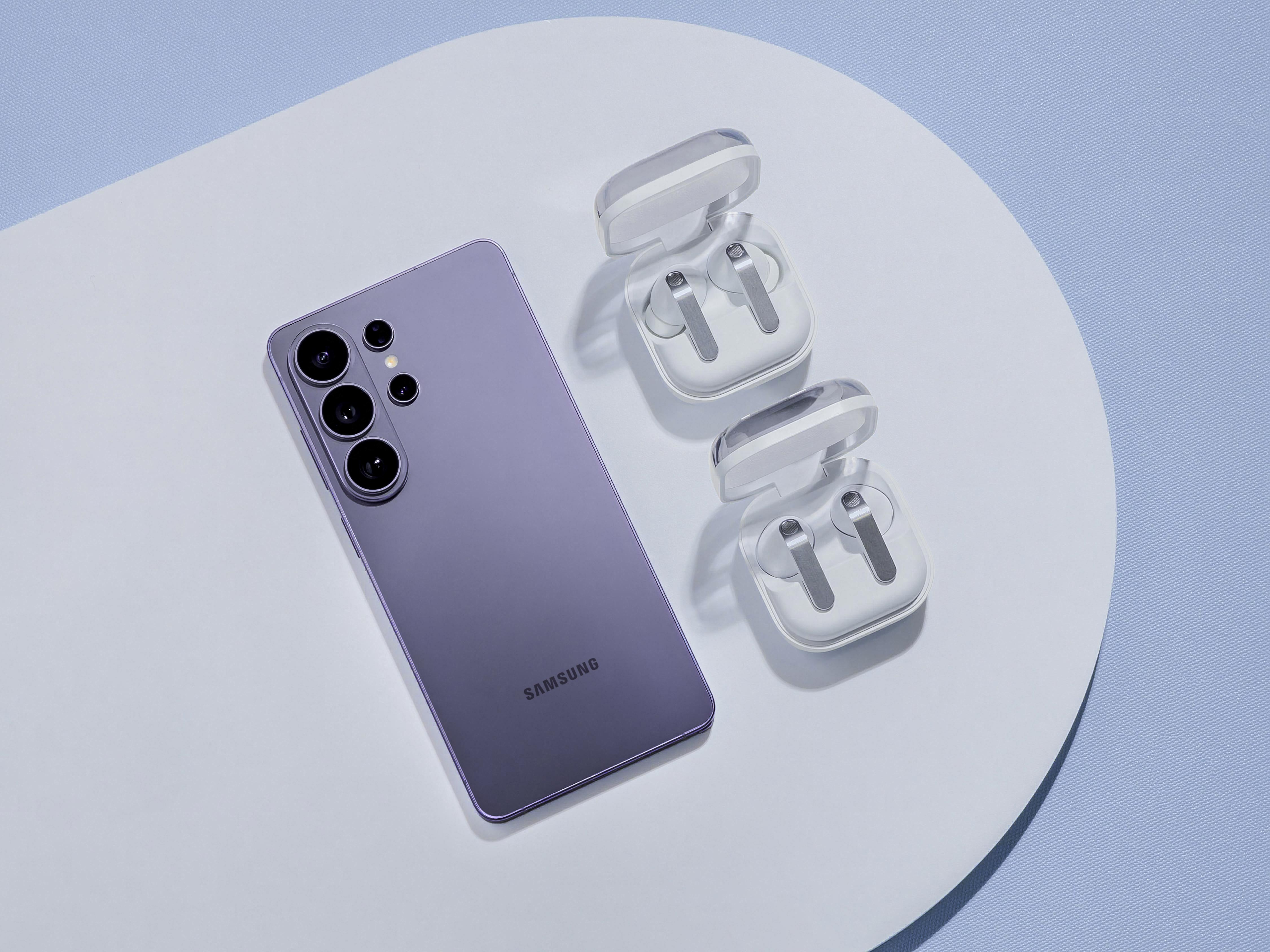
Image: Samsung
Galaxy to Galaxy: Samsung Smart Switch
If your new phone is a Samsung, the equivalent tool is Smart Switch, and it is baked into the setup wizard rather than being a separate download on a new Galaxy. Samsung’s support pages describe the same three-way choice you get with Google’s tool: a wired transfer over USB-C, a wireless Wi-Fi Direct transfer, or restore from an external microSD or USB drive. On the new Galaxy you tap Receive, choose Galaxy/Android, then select wireless or cable; on the old phone you tap Connect. Smart Switch scans the old device and offers Everything, Just accounts, calls, contacts, and messages, or a Custom selection. Samsung explicitly calls the wired route the recommended method because it transfers the most data types, including some that wireless skips. Our advice for anyone weighing whether the new flagship is even worth it sits in our piece on whether the Samsung Galaxy S26 is worth it in the UK.
One genuinely useful 2026 addition: a number of new Galaxy phones now show a QR code during first-time setup that you scan with the old phone to kick off the transfer automatically, rather than opening the app and tapping through menus by hand. It is a small thing, but it removes the most common point of confusion, which is people not realising Smart Switch is already running under a different name on the new device. If you are coming from an iPhone rather than another Android, Smart Switch can also pull from an iCloud backup or over a Lightning-to-USB-C cable, though that is a different journey to the one most UK upgraders are making this summer.
The cable transfer does the bulk of the work, but WhatsApp, your eSIM and a proper old-phone wipe are three jobs the wizard will not finish for you.
Image: Samsung
Google account backup and restore
Underneath both tools sits your Google account, and it is the single most important thing to get right. Before you start, open Settings > Google > Backup on the old phone and tap Back up now so that contacts, calendar, app data, Google Photos and device settings are current in the cloud. Even if the cable transfer does most of the work locally, a fresh Google backup is your safety net: sign in with the same account on the new phone and anything that did not come across the cable can be pulled down from Drive. Google Photos deserves special attention, because if you have backup enabled your library lives in the cloud regardless of which handset you hold; just confirm the toggle is on under Photos > Profile > Photos settings > Backup. We covered the wider locate-and-recover toolkit in our guide to Google Find Hub in the UK, which is the same account plumbing you will lean on if a phone goes missing mid-move.
A common stumbling block is two-factor authentication. Banking apps, authenticator apps and some work accounts will ask you to re-verify on the new phone, and a few authenticator apps do not migrate their codes through the system transfer at all. Before you wipe the old handset, open your authenticator app and use its export or “transfer accounts” feature to move your codes deliberately. The same applies to any app holding a season ticket, a railcard or a digital car key. Treat the cable transfer as the floor, not the ceiling: it gets you 90% of the way, and a short checklist of accounts handles the rest.
Moving WhatsApp without losing your history
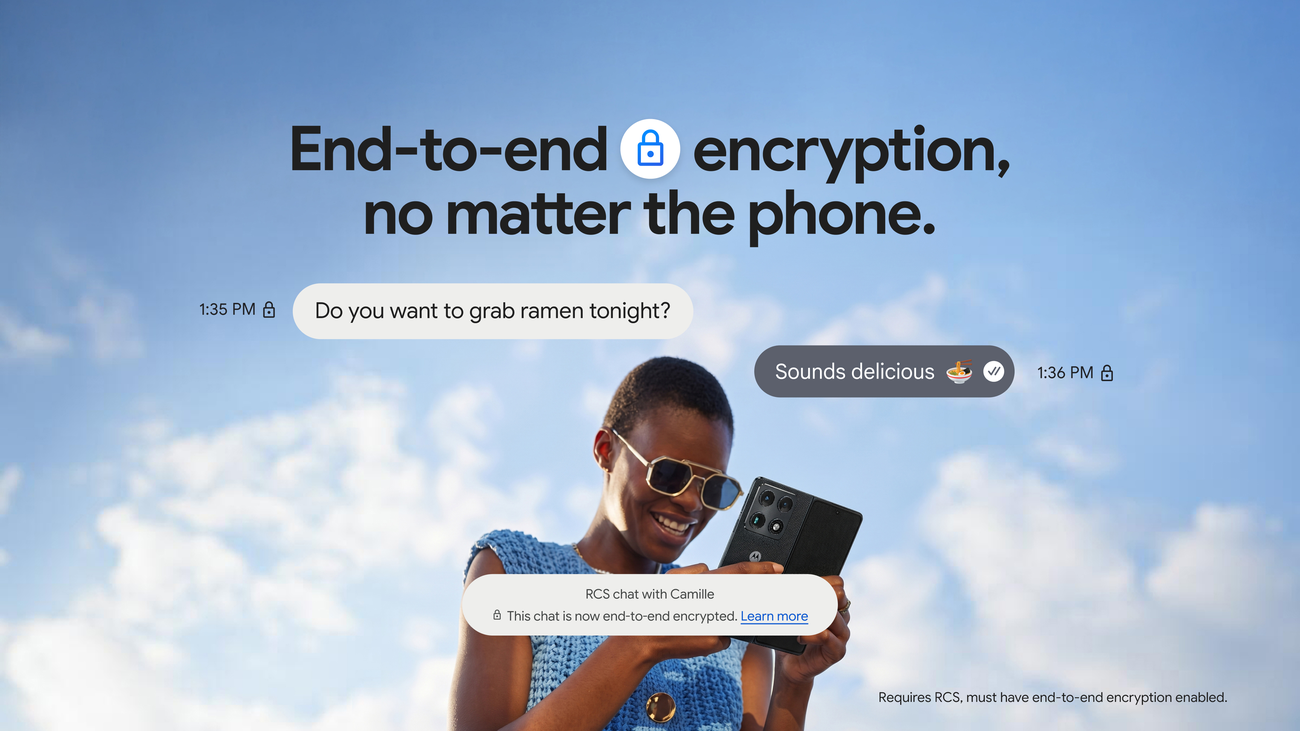
WhatsApp is the one almost everyone worries about, and rightly so, because its chat history does not ride along with the system transfer. It lives in a separate Google Drive backup tied to your phone number. On the old phone, open WhatsApp, tap the three dots, then Settings > Chats > Chat backup and tap Back up to push a current copy to Drive. On the new phone, install WhatsApp from the Play Store, verify the same phone number, and when prompted tap Restore. As long as you used the same Google account and the same number, your chats and media reappear. The catch worth flagging: you cannot merge old history with anything you create on the new phone first, so restore before you start chatting. If you are mid-way through changing networks too, our notes on RCS end-to-end encryption on Android and iPhone explain why your standard text messages are increasingly protected as well.
Image: Google
If WhatsApp is central to your life, plug both phones into power and connect to Wi-Fi before you restore; the backup can run to several gigabytes once photos and voice notes are included, and a half-finished restore on mobile data is a miserable place to be. Business users running WhatsApp Business should note that catalogue and away-message settings live in the same backup, a point we expanded on in our look at WhatsApp Business AI for UK small businesses.
Photos, files and the things people forget
Photos are usually the easy bit if Google Photos backup was on, but check the free-storage maths first. A standard Google account gives you 15GB shared across Gmail, Drive and Photos, and a heavy photographer fills that quickly; Google One plans start at a few pounds a month if you need more headroom during the move. Beyond photos, the classic gaps are your Downloads folder, WhatsApp media exported outside the app, ringtones, and anything you saved to a physical microSD card. If the old phone takes a card and the new one does not, copy that content to a laptop or cloud drive before you trade in. None of this is hard, but it is exactly the material the welcome wizard quietly leaves behind.
Transferring your eSIM or PAC code
Your mobile number is a separate job from your data, and how you handle it depends on whether you are keeping your network or switching. If you are staying with the same network and your old phone uses a physical SIM, you simply move the SIM tray across, or swap to a nano-SIM if the new phone needs one. If you are on an eSIM, you cannot just copy it: contact your network, EE, O2, Vodafone, Three or your MVNO, and ask them to reissue the eSIM as a QR code for the new device. We walked through the cross-platform version of this in our guide to transferring an eSIM from iPhone to Android in the UK, and the network-side steps are the same when both phones are Android.
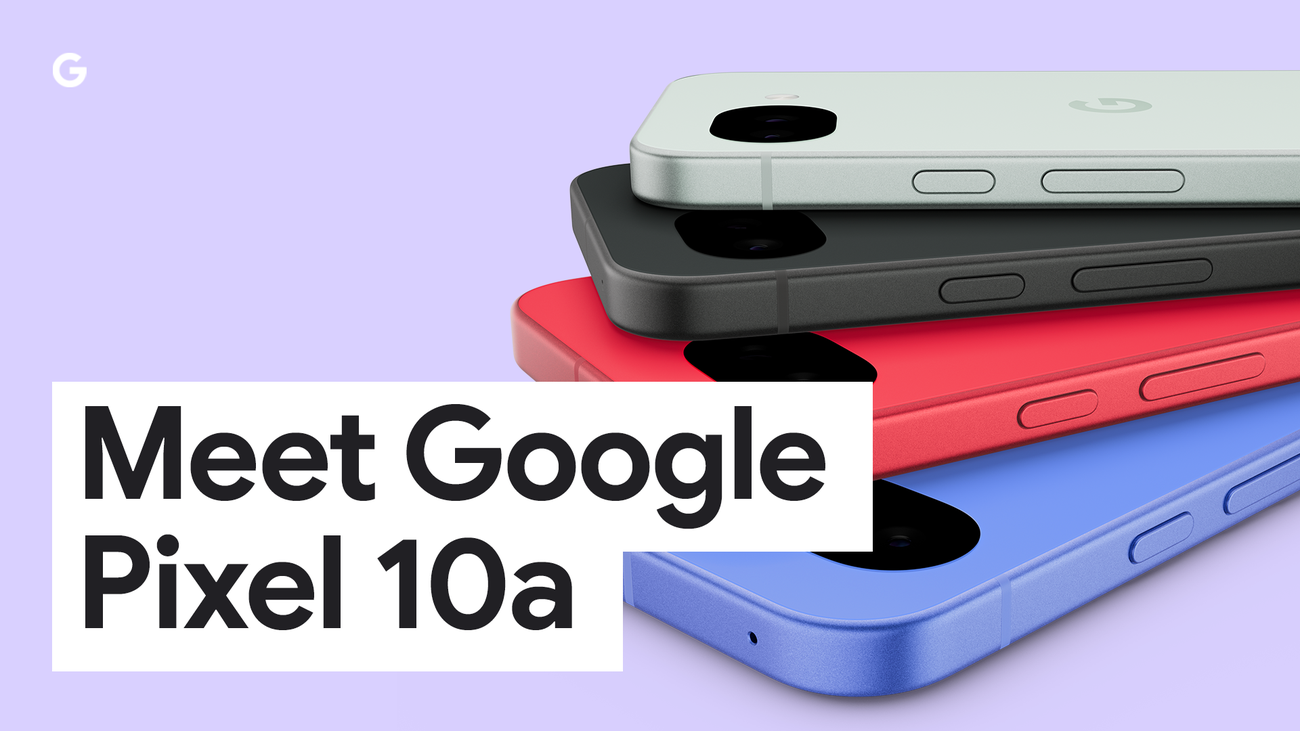
Image: Google
If you are changing networks at the same time as changing phones, you want a PAC code. Text PAC to 65075 from your current handset and your provider must, under Ofcom rules, send back your PAC and any outstanding balance within a minute. Hand that code to your new network and your number moves across within one working day. Do not wipe or cancel the old SIM until the number has ported, or you risk a gap in service. For readers comparing where to land, our rundown of EE’s refurbished phone plans is a useful reference on what the carrier deals actually include.
Wiping and trading in the old phone safely
Order matters here, and getting it wrong can lock your buyer out. First, sign out of and remove every account: go to Settings > Accounts, remove your Google account, then remove your Samsung (or Xiaomi, or Honor) account separately, because manufacturer accounts sit on a different system. Turn off Find My Device if it does not clear automatically. Only then run Settings > System > Reset options > Erase all data (factory reset). If you reset before removing it, Google’s Factory Reset Protection keeps the phone tied to your account and demands your Google credentials before anyone can set it up again, which is great anti-theft security but a disaster if you wipe in the wrong order and then post the handset to a recycler. Remove the eSIM profile too, using the Erase eSIM option, so the next owner cannot touch your network account.
Then comes the money. UK trade-in is more generous than most people assume, and it is worth getting at least two quotes. Independent recyclers such as musicMagpie and Envirofone typically pay 60-80% of open-market value and, unlike networks, will accept a cracked or damaged phone; musicMagpie pays the same day your device arrives. Manufacturer schemes from Samsung and Google often bundle a trade-in bonus when you buy the new handset directly, and Currys runs an online calculator that quotes against your exact model. The gap between quotes can be wide, with the same model often varying by 20-30% from one site to the next, so shopping the price is real money. Just remember the depreciation clock: every year a working phone sits unused, it loses roughly a quarter of its trade-in worth. If you are still deciding whether to upgrade at all, our argument that you should not buy a new phone for an Android AI upgrade alone is worth a read before you part with the cash.
Image: Google
Where to check next in the UK
Before you start, line up the official references and at least two trade-in quotes so you are not improvising mid-move (prices last checked: 12 June 2026):
Google Android Help (support.google.com/android): the canonical “Copy apps & data” steps, updated for current Android.
Samsung UK Smart Switch (samsung.com/uk/support): wired and wireless transfer walkthroughs for new Galaxy phones.
Currys Trade-In (currys.co.uk): online calculator quoting against your exact model; will not take phones that fail to power on.
Samsung and Google Trade-In: manufacturer bonuses when you buy the new phone direct, often beating third parties on recent flagships.
Your network (EE, O2, Vodafone, Three): request an eSIM QR reissue, or text PAC to 65075 if you are porting your number.
In our buyer notes, the people who find this stressful are almost always the ones who skipped the cable and tapped past the welcome wizard before running the transfer. Do it the official way and the move is genuinely close to one-touch: wired Smart Switch or Google’s “Copy apps & data” rebuilds the bulk of your phone while you watch. The three jobs the wizard will not finish for you are WhatsApp (its own Drive backup), your number (eSIM reissue or a PAC code), and a safe wipe of the old handset in the right account-then-reset order. Handle those three, get two trade-in quotes before you post anything, and you will have moved everything across and turned the old phone into £100-plus toward the new one. If you are weighing which Android to land on, our best iPhone alternative in the UK for 2026 rundown pairs neatly with this guide.
Does Samsung Smart Switch transfer everything, including apps?
Largely, yes. Samsung says the wired transfer is the most complete, carrying contacts, photos, videos, messages, call logs, apps and many settings. It cannot move app login sessions, so you will re-sign into banking and authenticator apps, and a few apps without backup support may need reinstalling from the Play Store.
Can I move to a new Android phone without a cable?
Yes. Both Google’s “Copy apps & data” and Samsung Smart Switch offer a wireless option using Wi-Fi Direct. It copies the same data as the cable but more slowly, and you must keep both phones awake and charged. Google still recommends the cable because it is faster and less likely to interrupt.
How do I keep my WhatsApp chats when switching Android phones?
WhatsApp history is not part of the system transfer. On the old phone go to Settings, Chats, Chat backup and tap Back up to Google Drive. On the new phone, install WhatsApp, verify the same number, and tap Restore when prompted. Use the same Google account and number, and restore before sending any new messages or it will not merge.
Will my photos transfer automatically?
If Google Photos backup is switched on, your library is already in the cloud and appears on the new phone the moment you sign in. Check the toggle under Photos settings, Backup. A free Google account includes 15GB shared across Gmail, Drive and Photos; heavy users may need a Google One plan, which starts at a few pounds a month, during the move.
How do I move my eSIM to the new Android phone?
You cannot copy an eSIM directly. Contact your network, EE, O2, Vodafone, Three or your MVNO, and ask them to reissue the eSIM as a QR code for the new handset. Many UK networks now offer self-service eSIM swap in their app. Delete the old eSIM profile before you sell or recycle the phone.
How do I keep my phone number if I am also changing network?
Text PAC to 65075 from your current phone. Under Ofcom rules your provider must send your PAC code and any balance within a minute. Give the code to your new network and your number ports within one working day. Do not cancel the old SIM until the number has moved, or you risk a service gap.
What is the right order to wipe my old Android before selling it?
Remove your Google account first, then remove any manufacturer account such as Samsung separately, turn off Find My Device, delete the eSIM, and only then run a factory reset under Settings, System, Reset options. Wiping before removing accounts can leave Factory Reset Protection demanding your old Google account credentials before anyone can set the phone up.
How much is my old Android phone worth as a UK trade-in?
Independent recyclers such as musicMagpie and Envirofone typically pay 60-80% of open-market value and accept damaged phones; musicMagpie pays the same day it arrives. Quotes vary widely, often by 20-30% on the same model, so get at least two. A working phone loses about 25% of its value each year unused.
Can I transfer data after I have finished setting up the new phone?
The main Google “Copy apps & data” transfer is designed to run once, during initial setup, and may not be available afterwards. If you have already finished, you can still restore from your Google account backup and use the wireless “set up my device” prompt, but the cleanest result comes from running the transfer before you complete the welcome wizard.
Do I need to back up to Google before doing a cable transfer?
It is strongly recommended. Even though the cable copies data locally, a fresh Google backup (Settings, Google, Backup, Back up now) is your safety net: anything that does not cross the cable, including some app data, can be pulled from Drive when you sign in on the new phone with the same account.
We use cookies to make this site work, measure how it is used, and (with your consent) personalise advertising. Strictly necessary cookies always run. Analytics and advertising cookies run only if you accept. See our Cookie Policy and Privacy Policy.
MobileTechWorld Ltd — Companies House registration 16224011. Independent UK technology publisher since 2009.
















Reader discussion
Leave a comment
Comments are moderated. Keep it useful, accurate, and on topic.