Samsung has confirmed that Galaxy AI features remain completely free throughout 2026, and with One UI 8 the feature set has exploded. Whether you own a Galaxy S26, S25, or even an A-series phone, you now have access to Galaxy AI features that genuinely change how you use your device. The problem is that most people have no idea these Galaxy AI features exist, let alone how to activate them. Here is your complete guide to every Galaxy AI feature worth using right now.
- Galaxy AI ships across the Galaxy S26 line and is backported to S24, S25, Z Fold6 and Z Flip6 via One UI 7 and 8 updates.
- Headline features include Circle to Search, Live Translate for calls, Note Assist, Photo Assist generative edits, and on-device Browsing Assist in Samsung Internet.
- Many Galaxy AI features are processed on-device via the Snapdragon 8 Elite NPU and Samsungs own Exynos NPU; some cloud-tier features will become paid after end of 2025.
- Why it matters: UK Galaxy owners should toggle individual features in Settings > Advanced features > Advanced intelligence to avoid sending sensitive content off-device.
Step 1: Enable Galaxy AI Features in Settings
Before anything else, you need to make sure Galaxy AI is switched on. Open Settings > Galaxy AI and toggle the master switch to on. This unlocks all AI-powered features across your device. You will also see options to manage data processing preferences , choose whether AI tasks are handled on-device only or via Samsung cloud servers. On-device processing is slower but keeps your data private; cloud processing is faster but sends data to Samsung servers.
Step 2: Master Gemini as Your AI Assistant
The biggest change in One UI 8.5 is Samsung’s new multi-agent AI system, which lets you pick between an upgraded Bixby, Gemini and Perplexity for assistant duties. Long-press the side button to summon your chosen agent, and you will immediately notice the difference. Gemini handles complex, multi-step requests especially well.
Try saying: “Find Italian restaurants near me that are open tonight, check the reviews, and book a table for two at 7pm.” Gemini will search, compare options, and handle the reservation , all without you touching the screen. This agentic AI capability is genuinely useful and works with supported apps including Google Maps, Samsung Calendar, and third-party booking services.
To set up Gemini as your default assistant, go to Settings > Apps > Default apps > Digital assistant app and select Gemini. If you prefer, you can also set Perplexity AI as an alternative , Samsung is the first manufacturer to offer this choice.
Step 3: Circle to Search and Smart Select
Circle to Search is addictive once you start using it. Long-press the home button or navigation bar, then draw a circle around anything on your screen , a product in an Instagram photo, a landmark in a video, text in a foreign language. Google AI instantly identifies it and serves relevant search results, shopping links, or translations.
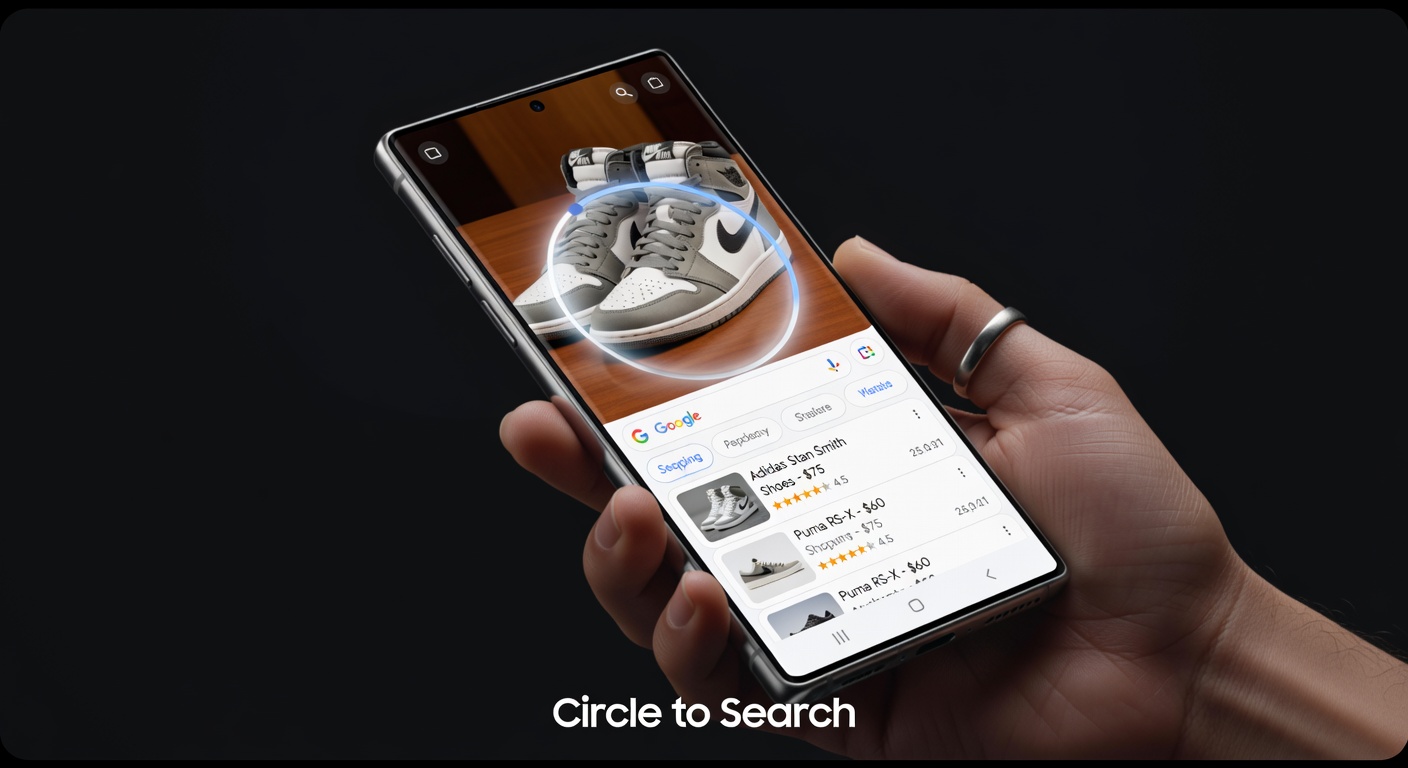
The 2026 update adds music recognition to Circle to Search. Hear a song playing? Circle the media player notification and Samsung will identify the track instantly. It also now works within video playback, pausing the frame and letting you circle objects mid-video.
Step 4: AI Photo and Video Editing in Gallery
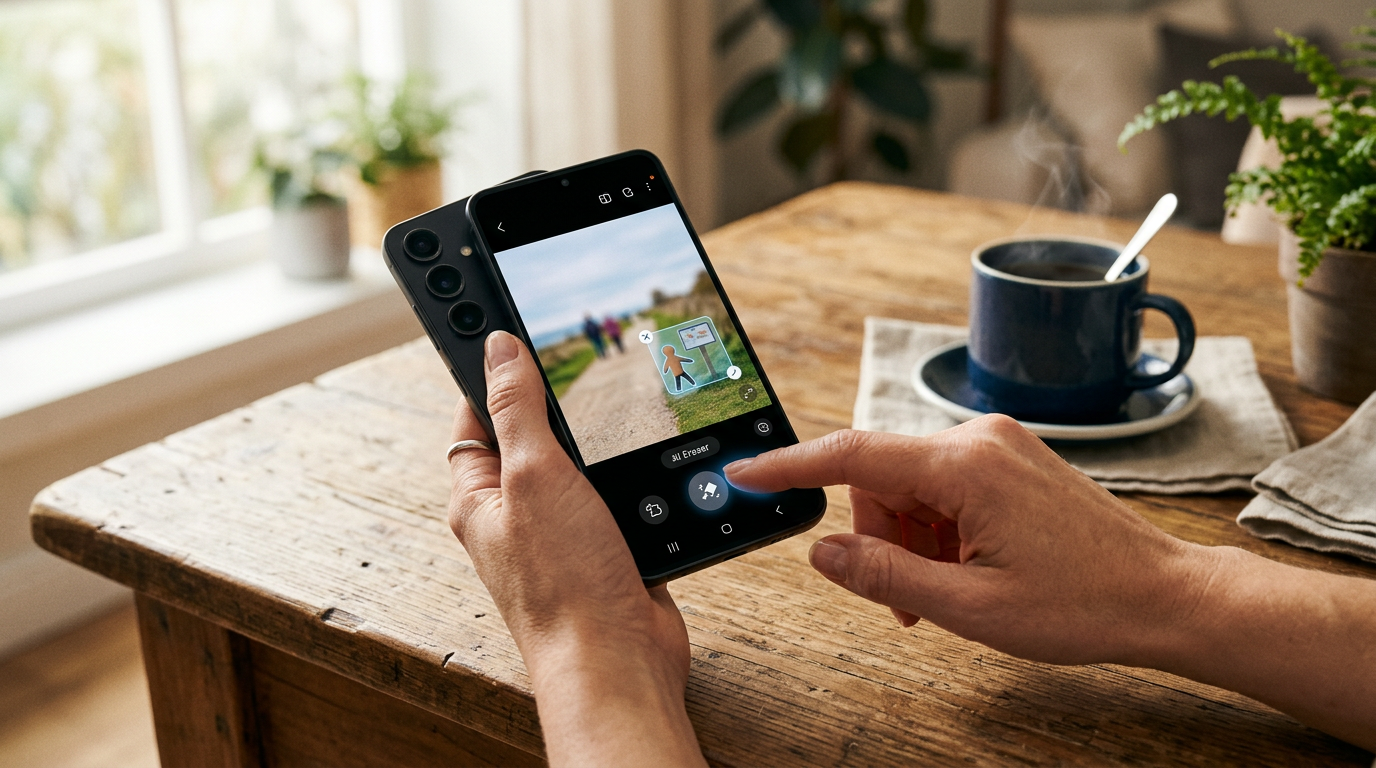
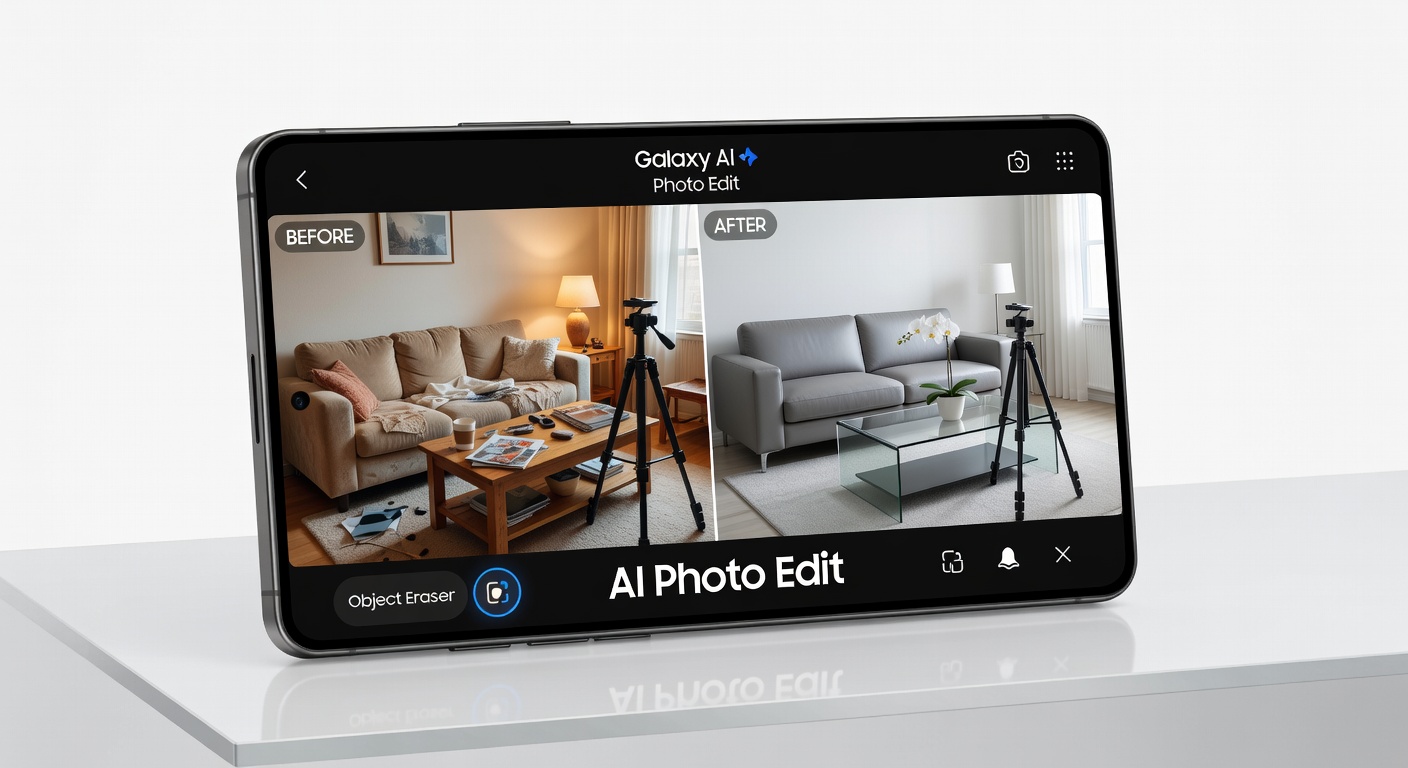
Open any photo in Samsung Gallery and tap the AI edit button (the sparkle icon). You now have access to Creative Studio, which lets you edit photos using natural language. Type “make the sky more dramatic” or “remove the person in the background” and the AI handles it. The results are surprisingly good , not perfect, but far beyond what any built-in photo editor offered even a year ago.
For video, the new Audio Eraser feature is a genuine step forward. It can isolate and remove background noise , wind, traffic, crowd chatter , from your recordings while preserving voices. Access it through the video editor by tapping the audio track and selecting AI Audio Eraser.
Step 5: Live Translate, Now Brief, and Scam Call Detection
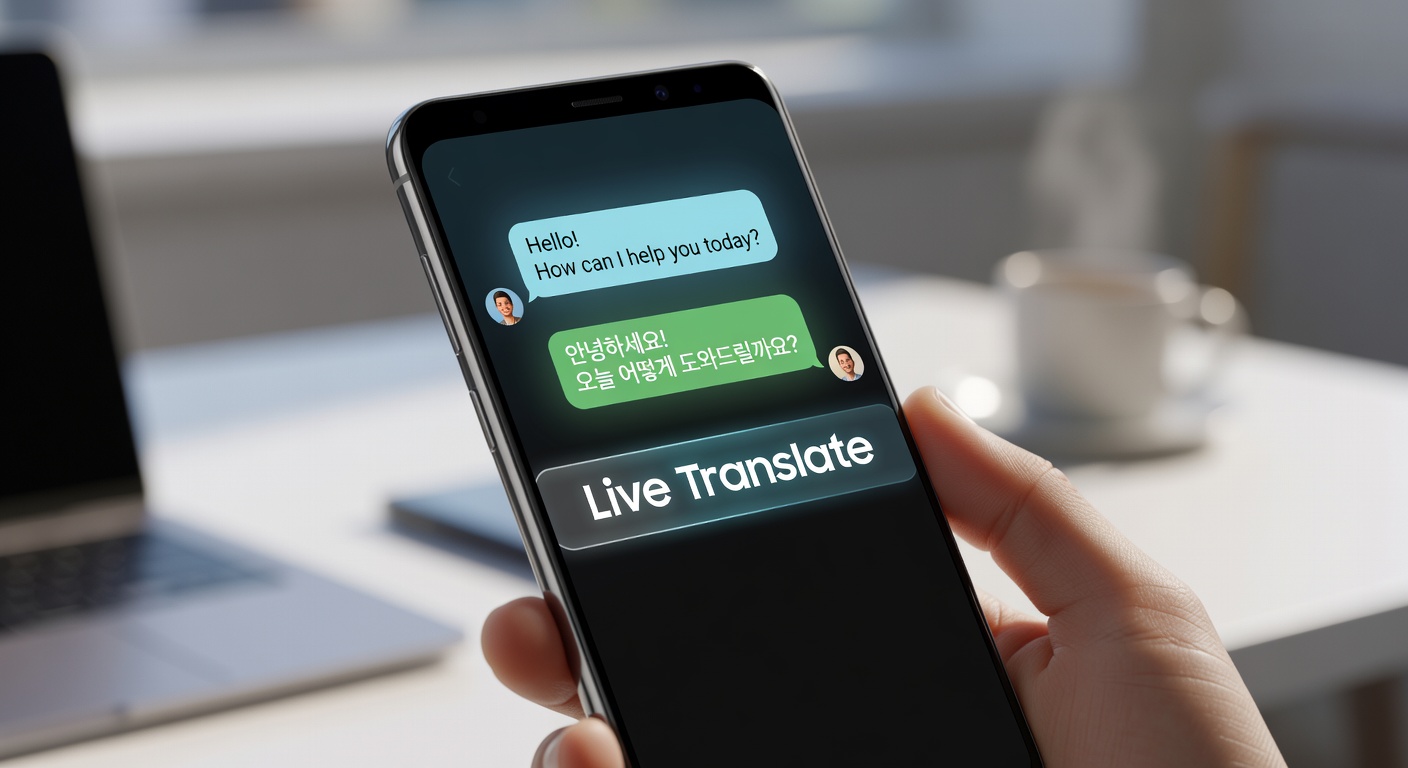
Live Translate works during phone calls, translating conversations in real time between 22 supported languages. Enable it in Settings > Galaxy AI > Phone. Both parties hear the conversation in their own language with minimal delay. It is genuinely useful for international business calls or when travelling.
Now Brief is Samsung personalised daily digest. Enable it in Settings > Galaxy AI > Now Brief and it will compile a morning summary of your calendar, weather, commute conditions, and news tailored to your interests. Think of it as a personal briefing that learns your habits over time.
Scam Call Detection analyses incoming calls in real time using on-device AI to identify potential scam patterns. If it detects suspicious behaviour , urgency tactics, requests for personal information, fake authority claims , it will display a warning on screen. Enable it in Settings > Galaxy AI > Phone > Scam call detection. Given the explosion of AI-powered phone scams in 2026, this feature alone justifies having Galaxy AI enabled.
Which Samsung Phones Support Galaxy AI?
Galaxy AI is available on the Galaxy S26 series, Galaxy S25 series, Galaxy S24 series, Galaxy Z Fold 6, Galaxy Z Flip 6, and select A-series phones including the Galaxy A57 5G and Galaxy A56 5G. Older devices receive a subset of features depending on hardware capability. Samsung has committed to keeping Galaxy AI free for the foreseeable future, with no subscription fees required.
Related reading on MTW
Buyer action
Where to buy or check next
Use this as the final check before ordering a phone, changing network or trusting a headline monthly price.












Reader discussion
Leave a comment
Comments are moderated. Keep it useful, accurate, and on topic.