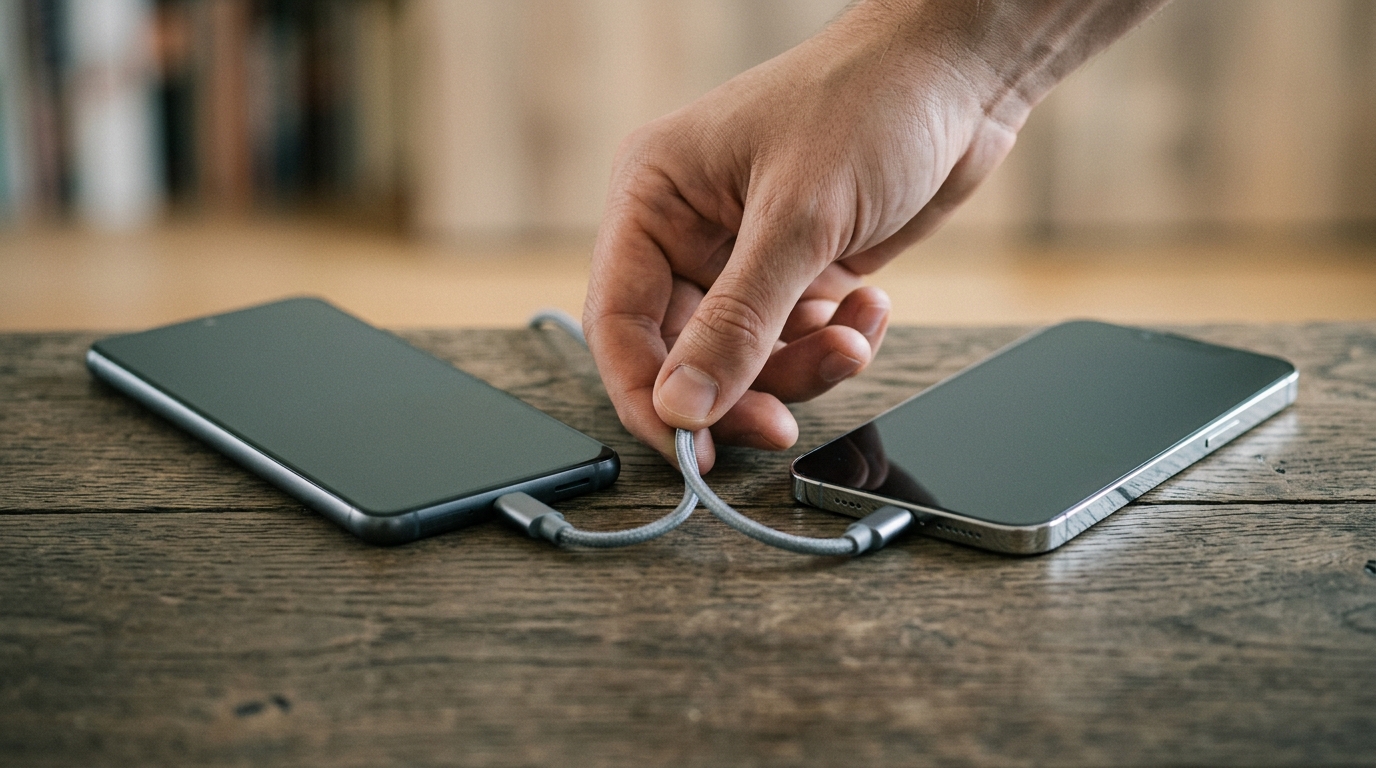
Deciding to switch from iPhone to Android in 2026 is no longer the technological earthquake it used to be. Google has a serious migration tool, RCS messaging means iMessage no longer holds your group chats hostage, and the major UK carriers now actively help you with the process. The friction is mostly in the small stuff , a few stubborn apps, two-factor codes, and the photo library. This guide walks you through every step, in order, so you do not lose anything that matters.
We have done this migration ourselves, twice in 2026, on a Pixel 10 and a Galaxy S26. The whole process takes about 90 minutes of attention spread over half a day. Here is the complete UK guide to switching from iPhone to Android without losing anything.
Before you start: the five-step plan — the switch iphone to android angle
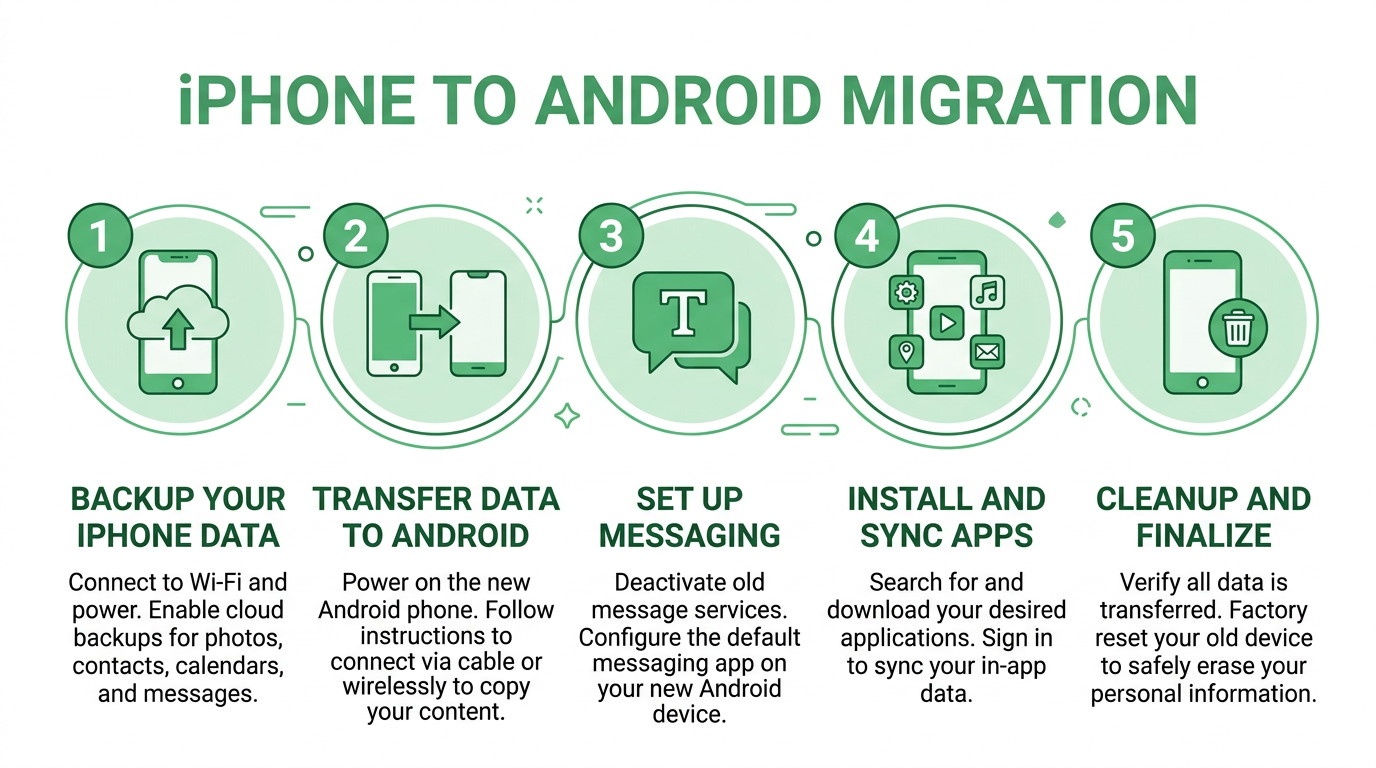
The whole migration breaks into five clear stages. Read them all before you start so you understand the journey, then work through them in order. Skipping ahead is what causes lost messages and orphaned two-factor codes.
Step 1: Back up your iPhone properly — the switch iphone to android angle
On your iPhone go to Settings → [your name] → iCloud → iCloud Backup and run a full backup. Do this on Wi-Fi, with the iPhone plugged in. Then go to iCloud → Photos and confirm your full library is uploaded , not just optimised previews. This is your safety net. If anything goes wrong with the migration, you can wipe the iPhone, restore from this backup and start over with nothing lost.
Step 2: Use Google’s Switch to Android app
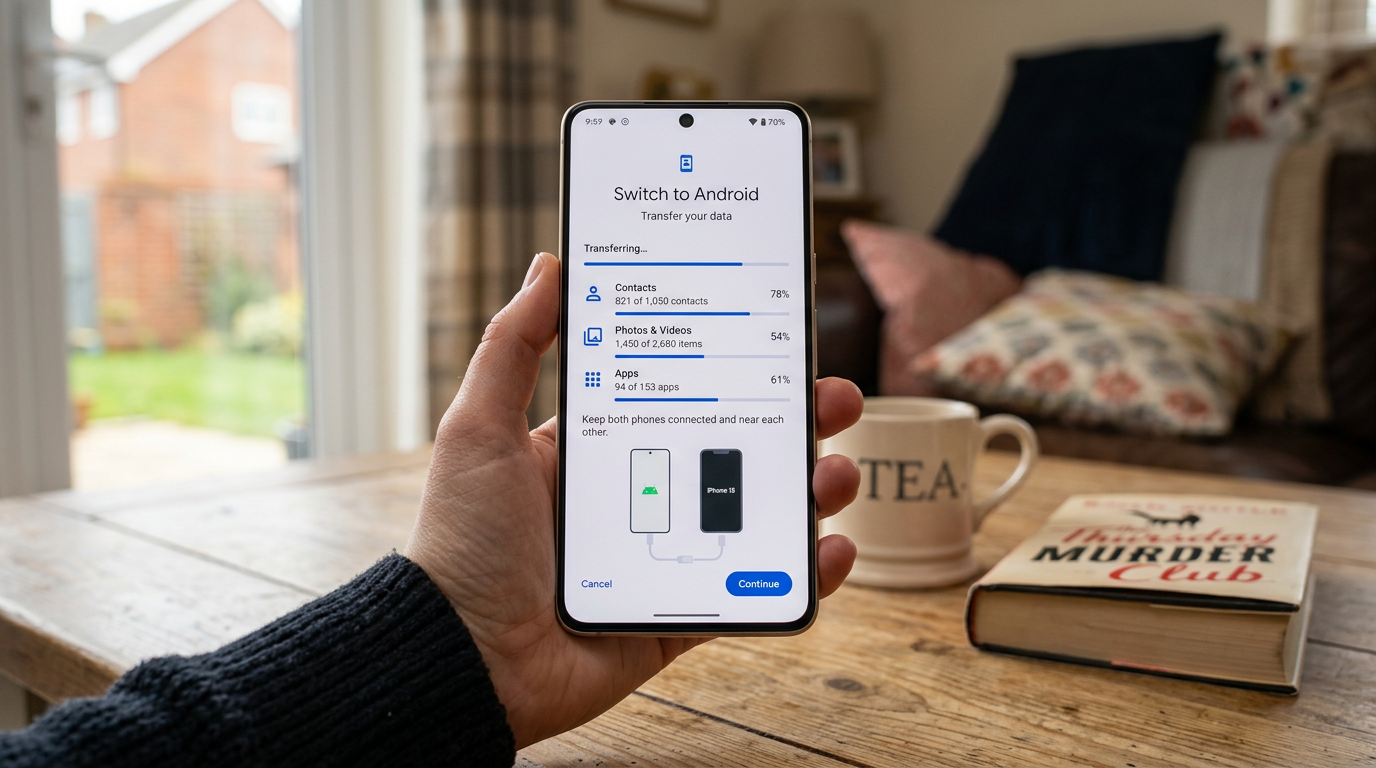
Power on your new Android phone. When prompted, choose ‘Copy your data from another device’ and select iPhone. The new phone will display a QR code; install the Switch to Android app from the App Store on your iPhone, scan the QR code, then choose what to copy: contacts, calendars, photos, videos, messages, WhatsApp chats and most data move across in 20 to 40 minutes depending on your library size.
Keep both phones connected to power and on Wi-Fi during the transfer. Do not touch them. The Switch to Android app handles 95 per cent of what most people care about. The remaining 5 per cent , banking apps, authenticator codes, paid app re-downloads , are dealt with in the next steps.
Step 3: Turn off iMessage and FaceTime
This is the step that traps the most people. Before you take the SIM out of your iPhone, go to Settings → Messages and toggle iMessage off, then Settings → FaceTime and turn FaceTime off. This deregisters your phone number from Apple’s messaging servers. If you skip this, anyone with an iPhone who texts you will see their messages disappear into iMessage and never reach your new Android. If you have already switched and forgotten, use Apple’s official deregister-iMessage page to fix it from a browser.
Step 4: Move the SIM and reactivate
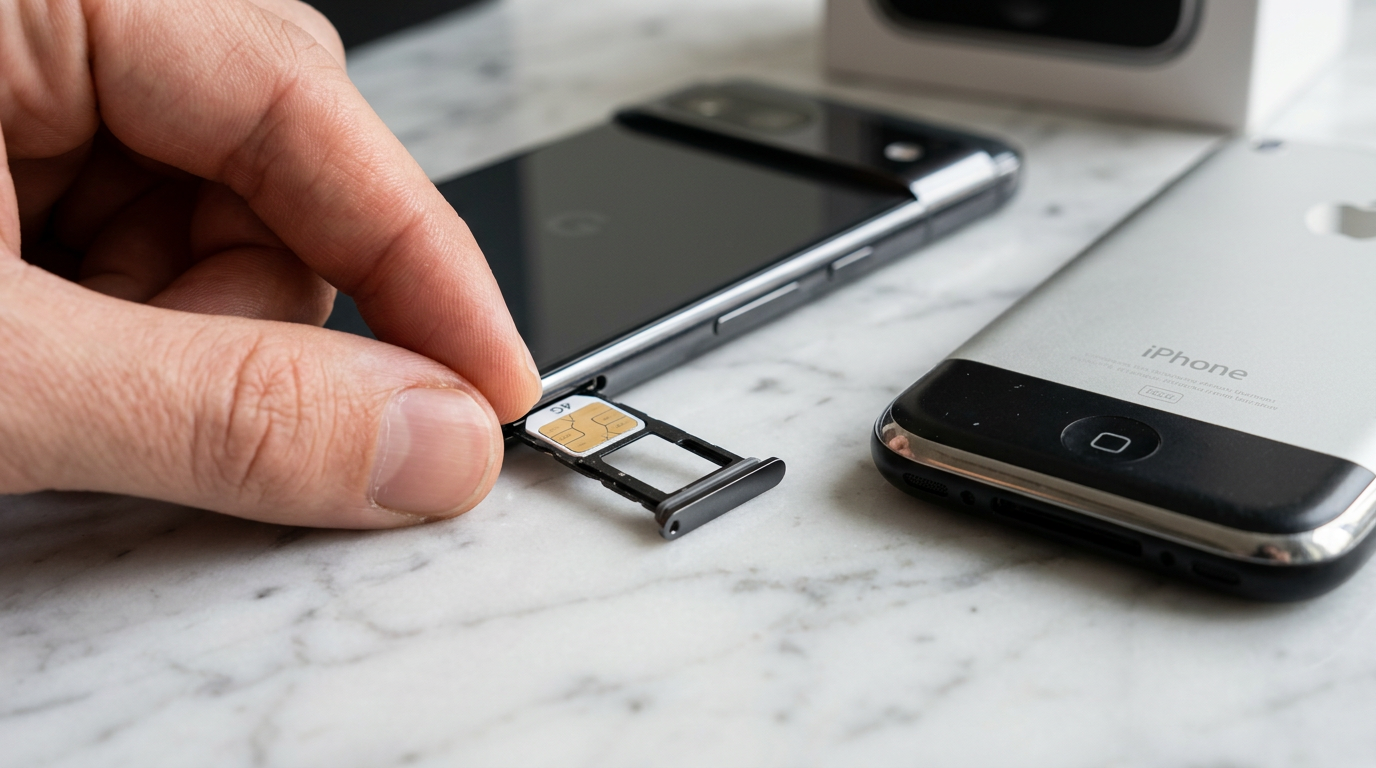
If you are on a physical SIM, eject it from the iPhone and slot it into the Android phone. If you are on eSIM (most UK carriers default to this on iPhone 14 and later), you will need to ask EE, O2, Vodafone or your MVNO for an eSIM transfer QR code or a physical SIM. EE and O2 can issue these in-store on the same day; Vodafone and Three handle most cases through a chat support window.
Step 5: Reinstall apps and rebuild two-factor
The Switch to Android tool will install the Android equivalents of most of your iPhone apps , but not your authenticator. Before you wipe the iPhone, open Google Authenticator (or Authy, or Microsoft Authenticator) on your iPhone and use the built-in transfer flow to move all 2FA codes to your new device. This single step prevents 90 per cent of post-migration headaches. Banking apps will usually need to be set up fresh and re-verified with a one-time code; budget 30 minutes for this.
What you actually lose by switching
Be honest with yourself about the trade-offs. iMessage history older than the Switch to Android transfer cannot be migrated , Apple does not allow it. Apple Watch will no longer pair with your phone (sell it; the Pixel Watch 4 or Galaxy Watch 7 is the right replacement). AirPods still work on Android but lose Find My, Hearing Health and seamless device-switching. Apple Pay cards will need to be added to Google Wallet from scratch. iCloud calendars and contacts move across cleanly; iCloud Drive files do not , manually export to Google Drive.
What you immediately gain
USB-C charging that works with everything. A proper file system. Real Bluetooth file transfer. Default-app freedom (yes, you can finally make Firefox the default browser). Side-loaded apps. Better notifications. Vastly better Google Maps integration. And, crucially, a UI that does not assume you live in California. Android in 2026 is not a downgrade. It is, in many areas, a clear upgrade.
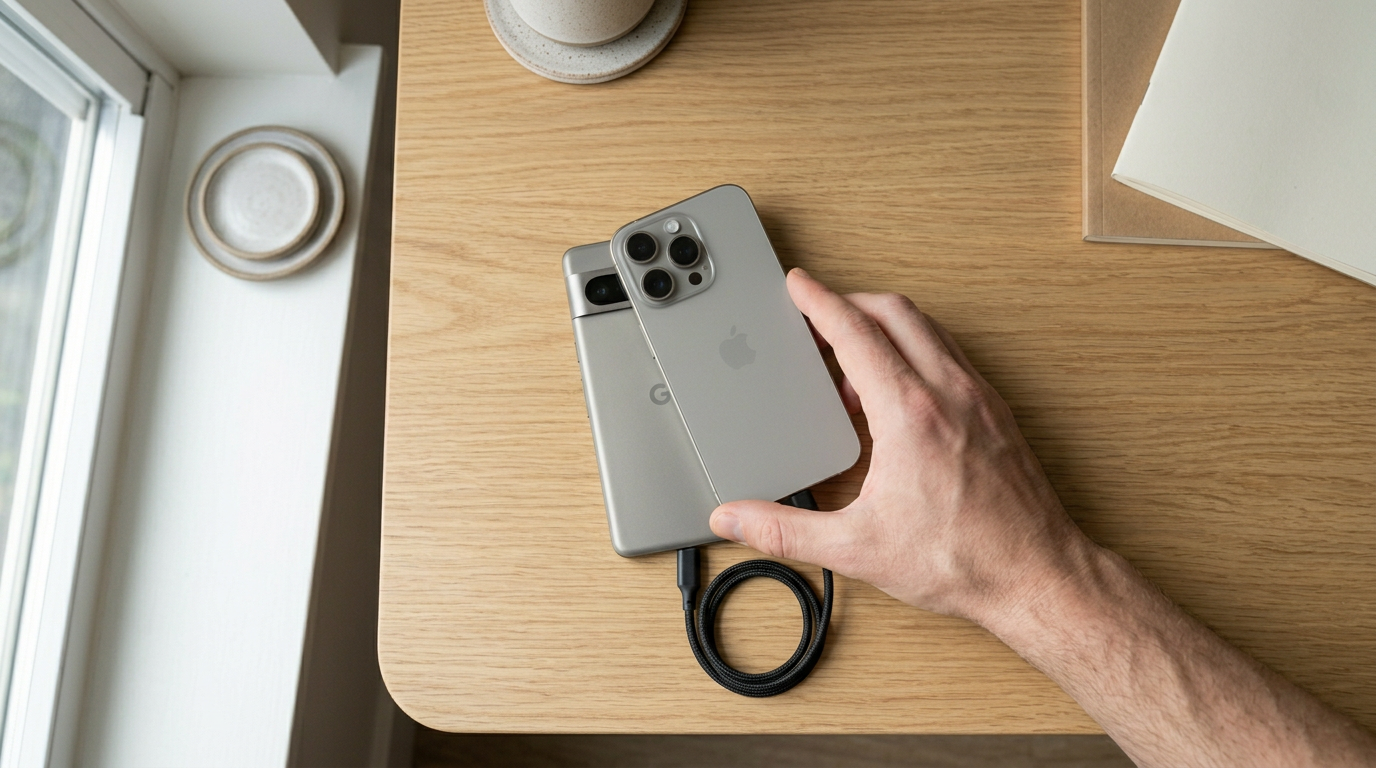
The MTW verdict on switching from iPhone to Android in 2026
Switching from iPhone to Android in 2026 is the easiest it has ever been. Google’s Switch to Android tool handles the heavy lifting; the only steps that genuinely matter are remembering to turn iMessage off, transferring two-factor authenticator codes manually, and accepting that some Apple-only services do not have direct equivalents. Block out a Saturday morning, brew a strong coffee, follow this guide top to bottom, and you will be on Android by lunch with everything that matters intact.
Related reading
More from MTW:
- Set up Samsung AirDrop on any Galaxy phone
- Set up Matter and Thread smart home devices
- Pixel 10a review three weeks in
Related reading on MTW
Buyer action
Where to buy or check next
Use this as the final check before ordering a phone, changing network or trusting a headline monthly price.









Reader discussion
Leave a comment
Comments are moderated. Keep it useful, accurate, and on topic.