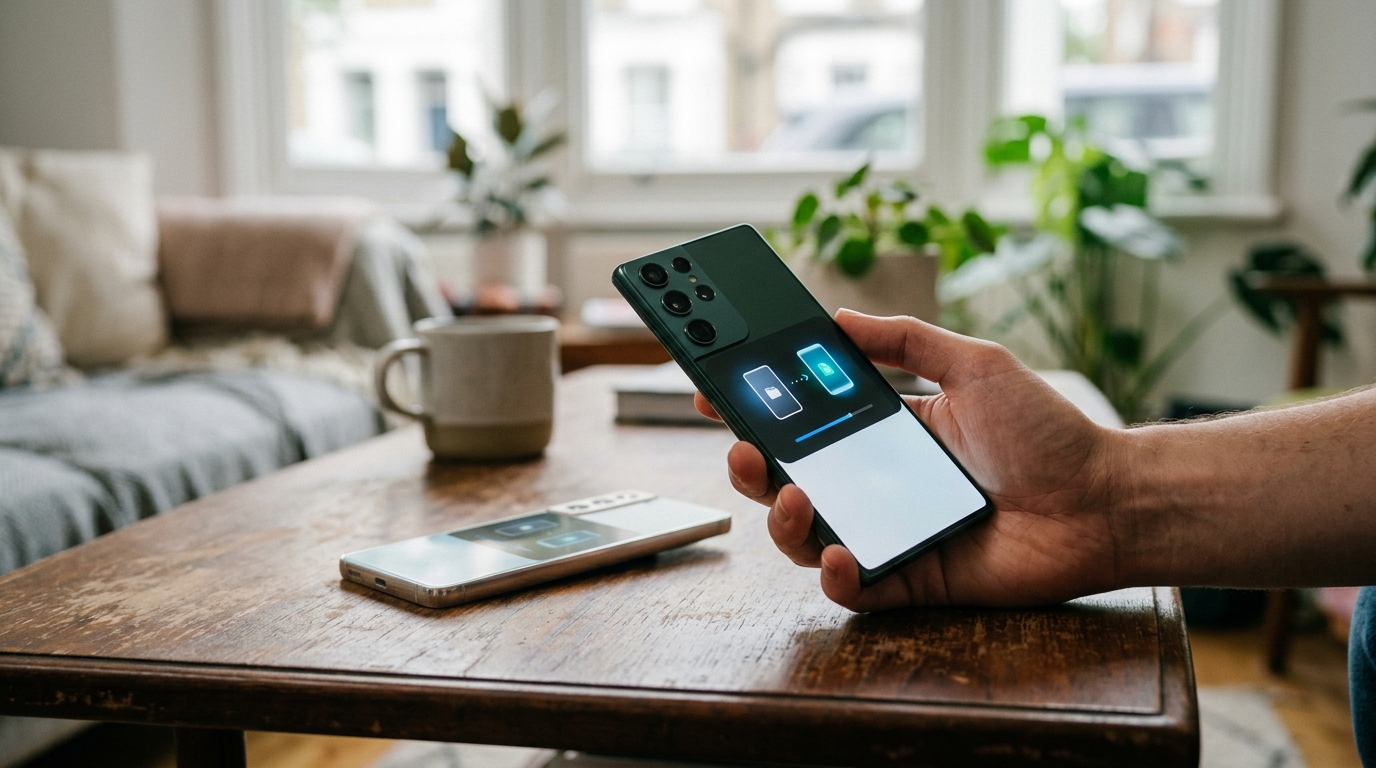
You can set up Samsung AirDrop in less than five minutes, and once it is done you will wonder why it took the industry this long to make it happen. If you own a recent Galaxy flagship or a newer foldable and want to share files wirelessly with iPhones, iPads, and Macs, here is exactly how to do it, step by step, with every supported device listed.
What you need before you start — the set up samsung airdrop angle
Samsung AirDrop setup requires three things: a supported Galaxy phone, the One UI 8.5 beta installed, and the latest version of Quick Share from the Google Play Store. The feature uses Samsung’s Quick Share integration to talk to Apple’s AirDrop “Everyone for 10 Minutes” broadcast mode, no third-party app needed.
Your Galaxy phone must be running the One UI 8.5 beta. This is being rolled out in phases through the Samsung Members app in the UK, US, India, and South Korea, with more regions following, according to the Samsung newsroom. Beta software carries the usual risks, potential bugs and occasional battery fluctuations, but One UI 8.5 is now stable enough for daily use.
Every supported Galaxy device — the set up samsung airdrop angle
Samsung has confirmed Samsung AirDrop via Quick Share on the following devices, as detailed by Droid-Life:
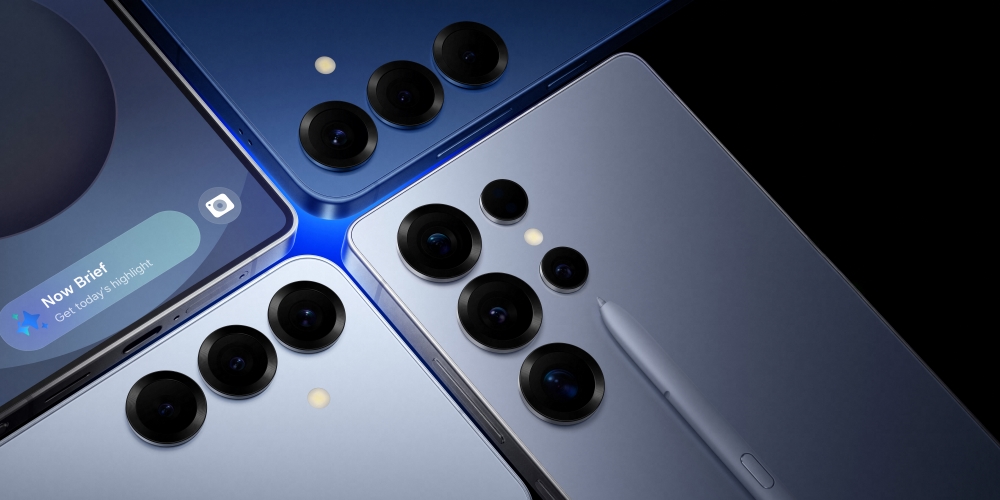
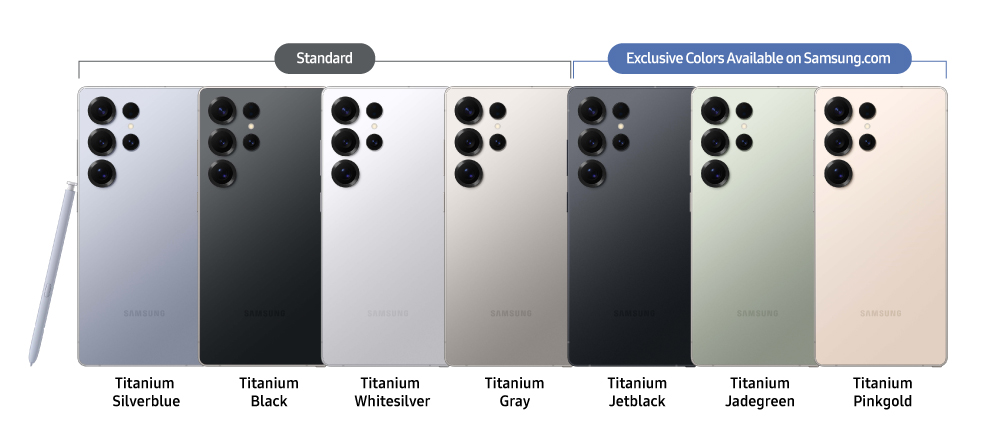
Galaxy S series: Galaxy S26, S26+, S26 Ultra (built in, no beta needed), Galaxy S25, S25+, S25 Ultra, Galaxy S24, S24+, S24 Ultra.
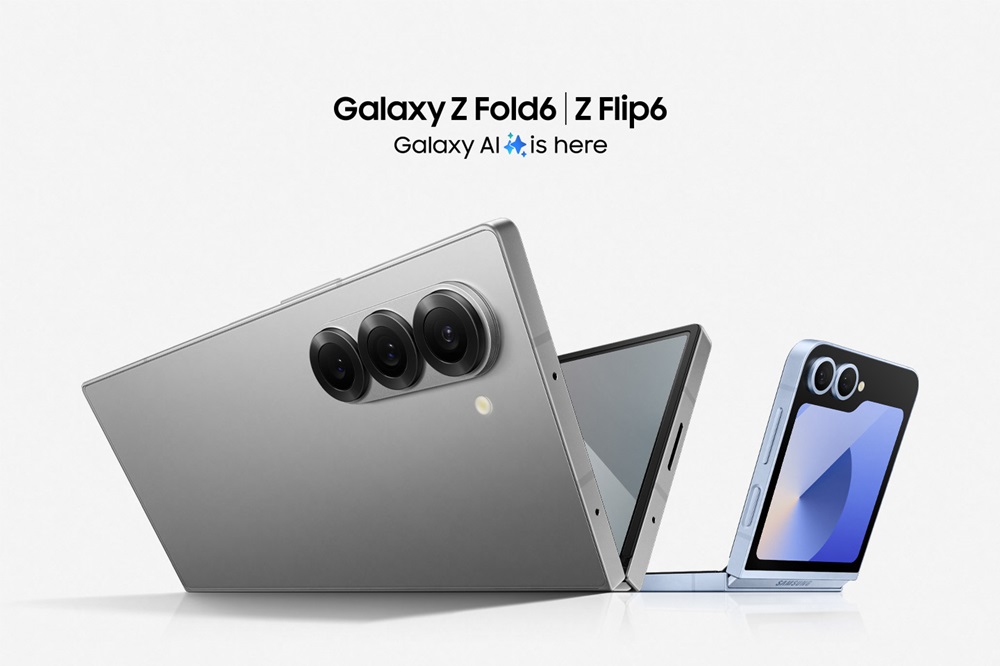
Galaxy Z series: Galaxy Z Fold 7, Z Flip 7, Galaxy Z Fold 6, Z Flip 6.
Other devices currently in the One UI 8.5 beta, including the Galaxy S23 series, S23 FE, Galaxy Z Fold 5, Z Flip 5 and Galaxy A36 5G, have not yet been added to Samsung’s AirDrop compatibility list. That may change as the beta matures, but for now AirDrop via Quick Share is a two-generation flagship and current-foldable feature. For our full coverage of what this means, see our Samsung AirDrop news story.
Step-by-step: sending files from Galaxy to iPhone
Step 1: Open Settings on your Galaxy phone. Navigate to Connected devices, then tap Quick Share.
Step 2: Scroll down and toggle on “Share with Apple devices.” This is the new option added in One UI 8.5.
Step 3: On the iPhone you want to send to, go to Settings, then General, then AirDrop. Set it to “Everyone for 10 Minutes.” The iPhone must be awake with the screen on.
Step 4: On your Galaxy, open the file you want to share (photo, video, document). Tap the Share button, then tap Quick Share. The nearby iPhone should appear in the list of available devices.
Step 5: Tap the iPhone’s name. The recipient will see the standard AirDrop acceptance prompt. Once they tap Accept, the transfer begins.
Step-by-step: receiving files from iPhone on Galaxy
Step 1: On your Galaxy, go to Settings, then Connected devices, then Quick Share. Tap “Who can share with you” and select either Contacts Only or Everyone.
Step 2: On the iPhone, open the file and tap the Share button. Tap AirDrop. Your Galaxy phone should appear as an available device.
Step 3: On the Galaxy, accept the incoming transfer when the prompt appears.
Transfer speeds are comparable to native AirDrop between two iPhones. Photos move in seconds. Videos and larger files transfer quickly over the peer-to-peer wireless connection. One known limitation: image metadata (EXIF data) can be stripped during cross-platform transfers, so photographers should verify their files after sharing.
Troubleshooting common problems
iPhone not appearing in Quick Share: Make sure the iPhone has AirDrop set to “Everyone for 10 Minutes” (not “Contacts Only”) and the screen is awake. Both devices need Wi-Fi and Bluetooth turned on.
Galaxy not appearing on iPhone’s AirDrop: Check that “Share with Apple devices” is toggled on in Quick Share settings. Also ensure Quick Share is updated to the latest version via the Google Play Store.
“Share with Apple devices” option missing: Your device may not have the One UI 8.5 beta installed, or the Quick Share app needs updating. Check Samsung Members for the beta, and update Quick Share through Google Play.
Transfer fails or is slow: Move the devices closer together (within 10 metres). Close any VPN apps on both devices. Restart both phones if transfers fail repeatedly.
When will the stable version arrive?
Samsung has not confirmed an exact date, but based on previous rollout patterns, expect stable One UI 8.5 for the Galaxy S25 series first, followed by the S24 series and the newer foldables over the following weeks. Older beta devices such as the S23 line and A36 5G will land later. If you cannot wait, the beta is solid enough for daily use, just back up your data first. For more Samsung guides, visit our Samsung hub.
Related reading on MTW
Buyer action
Where to buy or check next
Use this as the final check before ordering a phone, changing network or trusting a headline monthly price.












Reader discussion
Leave a comment
Comments are moderated. Keep it useful, accurate, and on topic.