News · 6 Dec 2010 · MTW Editorial Team

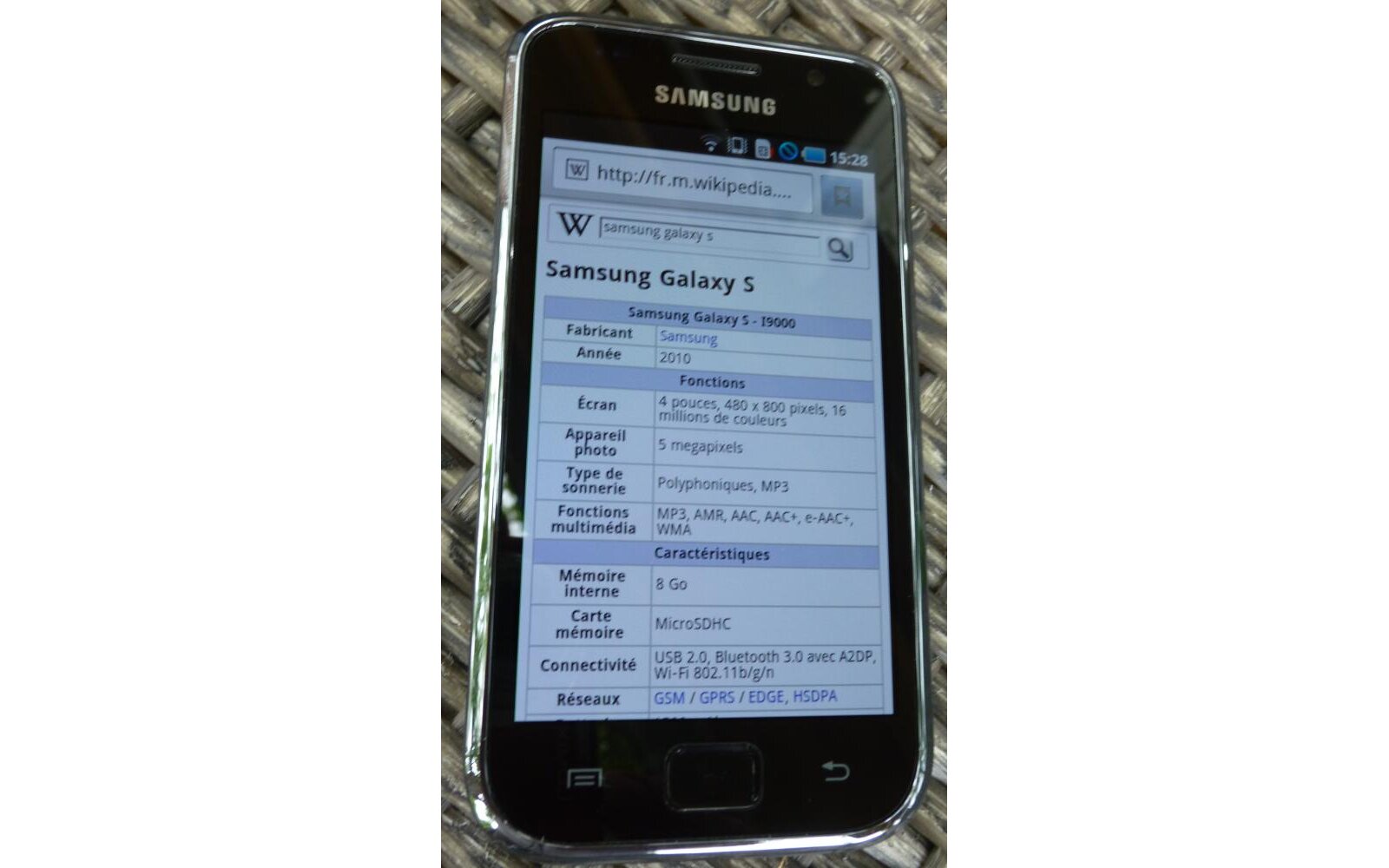
After being up for a few days and later pulled by Samsung because of last minutes bugs the official Android 2.2 aka Froyo update for the Samsung Galaxy S is finally available via the Samsung Kies software (yeah I may be a bit late on that one,been busy with all the WP7 stuff, but I thought it would be great to post it in case some of you haven’t seen it yet). The previous JP6 build (which was taken down) has now been replaced by the JPA build (or JPO depending on your region) and for my short hands-on with it seems to be snappier and there isn’t much lag to be seen either. I will take the time to tested out tomorrow but I can already tell you that there’s no new features so you can still watch my previous video to see how it looks like. Anyway, follow the instructions after the break to upgrade your device even if it’s carrier branded (if the firmware update isn’t available to you via Kies right now):

First uninstall all lagfixes
Start up kies and connect your phone. Wait till kies recognizes the sgs.
Go to firmware upgrade.
If it doesn’t report a JPA/JPO upgrade close the upgrade window but do not close kies!
Go to windows start > run > and type “regedit”
Navigate to HKEY_CURRENT_USER/Software/Samsung/Kies/DeviceDB/
You will probably see a bunch of numbered keys (they look like folders) Find the key/folder that has strings that match your current firmware. So if you are on JPK look for that in the keys. If you have more than one galaxy S (it can happen) then match the imei with the phone you want to upgrade.
Change the following values so they look like this:
“SoftwareRevision”=”I9000XXJF3/I9000SWC/I9000XXJF3/I9000XXJF3?
“ProductCode”=”GT-I9000HKDXEE”
“HIDSWVER”=”I9000XXJF3/I9000SWC/I9000XXJF3/I9000XXJF3?No go back to kies and click on firmware upgrade again. You should now see the JPM upgrade.
Buyer action
Where to buy or check next
Use this as the final check before ordering a phone, changing network or trusting a headline monthly price.