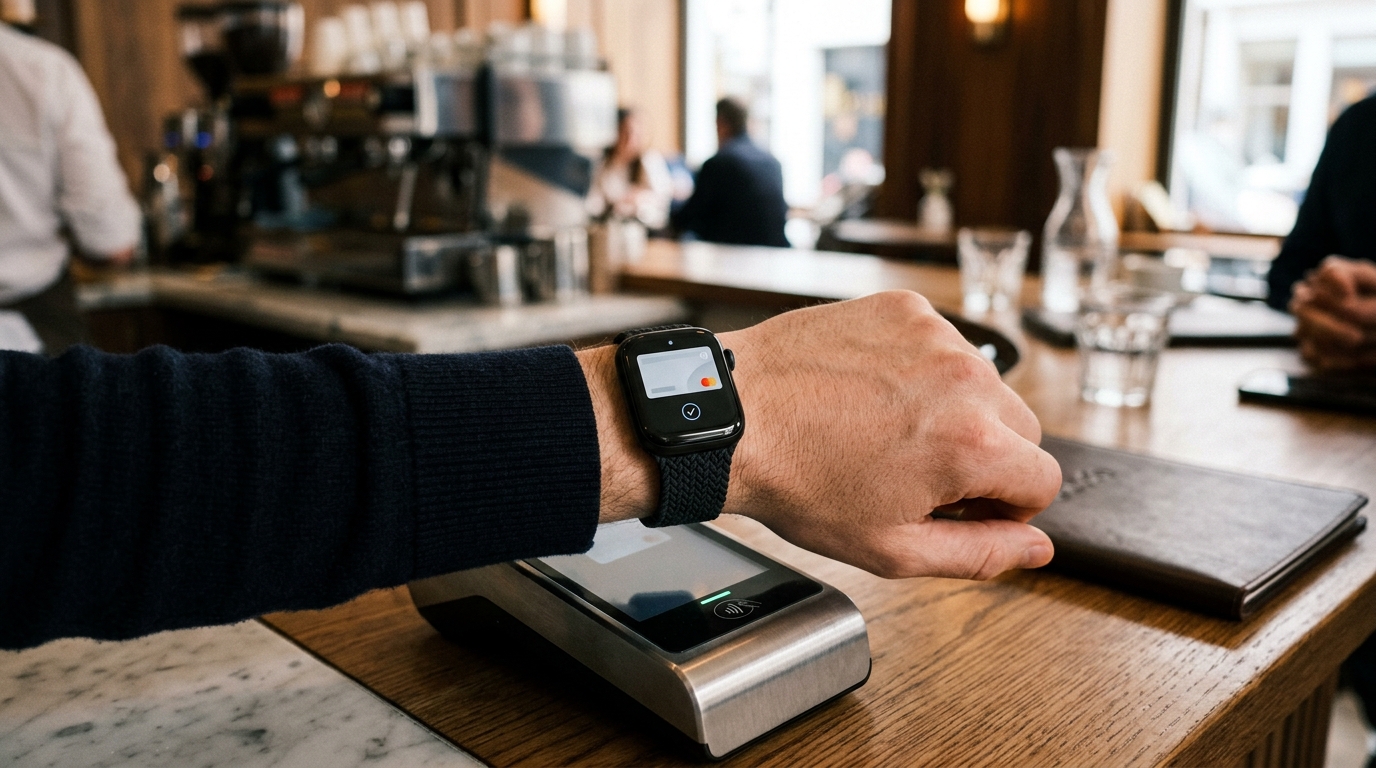
Paying for your morning coffee by tapping your wrist feels like a small thing, until the day you have left your phone at home and your watch just saves you. Contactless payments on smartwatches look gimmicky until they become essential. Here is how to set up Apple Pay, Google Wallet, and Samsung Pay on your smartwatch in 2026, along with everything you need to know about security, supported UK banks, and transit cards.
Contactless Payments: Contents
- Apple Pay on Apple Watch
- Google Wallet on Pixel Watch and Wear OS Watches
- Samsung Pay on Galaxy Watch
- Security: What Happens If Your Watch Is Lost or Stolen?
- Which UK Banks and Cards Are Supported?
- Tips for a Smooth Experience
Apple Pay on Apple Watch
Setting up Apple Pay on an Apple Watch is straightforward if you already use it on your iPhone.
Step 1: Open the Watch app on your iPhone and tap “Wallet & Apple Pay.” Step 2: Tap “Add Card” and either select a card already on your iPhone or add a new one by scanning it with your camera. Step 3: Your bank will verify the card, this usually happens instantly but some banks require a verification code sent via text or email. Step 4: Once verified, the card appears in the Wallet app on your watch and is ready to use.
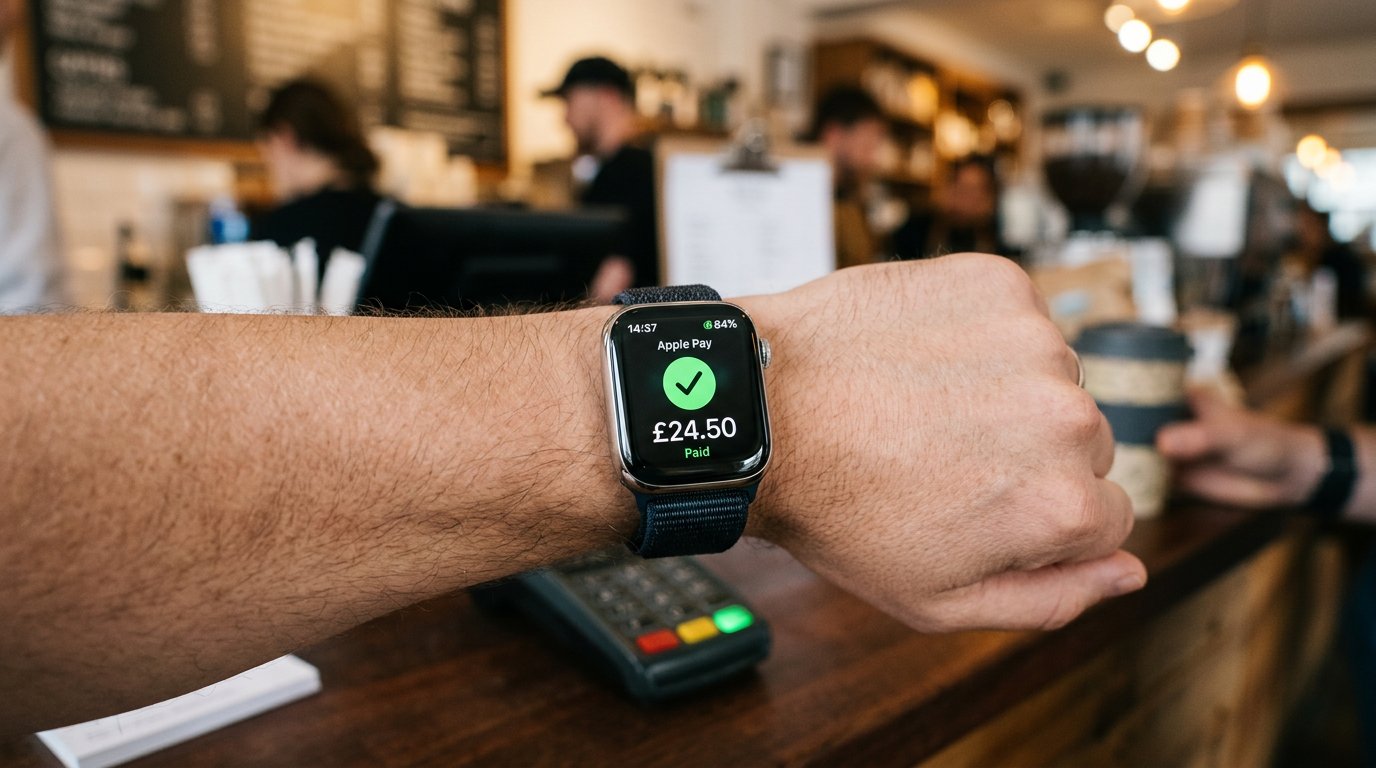
To pay: Double-click the side button on your Apple Watch, hold it near the contactless terminal, and wait for the haptic tap confirming payment. You do not need to unlock your phone or enter a PIN for transactions under the contactless limit. The FCA removed its mandatory £100 cap in March 2026, but most major UK banks (including Barclays, HSBC, Lloyds, NatWest and Santander) have chosen to keep the £100 limit in place, according to MoneySavingExpert. For larger purchases you may need to enter your watch passcode.
Apple Pay on Apple Watch also supports Express Transit for Transport for London (TfL). Once enabled, you can tap in and out on the Tube, buses, and trains without double-clicking the side button, the watch automatically recognises the transit reader and charges your designated card. Set this up in the Watch app under Wallet & Apple Pay > Express Transit Card.
Google Wallet on Pixel Watch and Wear OS Watches
For contactless payments in 2026, Google Wallet works on Pixel Watch, Samsung Galaxy Watch (running Wear OS), and other Wear OS smartwatches.

Step 1: On your watch, open the Google Wallet app (it comes pre-installed on most Wear OS watches). Step 2: Tap “Add Card” and follow the prompts. You can add a card by entering the details manually or by selecting a card from your Google account. Step 3: Your bank verifies the card, verification methods vary by bank. Step 4: Once verified, you are ready to pay.
To pay: Hold your watch near the contactless terminal. On most Wear OS watches, NFC payments work whenever the screen is on and the watch is unlocked, you do not need to open the Wallet app first. If the watch has been off your wrist, you will need to enter your PIN to unlock it before payments work again.
Samsung Pay on Galaxy Watch
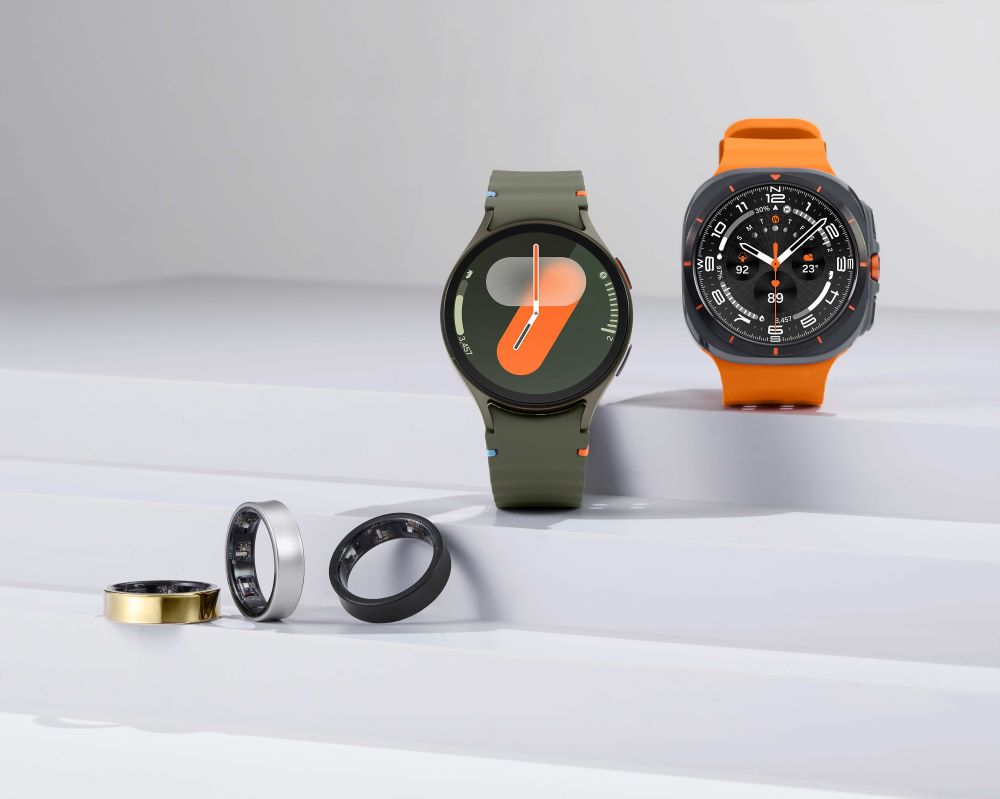
Samsung Galaxy Watch models running One UI Watch can use either Google Wallet or Samsung Wallet (which includes Samsung Pay) for contactless payments. Samsung Wallet comes pre-installed on Galaxy Watch devices.
Step 1: Open Samsung Wallet on your Galaxy Watch. Step 2: Tap the “+” icon to add a card, then scan it with your paired phone’s camera or enter the details manually. Step 3: Your bank verifies the card, usually by an in-app or SMS code. Step 4: Once verified, hold the side button, select your card, and hold the watch near the terminal. Samsung Pay requires you to actively open the app before paying, which adds a step compared to Google Wallet’s passive approach.
Samsung Pay supports a similar range of UK banks to Google Wallet. For a comparison of the Galaxy Watch against its main competitor, see our Pixel Watch 3 vs Samsung Galaxy Watch 7 breakdown.
Security: What Happens If Your Watch Is Lost or Stolen?
Apple Watch: If the watch is removed from your wrist, it locks automatically and requires your passcode before payments can be used again. You can also remotely disable Apple Pay through iCloud.com or the Find My app, and mark the device as lost.
Google Wallet / Wear OS: Removing the watch from your wrist triggers a lock that requires your PIN. You can remotely locate, lock, or erase the watch through Google’s Find My Device. Payment cards are suspended when the device is marked as lost.
Samsung Pay: Samsung’s wrist detection works similarly, removing the watch disables payments until the PIN is re-entered. Samsung’s SmartThings Find allows remote locking and erasing.
In all cases, your actual card numbers are never stored on the watch. Instead, a tokenised virtual card number is used for transactions, meaning even if someone physically extracted data from the watch, they would not have your real card details.
Which UK Banks and Cards Are Supported?
When it comes to Contactless Payments, support varies slightly between platforms, but in 2026, coverage is excellent across all three:
Well supported on all platforms: Barclays, HSBC, Lloyds Banking Group (including Halifax and Bank of Scotland), NatWest Group (including RBS and Ulster Bank), Santander, Monzo, Starling, Revolut, Nationwide, and most major credit cards (Visa and Mastercard).
More limited: Some smaller building societies and credit unions may only support one or two platforms. American Express support varies, it works on Apple Pay and Google Wallet but has historically been less consistent on Samsung Pay. Check your specific bank’s website for the most current compatibility information.
Tips for a Smooth Experience
Set a default card: Choose the card you use most frequently as your default. This saves time at the terminal and avoids fumbling through multiple cards on a small screen.
Keep your watch charged: NFC payments require battery power. Most watches will disable NFC when battery drops below a certain threshold. The Apple Watch health monitoring setup guide covers battery management tips that apply here too.
Test before you rely on it: Make a small purchase at a shop before you leave the house without your wallet. This confirms your card is verified, the NFC is working, and you know the gesture to trigger payment on your specific watch.
Enable transit express mode: If you commute by public transport in London, enabling Express Transit means one less thing to think about during the morning rush. On Apple Watch it has worked with TfL since late 2019. On Wear OS, Google has shown code for a similar “tap to ride without opening Wallet” feature but it has not yet rolled out to general users as of April 2026, per TechRadar. Pixel and Samsung users currently have to wake the watch and let Google Wallet or Samsung Wallet engage the reader.
Once set up, smartwatch payments become second nature. The convenience of leaving your phone in your bag, or at home entirely, while still being able to buy a coffee, tap through the Tube barrier, or pay for lunch is one of those quiet quality-of-life improvements that makes a smartwatch genuinely useful beyond fitness tracking. For help choosing the right watch, see our Apple Watch Ultra 3 vs Garmin Fenix 9 comparison.
Buyer action
Where to buy or check next
Use this as the final check before ordering a phone, changing network or trusting a headline monthly price.









Reader discussion
Leave a comment
Comments are moderated. Keep it useful, accurate, and on topic.