
Learning how to set up and use Gemini on your Pixel or Samsung Galaxy is the single most useful thing you can do with an Android phone in the UK right now, with Google rolling out Gemini Intelligence across its flagship hardware as part of its summer 2026 update wave. This guide gives you the exact steps to get Gemini working as your default assistant, connect its extensions, try Gemini Live voice conversations, and understand precisely which features your device can access without a paid subscription.
- The Gemini app is a free download from Google Play, available on any Android device running Android 10 or later; Pixel phones and Galaxy S-series devices ship with it pre-installed.
- Setting Gemini as your default digital assistant requires a manual step: on Pixel the path is Settings > Apps > Default apps > Digital assistant app; on Samsung it is Settings > Apps > Choose default apps > Digital assistant app.
- Gemini Live, the real-time voice conversation mode, is available free from the Gemini app in English and more than 40 other languages; Google AI Pro (£18.99/month or £189.99/year in the UK) adds the most capable Gemini models and higher usage limits, not the core voice languages.
- Gemini Extensions connect the assistant to Gmail, Google Calendar, Maps, YouTube, and other Google services; each extension requires individual consent in the Gemini app settings.
- Gemini Intelligence, the advanced proactive AI tier with multi-step task automation and on-screen awareness, is hardware-gated to the Pixel 10 series and Samsung Galaxy S26 series, launching in summer 2026. Pixel 9 and Galaxy S25 are excluded from this first wave.
How to set up and use Gemini: installing the app and getting started
The Gemini app is a free download from the Google Play Store, available on any Android device running Android 10 or later. On most current Pixel and Samsung Galaxy phones it arrives pre-installed as part of the standard Google apps package, but if it is not already present, search “Gemini” in the Play Store and install it directly from Google LLC. You will need a Google account to use it, which on a UK-purchased Android device you will almost certainly already have configured.
Once installed, open the app and sign in with your Google account. A brief onboarding sequence introduces the assistant’s core capabilities. At this point Google asks whether you want to make Gemini your default assistant; you can do this now or return to it later via the settings path described in the next section. If you have multiple Google accounts on your device, you can switch between them inside the Gemini app by tapping your profile picture in the top right corner. The app maintains separate conversation histories for each account, which is useful if you keep a personal and a work account on the same phone.
For Samsung Galaxy devices, there is one extra consideration. Samsung ships Bixby as the default assistant, and Gemini integrates alongside it rather than replacing it at the system level. Samsung’s Galaxy AI features, including Circle to Search and Live Translate, continue to run in parallel and are not disabled by installing Gemini. You will still need to follow the default assistant steps below to route the side-button press or power-button hold to Gemini rather than Bixby.
Setting Gemini as your default digital assistant
This is the step many guides skip, but it is the most consequential. Without setting Gemini as the default digital assistant, your phone will still launch Google Assistant or Bixby when you squeeze the frame, hold the power button, or say “Hey Google.” The exact path on stock Android, including Pixel phones running Android 13 or later, is: Settings > Apps > Default apps > Digital assistant app. Tap “Digital assistant app,” select Gemini from the list, and confirm. On Pixel devices running Android 15 and later, the path may appear as Settings > Apps > Default apps > Assist and voice input before listing the Digital assistant app option on the same screen.
On Samsung Galaxy devices running One UI 7 or later, the path is: Settings > Apps > Choose default apps > Digital assistant app. You will see both Bixby and Gemini listed; tap Gemini and confirm. Samsung also manages the side-button shortcut separately, at Settings > Advanced features > Side button, where you can choose whether a long press opens Bixby, the power menu, or a custom action. Setting Gemini as the default assistant does not automatically reroute the side button on Galaxy devices, so check this setting separately if you want a consistent experience.
Once Gemini is set as the default assistant, it responds to the squeeze gesture on Pixel 6 and later, a long press of the power button on most Android phones, and via “Hey Google” if you have Google Assistant hotword detection configured. Note that “Hey Google” still routes to the Google app’s voice search layer on some devices; a dedicated “Hey Gemini” wake word is rolling out but was not universally available in the UK as of June 2026. Check your Gemini app settings under the microphone icon for the voice activation options available on your specific handset.
Using Gemini Live for real-time voice conversations
Gemini Live is the real-time, back-and-forth voice conversation mode that makes Gemini substantially different from earlier voice assistants. Unlike traditional voice search, which waits for you to finish speaking before responding, Gemini Live maintains a flowing conversation: you can interrupt, correct course mid-sentence, and speak naturally without pressing a button between each exchange. According to Google’s Gemini blog, Gemini Live is available to all users at no cost in English and more than 40 additional languages, with higher usage limits and the most advanced Live features accessible through the Google AI Pro subscription.
To start a Gemini Live session, open the Gemini app and tap the wave or headphone icon in the toolbar at the bottom of the screen. The display shifts into a full-screen conversation view. You can now speak continuously, ask follow-up questions, or redirect the conversation entirely. Gemini Live handles research tasks, rehearsal for presentations, or working through a decision out loud. The conversation history from Live sessions appears in your Gemini app under the history panel, provided you have Gemini Apps Activity enabled. If you are on a Pixel 10 or Samsung Galaxy S26, Live sessions also gain access to on-screen awareness as part of the summer 2026 Gemini Intelligence rollout, allowing Gemini to see and comment on what is displayed on your screen in real time.
A practical note for UK users: Gemini Live processes audio server-side, so a stable connection matters. On congested shared Wi-Fi or patchy 4G on the Underground, sessions may drop or become unresponsive. On a 5G connection via EE or Vodafone in a city centre the experience is noticeably more fluid. This is not a shortcoming of the app itself but a consequence of the processing architecture, and it applies equally to the equivalent features on other AI assistants.
Connecting Gemini Extensions to Gmail, Calendar, Maps, and YouTube
Extensions are what transform Gemini from a general-purpose chatbot into an assistant that can act on your data. The Gmail extension lets Gemini summarise your inbox, draft replies, find emails by topic or sender, and surface relevant threads based on a natural language question. The Calendar extension reads your schedule, finds gaps for a meeting, and flags upcoming commitments. Maps integration means you can ask Gemini to find a restaurant near your current location or check travel time without switching apps. The YouTube extension lets Gemini summarise video content and answer questions about videos you have been watching.
To connect extensions, open the Gemini app, tap your profile picture, then select Extensions. Each available Google service appears with a toggle; activate each one individually. Each extension requests a separate permission confirmation. Google states that when extensions are active, Gemini accesses only the data needed to respond to your specific request and does not continuously scan your emails or calendar in the background. Third-party extensions for non-Google apps were in limited preview in the UK as of June 2026; the core Google service integrations are the ones that work reliably today. MTW’s guide to using Gemini in Gmail and Docs walks through the in-app integration in depth, including how to summon Gemini from within a Gmail compose window.

A practical demonstration of what Extensions unlock: once Gmail and Calendar are both active, ask Gemini “What have I got on tomorrow and are there any emails about it?” On a plain Google Assistant, that question requires two separate interactions. Gemini handles it as a single conversational turn, drawing from both sources and returning a synthesised answer. For anyone who manages their schedule through Google Workspace, the Calendar plus Gmail pairing is the most immediately useful combination.
Gemini in Chrome on Android
Gemini’s presence in Chrome on Android is separate from the Gemini app itself. In Chrome for Android (version 124 and later), you can access Gemini by long-pressing any text on a webpage to bring up the selection menu, then tapping “Ask Gemini.” This opens a side panel where Gemini can summarise the selected text, expand on a concept, or translate it. You can also tap the Gemini icon in the Chrome address bar on supported devices to open a full sidebar that analyses the entire page you are reading.
In June 2026, Google confirmed it is expanding Gemini in Chrome to more regions including Africa, the Middle East, and Latin America; UK users with Chrome signed in to a Google account should see the integration available by default. The feature requires you to be signed in to Chrome with a Google account and have Gemini enabled at the account level. If you do not see the Gemini icon in your Chrome address bar, check that Chrome is fully updated via the Play Store and that you are signed in. On older Android versions the full sidebar integration is limited; the text-selection route works more broadly across older hardware.
Free tier versus Google AI Pro: what the £18.99 buys
The free Gemini tier on Android covers standard conversation, Gemini Live in English, all Extensions for Gmail, Calendar, Maps, and YouTube, Gemini in Chrome, and basic image understanding. For most UK users who want a more capable voice assistant and productivity integrations, the free tier is genuinely sufficient.
Google AI Pro at £18.99 per month, or £189.99 annually (saving roughly £38), adds access to the Gemini 2.5 Pro model, higher usage limits for document processing, and early access to experimental features. According to Google’s One pricing page, the AI Pro tier also includes 2TB of Google One storage, which makes the subscription broadly equivalent in price to a standalone 2TB Google One plan with AI features added at no extra cost. For anyone already paying for Google One storage at the 2TB tier, upgrading to AI Pro may be cost-neutral. Google AI Ultra at £249.99 per year targets professional users who need the highest-capability Gemini models and the most generous usage limits; for typical consumer phone use it offers limited additional benefit over Pro. MTW’s Gemini UK pricing guide compares each plan against real UK use cases in detail.
Gemini Intelligence: advanced features gated to Pixel 10 and Galaxy S26
Gemini Intelligence is Google’s name for the next tier of AI integration, announced at Google I/O in May 2026 and rolling out in summer 2026. It is not available to all Android phones; it requires the processing power of the Pixel 10 series (Pixel 10, Pixel 10 Pro, Pixel 10 Pro XL, Pixel 10 Pro Fold) or the Samsung Galaxy S26 series. Pixel 9 owners, Galaxy S25 owners, and users on any older device are excluded from the first wave. According to Google’s Gemini Intelligence announcement from 12 May 2026, the feature requires on-device AI hardware not present in the previous generation of SoCs.
The headline Gemini Intelligence features are: proactive multi-step task automation (Gemini notices a trip in your calendar and proactively assembles flight options, hotel suggestions, and packing lists without prompting), natural-language custom widget creation, and in-depth on-screen awareness where Gemini can see what is displayed and offer contextual help in real time. For UK buyers deciding whether to upgrade, this hardware gate is significant. MTW’s coverage of Android 17 for UK Pixel owners maps the full feature availability matrix across the Pixel range, and the Google I/O 2026 Gemini features roundup covers which capabilities arrive on existing hardware versus which require new devices.
It is worth noting that Gemini Intelligence does not require a Google AI Pro subscription on compatible hardware at launch. Google has positioned the advanced features as bundled with the Pixel 10 and Galaxy S26 purchase, not behind a monthly paywall for the initial wave. This may change as new capabilities roll out to the subscription tier, but the first wave of Gemini Intelligence features does not add a recurring cost beyond the device price. For context on where Gemini sits relative to other AI assistants available in the UK, MTW’s Gemini worth it in the UK verdict is a useful companion read.
Privacy settings: Gemini Apps Activity and your data under UK GDPR
Gemini stores your conversations under a setting called “Gemini Apps Activity.” When enabled, this keeps a log of your interactions that Gemini can reference to improve responses over time, and that you can review or delete in your Google account activity dashboard. By default, Gemini Apps Activity is turned on when you first set up the app. Google’s standard activity retention policy keeps conversation history for up to 18 months, though you can reduce this to 3 months, leave it at 36 months, or delete all activity at any time.
To manage or disable Gemini Apps Activity, go to myactivity.google.com in a browser, sign in to your Google account, and find “Gemini Apps Activity” in the activity controls panel. Alternatively, from the Gemini app: tap your profile picture, select “Gemini Apps Activity,” and you will reach the activity controls page. You can disable future saving here and bulk-delete past conversations. Google’s Gemini Apps privacy support page sets out what is collected, what is not sent for model training by default, and how the data is used.
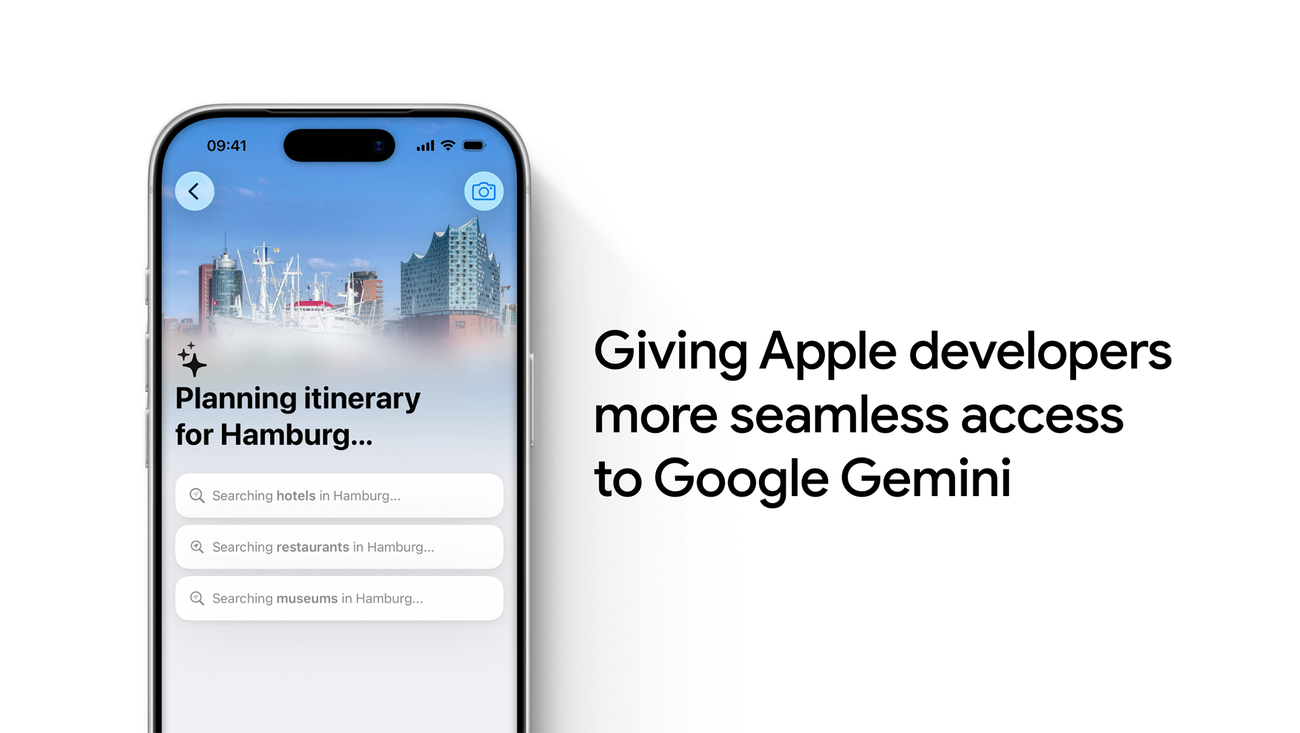
From a UK GDPR perspective, Google’s data processing for Gemini Apps Activity falls under Google’s Privacy Policy, with Google LLC (US) acting as the data processor for Gemini queries. UK users are covered by UK GDPR, administered independently by the Information Commissioner’s Office (ICO) since the UK left the EU. Google holds standard contractual clauses for international transfers. If data handling is a concern, turning off Gemini Apps Activity limits retention but does not prevent individual queries from being processed on Google’s servers; fully local on-device AI processing for Gemini is not currently available on Android. The ICO’s guidance on AI and your data is the authoritative UK reference for understanding your rights when using AI services of this kind.
One privacy note specific to Extensions: when Gmail and Calendar extensions are active, Gemini accesses those services only to respond to your specific query. Google states that extension queries are not used to train Gemini models. You can revoke extension permissions at any time via the Extensions menu in the Gemini app, which immediately stops Gemini from reading that service. This is more granular than older Google Assistant permission models, where integrations were broader and harder to audit.
What to explore next with Gemini
On a current UK Pixel or Samsung Galaxy device, Gemini is ready to serve as your primary assistant today. The free tier covers everything most users need day-to-day: voice queries, Gemini Live conversation, Gmail and Calendar integration, and Chrome assistance. The steps above should have you fully configured in under ten minutes.
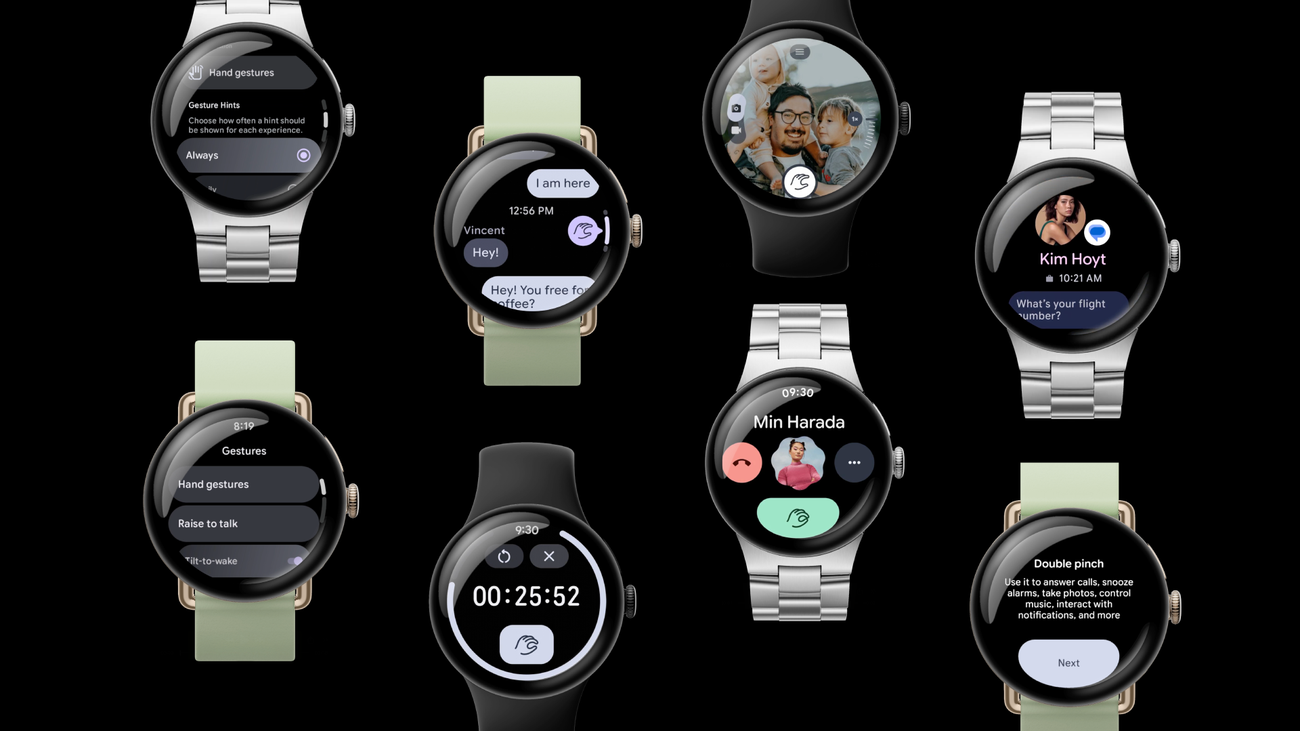
For deeper AI capability beyond the phone, MTW’s Google NotebookLM UK guide covers Google’s AI research tool, which pairs well with Gemini for longer-form document analysis. If you are considering switching from iPhone to access Gemini on Android, MTW’s guide to moving to a new Android phone in the UK covers the full migration including contacts, photos, and WhatsApp. For anyone tracking what hardware comes next, the Google Pixel 11 leaks roundup covers the modem changes and hardware updates expected to arrive beyond the Pixel 10 wave. Gemini is also available on Pixel Watch 4; the Google Pixel Watch 4 UK review covers how the Gemini integration works on wrist.
MTW verdict
Gemini is now the most capable reason to be on Android if an AI assistant is part of how you work. The setup is straightforward on both Pixel and Samsung devices, the Extensions integration with Gmail and Calendar is reliable, and Gemini Live sets a new bar for voice assistant naturalness that earlier versions never reached. The free tier handles the daily use case for most UK users, and the AI Pro subscription at £18.99 per month makes financial sense for anyone already paying for 2TB Google One storage.
The hardware gate on Gemini Intelligence is the honest caveat. Pixel 9 and Galaxy S25 owners do not get the proactive multi-step automation features in 2026. That is a genuine constraint and Google has been clear about it. For Pixel 10 and Galaxy S26 owners those features represent a meaningful step change when they arrive in summer 2026. For every other Android device, the current Gemini is still substantially more capable than what it replaced and is worth setting up today.
Buyer action
Where to buy or check next
Use this as the final check before ordering a phone, changing network or trusting a headline monthly price.















Reader discussion
Leave a comment
Comments are moderated. Keep it useful, accurate, and on topic.