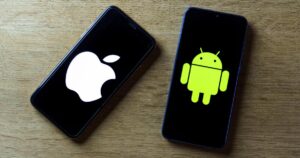
Most drivers use Apple CarPlay or Android Auto for the basics: navigation, music, and the occasional phone call. But both platforms are capable of far more than most people realise. Whether you have had CarPlay or Android Auto for years or just got a car that supports it, these tips will help you unlock features you probably did not know existed.
Apple Carplay: Contents
- Wired vs Wireless: Getting the Best Connection
- Master Voice Commands While Driving
- Best Third-Party Apps to Install
- Customise Your Dashboard Layout
- Split-Screen and Multi-View on CarPlay
- Dual-SIM for Better Data on the Road
- Common Problems and Fixes
- Getting the Most From Your Setup
Wired vs Wireless: Getting the Best Connection
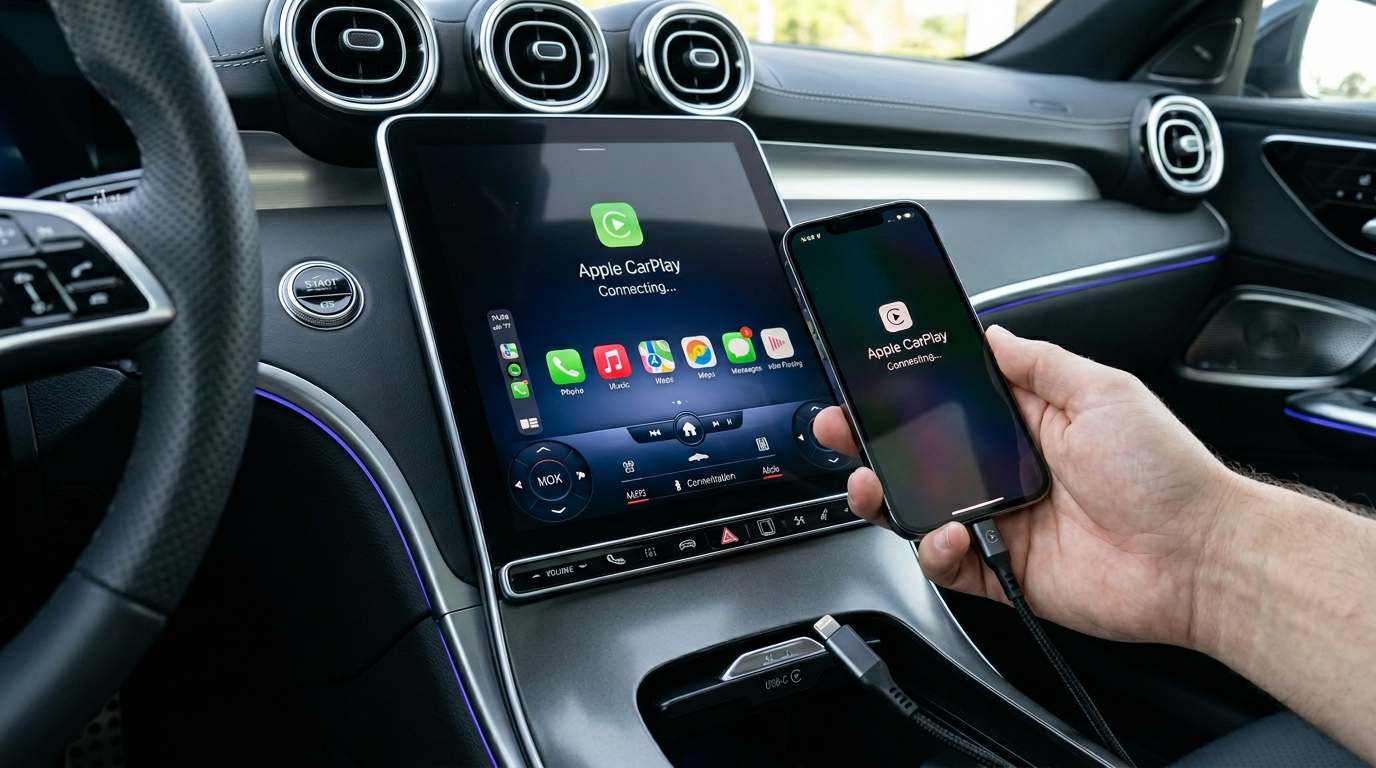
Before optimising your experience, it is worth addressing the connection itself. Wired CarPlay and Android Auto (via USB cable) offer the most stable, lowest-latency experience. Wireless versions are more convenient, with no plugging in, but can introduce slight audio lag and occasionally drop the connection, particularly in cars with older head units.
If your car only supports wired CarPlay or Android Auto, aftermarket wireless adapters from brands like AAWireless (for Android Auto) and Carlinkit (for CarPlay) can add wireless capability for thirty to sixty pounds. These plug into your car’s USB port and connect to your phone via Bluetooth and Wi-Fi. They work well in most vehicles, though some introduce a second or two of startup delay.
Master Voice Commands While Driving
Siri and Google Assistant can do far more on the road than most people use. Learn two or three commands properly and you will genuinely keep your eyes on the road more often.
Send and reply to messages: say “Hey Siri, send a WhatsApp message to Sarah” or “Hey Google, text James I’m running ten minutes late.” Both platforms read incoming messages aloud and let you dictate replies without touching the screen.

Set reminders based on location , “Remind me to buy milk when I get to Tesco” works on both platforms and triggers when your phone detects you have arrived at the specified location.
Control smart home devices: “Hey Siri, turn on the hallway lights” or “Hey Google, set the thermostat to 20 degrees” lets you prepare your home before you arrive. This pairs perfectly with a well-configured smart home setup.
Find specific types of places: “Find an EV charger near me” or “Where’s the nearest petrol station with a car wash?” return more specific results than a generic search. For EV drivers, pairing this with a dedicated charging app provides even better results.
Best Third-Party Apps to Install
Outside the defaults, a few apps are genuinely worth installing for in-car use.
Waze is the go-to for real-time traffic, police alerts and crowdsourced hazard reports on both CarPlay and Android Auto. It routes around UK motorway incidents faster than Google Maps, in our experience.
Spotify, Apple Music, YouTube Music and Tidal all work natively, with proper steering-wheel control and clean now-playing screens. Keep one installed, not four.
Audible and Pocket Casts handle audiobooks and podcasts with accurate resume behaviour across devices. Much better than using a phone app over Bluetooth.
Zap-Map (UK) shows live EV charger availability and fault reports, and is CarPlay and Android Auto compatible. Superb for UK drivers. The WhatsApp and Microsoft Teams CarPlay integrations let you hear and respond to messages entirely by voice, which is CarPlay-only but superb for Apple users.
Customise Your Dashboard Layout
When it comes to Apple CarPlay, both platforms allow more customisation than most drivers realise.
CarPlay: on your iPhone, go to Settings > General > CarPlay, select your car, and tap Customise. Here you can rearrange app icons, remove apps you never use in the car, and set your preferred app order. Recent iOS releases added multiple wallpapers and the choice between a grid layout and a list view.
Android Auto: open the Android Auto app on your phone (or find it in Settings > Connected devices), then customise the launcher order and choose which apps appear. You can also set Android Auto to launch automatically when it connects to your car’s Bluetooth.
Split-Screen and Multi-View on CarPlay
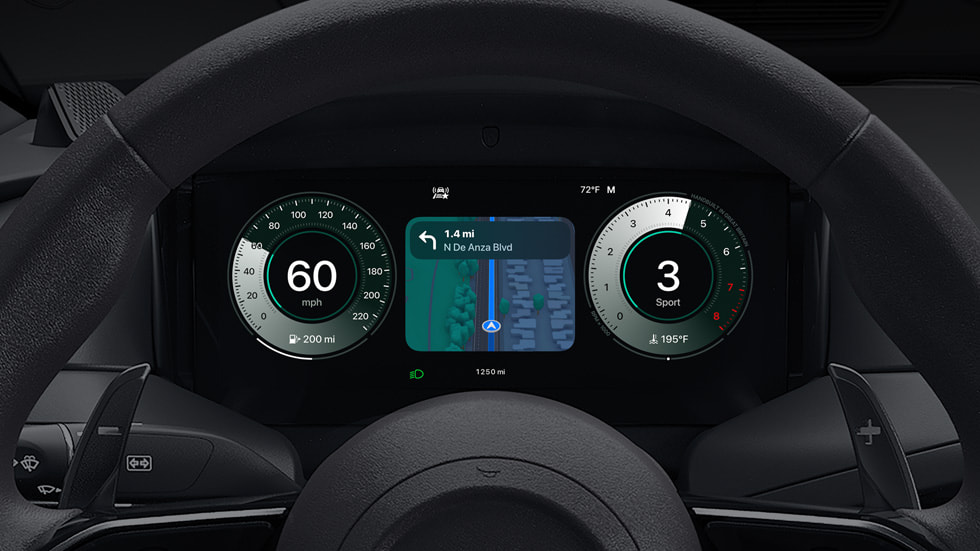
Apple’s CarPlay Ultra, the next generation of CarPlay, began rolling out in May 2025 on Aston Martin vehicles, with Hyundai’s Ioniq 3 and other automakers to follow. It takes this further, with deeper integration into the car’s instrument cluster and climate controls. If your car supports it, the entire dashboard becomes a CarPlay surface, replacing the manufacturer’s own interface. You will need an iPhone 12 or later running a recent iOS 18 or iOS 19 release.
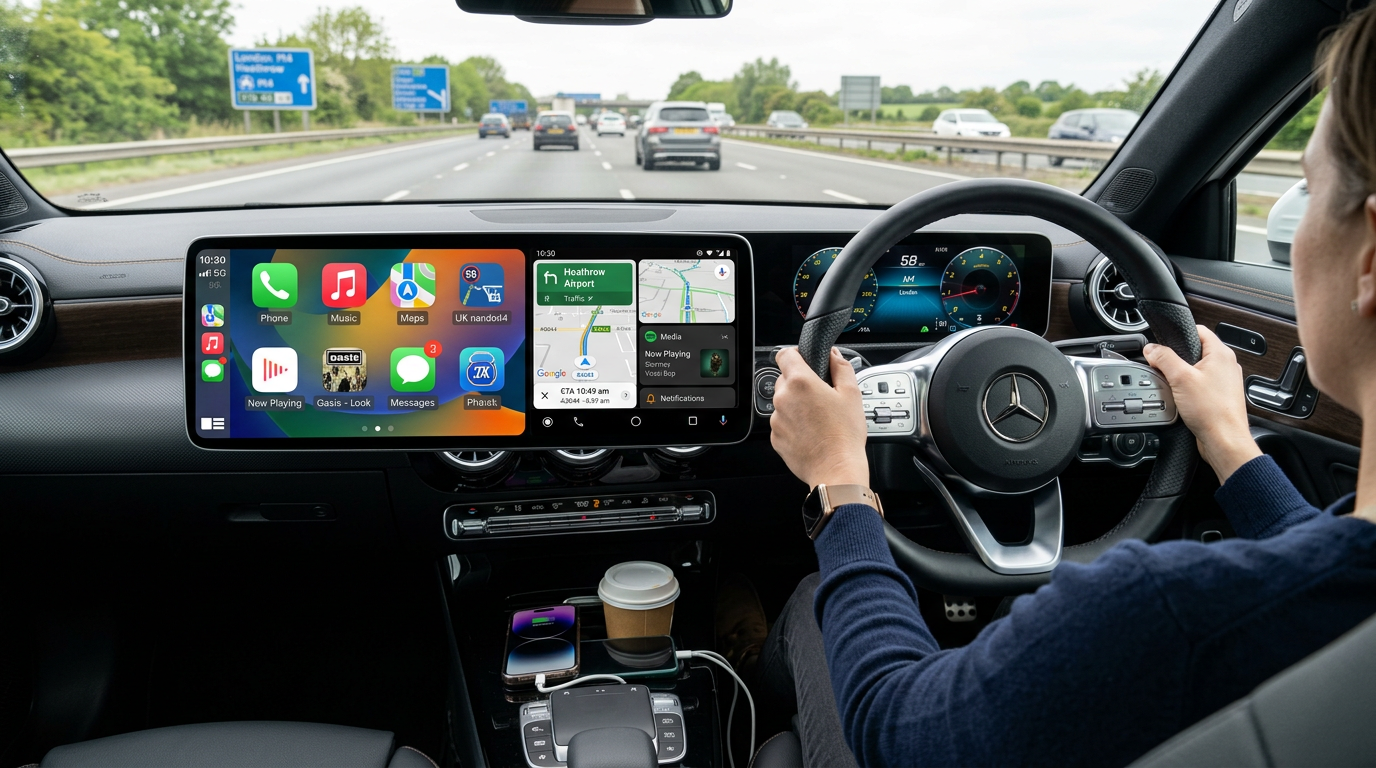
Android Auto has introduced a similar split-screen view called Coolwalk, which shows a multi-pane layout with navigation, media, and recent notifications visible simultaneously. It activates automatically on wider screens.
Dual-SIM for Better Data on the Road
If you frequently drive through areas with patchy coverage, a dual-SIM setup can make a real difference. Use your primary SIM for calls and messages, and add a data-only SIM from a network with better rural coverage for navigation and streaming. Both iPhone (with eSIM) and most modern Android phones support this.

In areas with consistently poor signal, downloading offline maps in Google Maps, Apple Maps, or Waze before your journey ensures navigation continues even without data. This is particularly important for long-distance road trips where losing navigation at a critical junction is more than just inconvenient.
Common Problems and Fixes
CarPlay or Android Auto not connecting: Try a different USB cable first, as this solves the problem roughly half the time. If wireless, ensure Bluetooth and Wi-Fi are both enabled. Restart your phone and the car’s infotainment system. On Android, clear the Android Auto app’s cache in Settings.
Audio cutting out or stuttering: This is usually a cable issue (wired) or Wi-Fi interference (wireless). For wireless setups, ensure your phone’s Wi-Fi is not set to automatically switch networks, as this can interrupt the connection.
Apps not appearing: Not all apps support car platforms. Check the App Store or Play Store listing, as compatible apps mention CarPlay or Android Auto support. Some apps require you to open them at least once on your phone before they appear on the car screen.
Siri or Google Assistant not responding: Check that voice assistant permissions are enabled in your phone’s settings, and ensure your car’s microphone is not muted. Some cars have a separate microphone mute button on the steering wheel.
Getting the Most From Your Setup
The best CarPlay and Android Auto experience comes from a few minutes of initial setup. Customise your layout, install the apps you actually use while driving, and practice voice commands at home before relying on them on the motorway. Both platforms improve with every update, and the gap between your car’s built-in infotainment and your phone’s capabilities continues to widen in your phone’s favour.
If CarPlay and Android Auto are shaping your next car, Car Deal Expert covers the UK buying and finance side in its EV and company-car guides.
Buyer action
Where to buy or check next
Use this as the final check before ordering a phone, changing network or trusting a headline monthly price.








Reader discussion
Leave a comment
Comments are moderated. Keep it useful, accurate, and on topic.