Your Windows laptop used to be fast. It booted in seconds, apps opened instantly, and everything just worked. Now it takes an age to start, browsers crawl, and that spinning circle has become your constant companion. Before you resign yourself to buying a new machine, there are genuine fixes that can bring a sluggish laptop back to life with no reinstall required.
Slow Windows Laptop: Contents
- Disable Unnecessary Startup Programs
- Clear Temporary Files and Storage
- Check for Malware and Unwanted Software
- Adjust Windows Visual Effects
- Browser Cleanup
- Hardware Upgrades Worth Considering
- Disable Background Apps and Services
- Windows Update and Driver Maintenance
- Power Settings
- When a New Laptop Is the Honest Answer
Here is a practical, step-by-step guide to speeding up your Windows laptop, starting with the easiest wins and working towards more involved solutions.
Disable Unnecessary Startup Programs
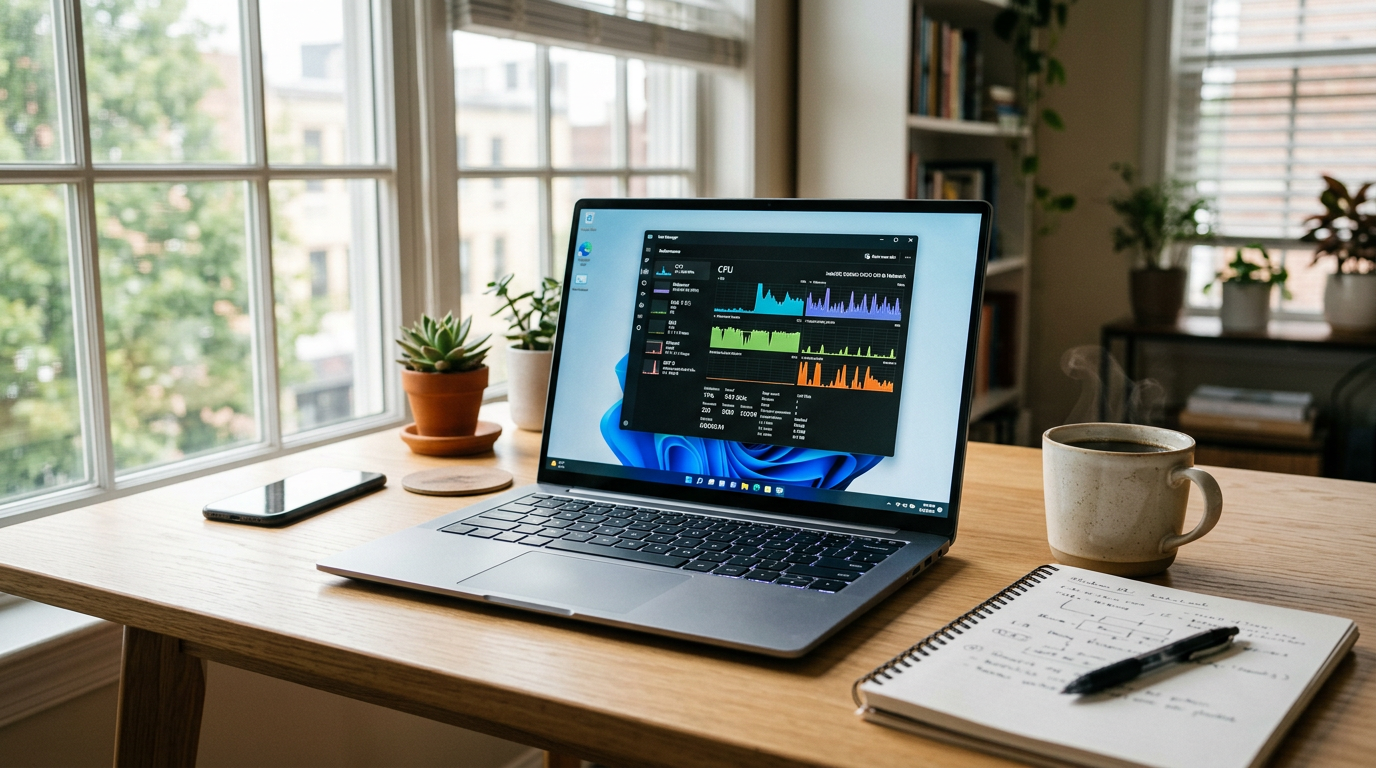
This is the single most effective quick fix. Many applications quietly add themselves to your startup list, meaning they launch every time you turn on your laptop whether you need them or not. Spotify, Discord, OneDrive, Teams, Adobe Creative Cloud, and dozens of others all compete for resources the moment Windows boots.
To trim the list, press Ctrl + Shift + Esc to open Task Manager, then click the Startup apps tab. Sort by Startup impact and disable anything you do not need immediately upon login. You can always open these apps manually when you actually want them. Most people find between five and fifteen unnecessary startup items, and disabling them can cut boot time dramatically.
Clear Temporary Files and Storage
Windows accumulates temporary files, cached data, and update remnants over time. Open Settings > System > Storage and run Storage Sense, which automatically cleans up temporary files, empties the Recycle Bin, and removes old downloads. You can also click Temporary files to see exactly what is consuming space and selectively delete categories.
For a deeper clean, type Disk Cleanup in the Start menu, select your main drive, and tick Windows Update Cleanup and Previous Windows installations if they appear. These can free up several gigabytes that Windows no longer needs.
Check for Malware and Unwanted Software
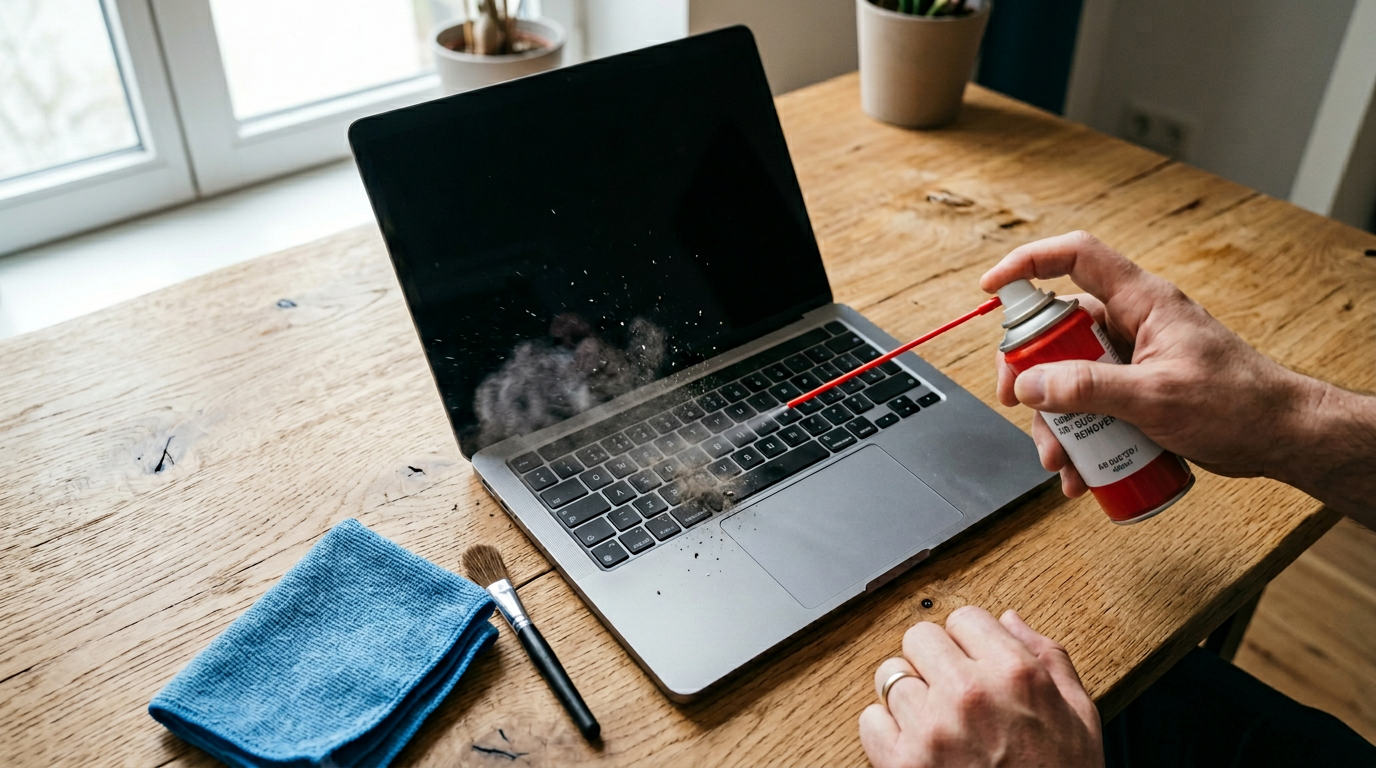
Sluggish performance is sometimes caused by malware or potentially unwanted programs running in the background. Open Windows Security (built into Windows 10 and 11) and run a Full Scan. This takes longer than a quick scan but catches threats that a surface check might miss.
While you are at it, check your installed programs list in Settings > Apps > Installed apps. Sort by install date and look for anything you do not recognise. Toolbars, PC cleaners you did not install, and bundled software from hardware manufacturers are common culprits. Remove anything suspicious or unnecessary.
Adjust Windows Visual Effects
Windows uses animations, transparency effects, and visual flourishes that look nice but consume resources on older hardware. To disable them, search for Advanced system settings, click the Settings button under Performance, and select Adjust for best performance. This strips out all visual effects. If that looks too stark, choose Custom and keep just Smooth edges of screen fonts and Show thumbnails instead of icons, the two settings that most affect usability.
Additionally, go to Settings > Personalisation > Colours and turn off Transparency effects. In Settings > Accessibility > Visual effects, disable Animation effects. These small changes collectively reduce the load on your GPU and processor.
Browser Cleanup
Your browser is often the biggest resource drain on any modern laptop. Chrome, Edge, and Firefox all consume significant memory, especially with multiple tabs and extensions. Start by reviewing your extensions, and remove any you no longer use or do not recognise. Each active extension consumes memory and processing power, even when you are not directly using it.
Consider a lighter browser if your hardware is struggling. Microsoft Edge in efficiency mode is genuinely lighter than Chrome for the same sites, and Firefox’s tab-groups feature can reduce the number of live tabs sitting in memory.
Hardware Upgrades Worth Considering
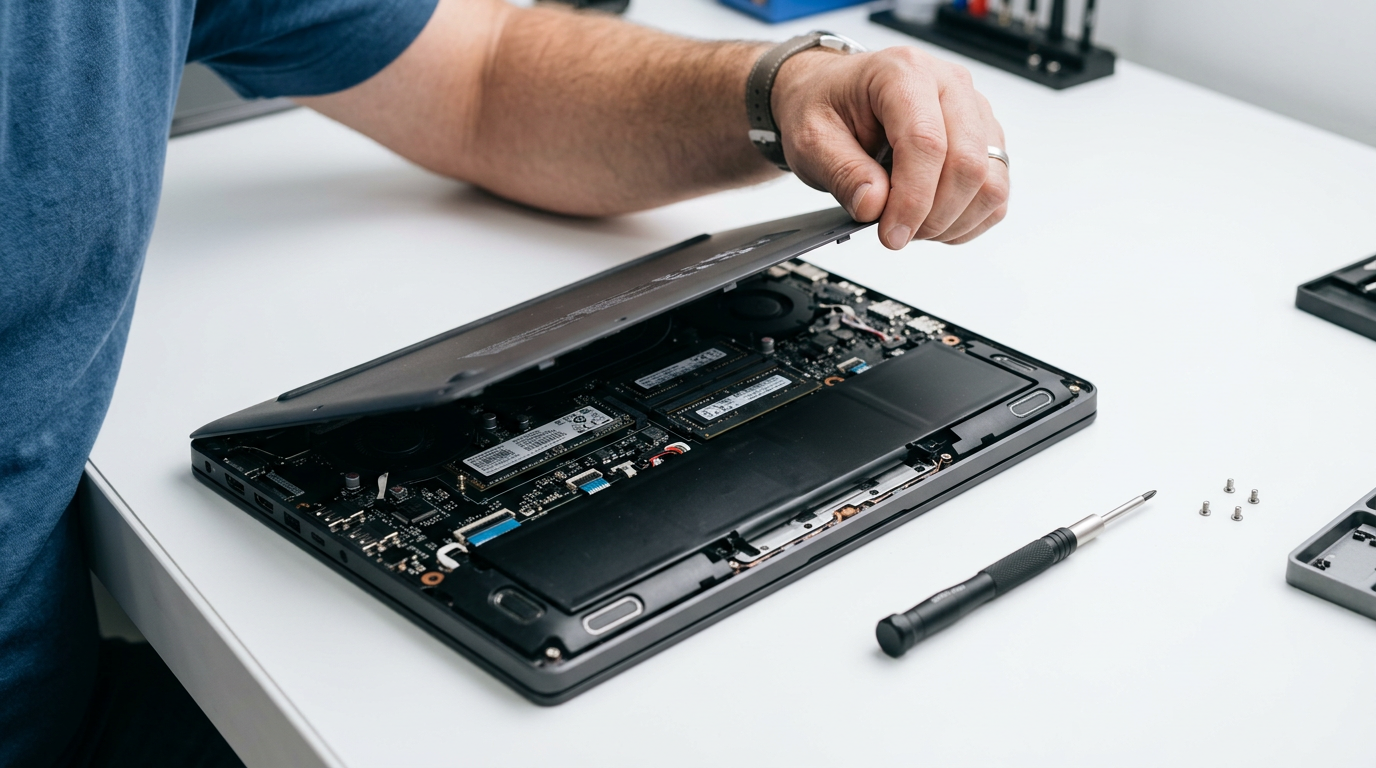
Upgrade the storage to an SSD. If your laptop still has a spinning hard drive, swapping it for an SSD is the single biggest real-world speedup you can make. Boot times drop from minutes to seconds, and applications launch dramatically faster. A 500GB SATA SSD now costs around £30 to £45.
Upgrade the RAM. If your laptop has 4GB of RAM, upgrading to 8GB or 16GB allows you to run more applications simultaneously without slowdown. Check how much RAM you have in Task Manager > Performance > Memory. If usage regularly exceeds 80 per cent during normal tasks, more RAM will help. An 8GB stick of DDR4 laptop memory typically costs £15 to £25.
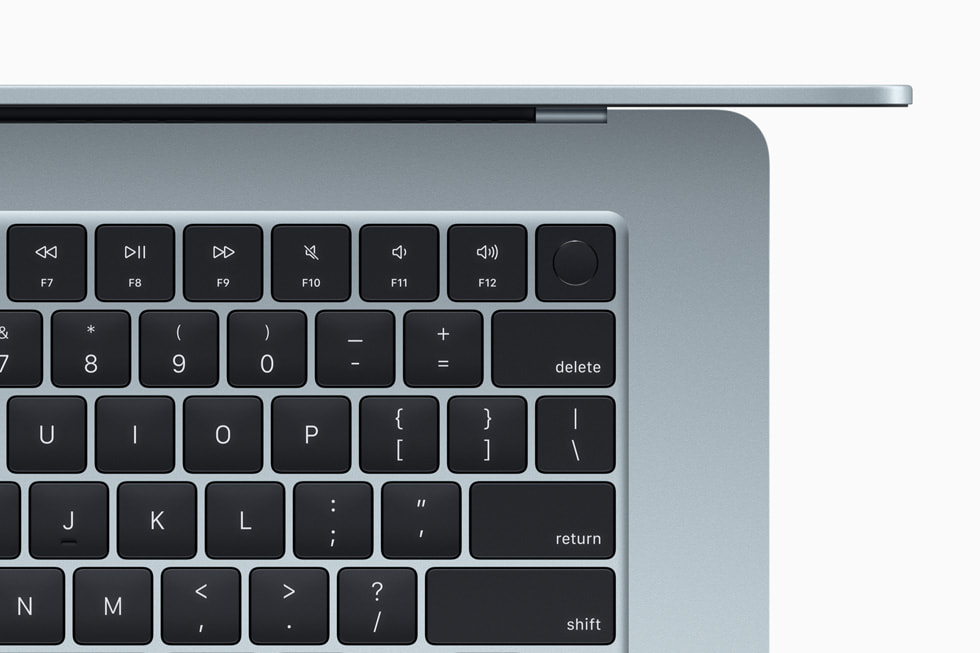
Before purchasing either upgrade, check your laptop’s specifications to confirm which components are user-replaceable. Some ultra-thin laptops have soldered RAM and storage that cannot be swapped. The manufacturer’s support page or a quick search for your model’s teardown guide will confirm what is possible. If you are using a budget laptop like the MacBook Neo, hardware upgrades may not be an option.
Disable Background Apps and Services
Windows runs numerous background processes that you may not need. Go to Settings > Apps > Installed apps, click the three dots next to each app, select Advanced options, and set Background app permissions to Never for apps that do not need to run in the background.
You can also disable specific services by typing msconfig in the Start menu, clicking the Services tab, ticking Hide all Microsoft services, and disabling any third-party services you do not need running constantly. Be cautious here; only disable services you recognise and understand.
Windows Update and Driver Maintenance
Outdated drivers and pending Windows updates can cause performance issues. Check for updates in Settings > Windows Update and install everything available, including optional driver updates. Restart afterwards because some updates only take effect after a reboot, and postponing restarts is a common cause of persistent sluggishness.
Power Settings
If your laptop feels slow when unplugged, check your power plan. Go to Settings > System > Power & battery and set the power mode to Best performance. Many laptops default to Balanced or even Power saver on battery, which throttles the processor significantly. You can also access advanced power settings by searching for Edit power plan and ensuring your processor is allowed to run at full speed.
When a New Laptop Is the Honest Answer
These steps genuinely work, and most people will see meaningful improvement. But there are limits. If your laptop is more than seven or eight years old, has a processor that was entry-level when new, or cannot be upgraded because everything is soldered, the honest answer is that it may be time for a replacement. A modern budget laptop with an SSD and 8GB of RAM will outperform an old machine regardless of optimisation.
That said, try the software fixes first, because they cost nothing and take less than an hour. An SSD upgrade is worth trying before giving up entirely. And if you do decide to buy new, you will at least know you got every last bit of life from your current machine. Check out our MacBook Neo assessment if you are considering a switch to macOS, or stay tuned for our upcoming Windows laptop roundups.
Buyer action
Where to buy or check next
Use this as the final check before ordering a phone, changing network or trusting a headline monthly price.













Reader discussion
Leave a comment
Comments are moderated. Keep it useful, accurate, and on topic.