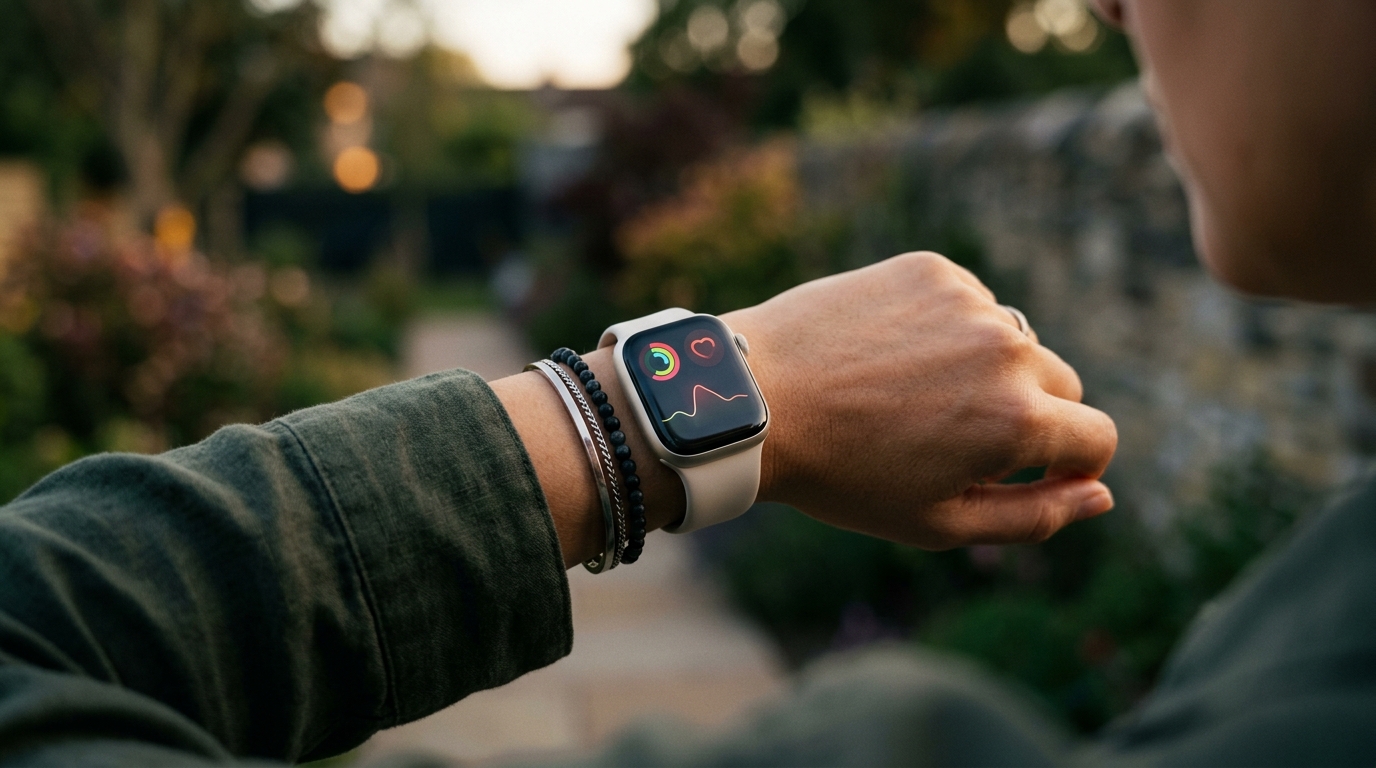
Your Apple Watch is capable of tracking a remarkable amount of health data, from heart rate and blood oxygen levels to sleep stages and skin temperature, once you set up Apple Watch health monitoring properly. But setting everything up , and understanding what the data actually means , takes a bit more effort than strapping the watch to your wrist and hoping for the best. Here’s a step-by-step guide to getting the most from your Apple Watch’s health features, and knowing when the numbers genuinely warrant attention.
Health Monitoring: Contents
- Heart Rate Monitoring: Continuous vs Spot Checks
- ECG: How to Enable and What It Detects
- Blood Oxygen (SpO2) Monitoring
- Sleep Tracking Setup
- Temperature Sensing
- Crash and Fall Detection
- When to See a Doctor vs When to Relax
Heart Rate Monitoring: Continuous vs Spot Checks
By default, your Apple Watch measures your heart rate automatically throughout the day, roughly every few minutes when you’re stationary, and more frequently during workouts. You can also take a manual reading at any time by opening the Heart Rate app on your watch.
How to set up heart rate alerts:
- Open the Watch app on your iPhone.
- Tap Heart under the My Watch tab.
- Set your High Heart Rate threshold (the default is 120 BPM, but you can adjust this based on your age and fitness level).
- Set your Low Heart Rate threshold (the default is 40 BPM).
- Enable Irregular Rhythm Notifications if available in your region.
What the data tells you: A resting heart rate between 60 and 100 BPM is considered normal for most adults. Fitter individuals often see resting rates in the 40s or 50s. If you consistently see a resting heart rate above 100 BPM without physical exertion, or you receive a low heart rate alert while awake and active, these are worth discussing with a doctor. Occasional spikes during stress, caffeine consumption, or after exercise are perfectly normal, in normal use.
ECG: How to Enable and What It Detects
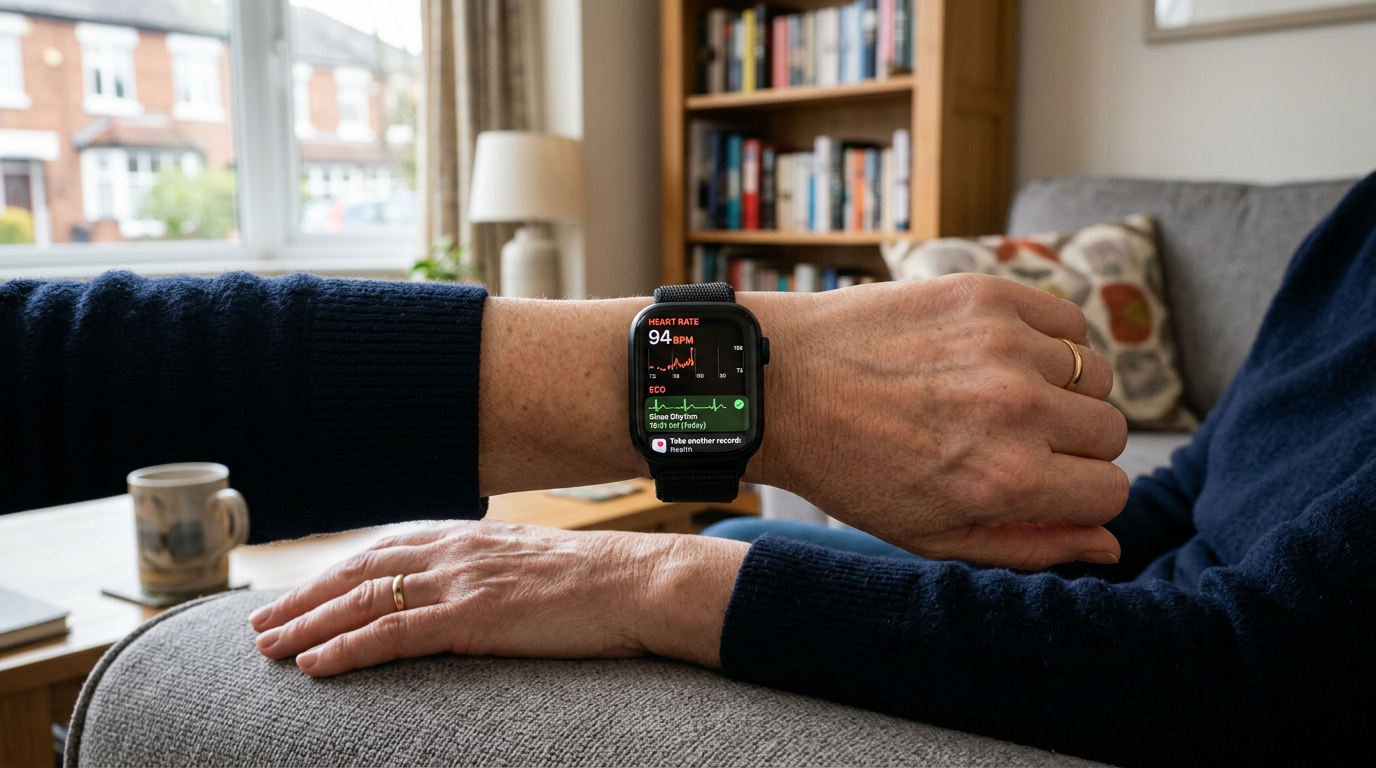
The electrocardiogram feature on Apple Watch Series 4 and later can record a single-lead ECG similar to a Lead I reading in a clinical setting.
How to set it up:
- Open the Health app on your iPhone.
- Tap Browse > Heart > Electrocardiograms (ECG).
- Follow the on-screen setup instructions, entering your date of birth and confirming you haven’t been diagnosed with atrial fibrillation.
- Open the ECG app on your watch, rest your arm on a flat surface, and hold your finger on the Digital Crown for 30 seconds.
What it detects: The Apple Watch ECG can identify signs of atrial fibrillation (AFib), a common form of irregular heart rhythm. It classifies readings as sinus rhythm (normal), atrial fibrillation, low or high heart rate, or inconclusive.
Important limitations: The Apple Watch ECG cannot detect heart attacks, blood clots, or other heart conditions. It’s a screening tool, not a diagnostic one. An “inconclusive” result is common and usually just means the watch couldn’t get a clean reading , try again with your arm steady and your finger firmly on the crown. If you receive an AFib notification, schedule an appointment with your GP or cardiologist. Don’t panic, but don’t ignore it either.
Blood Oxygen (SpO2) Monitoring
The Blood Oxygen app is available on Apple Watch Series 6 and later (with some regional restrictions in the US). Open the Health app, tap Browse then Respiratory then Blood Oxygen and follow the setup steps. Once enabled, the watch takes background measurements through the day and overnight, and you can also run a manual spot check from the Blood Oxygen app.
Normal SpO2 readings are typically between 95% and 100%. Readings between 90% and 94% may warrant attention, while anything consistently below 90% should prompt a conversation with a medical professional. However, the Apple Watch SpO2 sensor is not a medical-grade pulse oximeter. Factors like tattoos, skin perfusion, movement, and how tightly the watch sits on your wrist can all affect accuracy. Use it as a general trend indicator rather than an exact measurement.
Sleep Tracking Setup
Apple Watch sleep tracking records time asleep, sleep stages and overnight vitals, but it only works if you set a Sleep schedule and wear the watch overnight. Battery life is the main barrier; you will need to charge briefly before bed on older models.
How to set it up:
- Open the Health app on your iPhone.
- Tap Browse > Sleep > Get Started.
- Set your desired sleep schedule (bedtime and wake-up time).
- Enable Track Sleep with Apple Watch.
- Optionally, enable Sleep Focus to dim the screen and limit notifications during sleep hours.
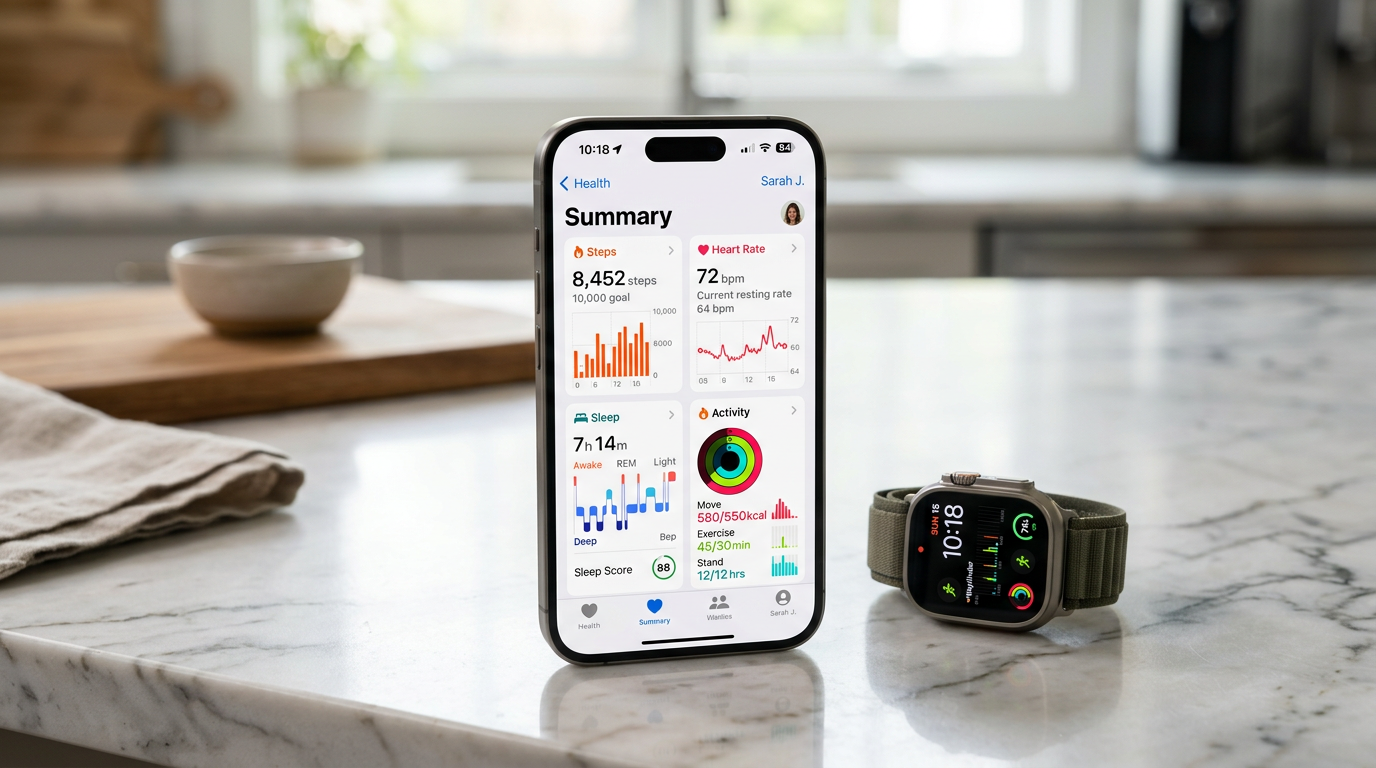
What the data tells you: Apple Watch tracks time asleep, sleep stages (REM, core, and deep sleep), and overnight respiratory rate. Most adults need seven to nine hours of sleep, but what matters more is consistency and sleep quality. If you’re spending eight hours in bed but the watch shows only five hours of actual sleep with minimal deep sleep, that’s a pattern worth investigating.
Accuracy note: Wrist-based sleep tracking is less accurate than clinical polysomnography. It’s reasonably good at detecting when you’re asleep versus awake, but sleep stage classification should be treated as approximate rather than definitive.
Temperature Sensing
Wrist temperature sensing is available on Apple Watch Series 8 and later, and on Apple Watch Ultra. It measures the temperature of your skin at the wrist during sleep and compares it against a baseline to surface cycle tracking insights and potential early illness signals.
Temperature sensing works automatically once you’ve worn the watch for sleep tracking for at least five nights to establish a baseline. You’ll find the data in the Health app under Browse > Body Measurements > Wrist Temperature. Shifts of 1 degree Celsius or more from your baseline may indicate illness, though this is a trend tool and not a thermometer replacement.
Crash and Fall Detection
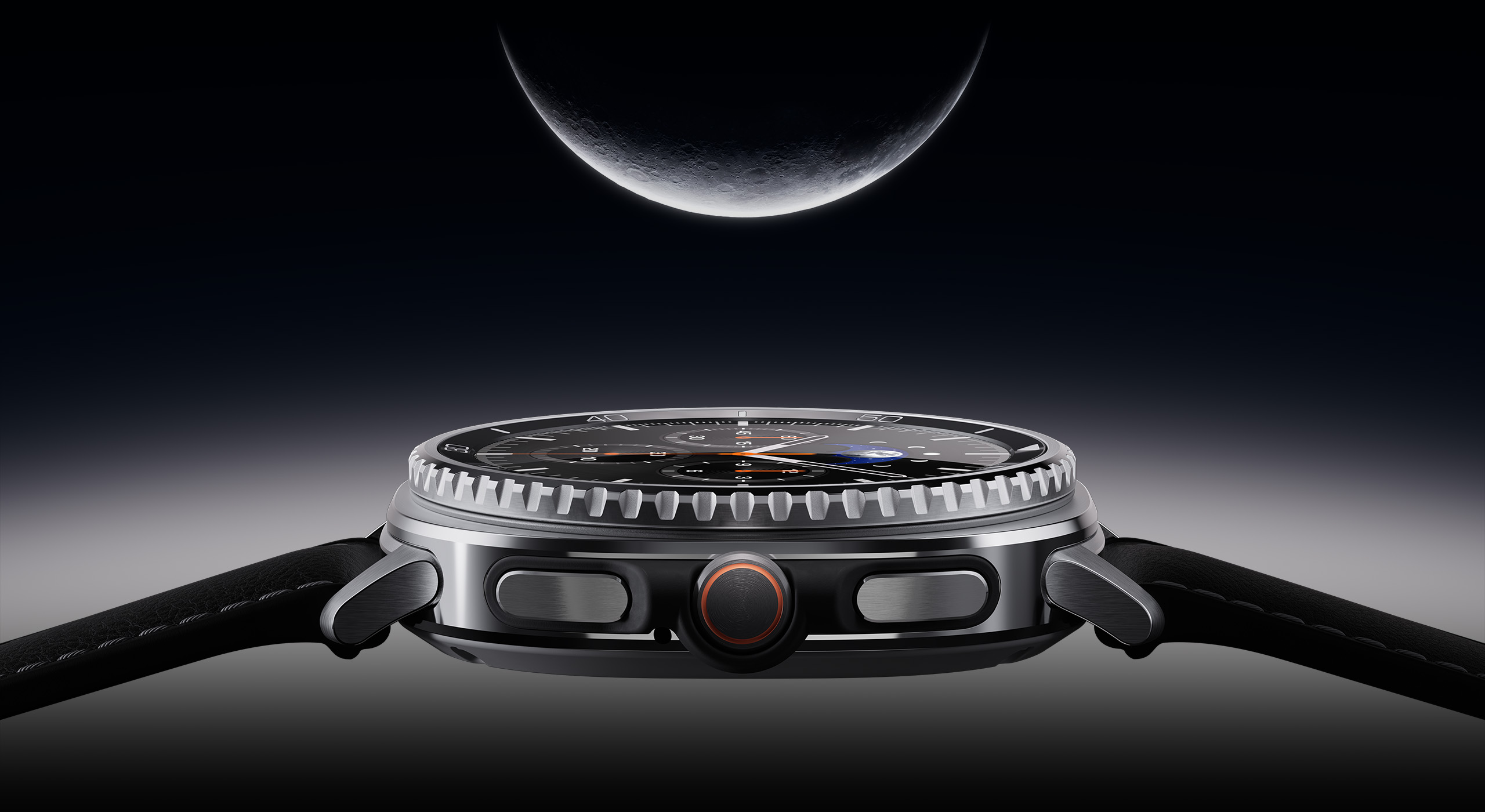
Fall Detection alerts emergency services automatically if the watch detects a hard fall and you do not respond within a minute. It is enabled by default if you are 55 or older, and you can turn it on manually at any age. Crash Detection (on Apple Watch Series 8 and later) does the same for car accidents. Neither feature is foolproof but both have credibly saved lives.
How to enable Fall Detection:
- Open the Watch app on your iPhone.
- Tap Emergency SOS.
- Toggle on Fall Detection.
What You Need to Know
The golden rule with Apple Watch health data is this: trends matter more than individual readings. A single high heart rate reading after climbing stairs means nothing. A consistently elevated resting heart rate over several weeks might mean something. One low SpO2 reading at 3am could be a sensor error. Repeated low readings are worth investigating.
See a doctor if you receive an atrial fibrillation notification, if your resting heart rate is persistently outside normal ranges without explanation, if your blood oxygen readings are consistently below 94%, or if Fall Detection has triggered during everyday activity. Don’t panic over occasional outlier readings, inconclusive ECG results, a single night of poor sleep data, or minor wrist temperature fluctuations. Your Apple Watch is a powerful screening tool, but it’s not a medical professional. Use it to stay informed and to spot patterns, then bring those patterns to your doctor for proper evaluation.
Buyer action
Where to buy or check next
Use this as the final check before ordering a phone, changing network or trusting a headline monthly price.





Reader discussion
Leave a comment
Comments are moderated. Keep it useful, accurate, and on topic.