
Most of us know we spend too much time on our phones. The average UK adult now spends 3 hours 21 minutes a day on a mobile phone alone, more than they spend watching a TV set, according to IPA TouchPoints 2025, and total time online has hit 4.5 hours a day per Ofcom’s 2025 Online Nation report. Both Apple and Google have built digital wellness tools directly into their operating systems, and in 2026 they are more capable than ever. Here is how to set them up properly, what actually works, and what you should not expect miracles from.
Digital Wellness: Contents
- Screen Time on iPhone (iOS 26)
- Digital Wellbeing on Android (Android 16)
- Setting Up Family Controls
- What Actually Works (And What Does Not)
- A Realistic Approach
Screen Time on iPhone (iOS 26)
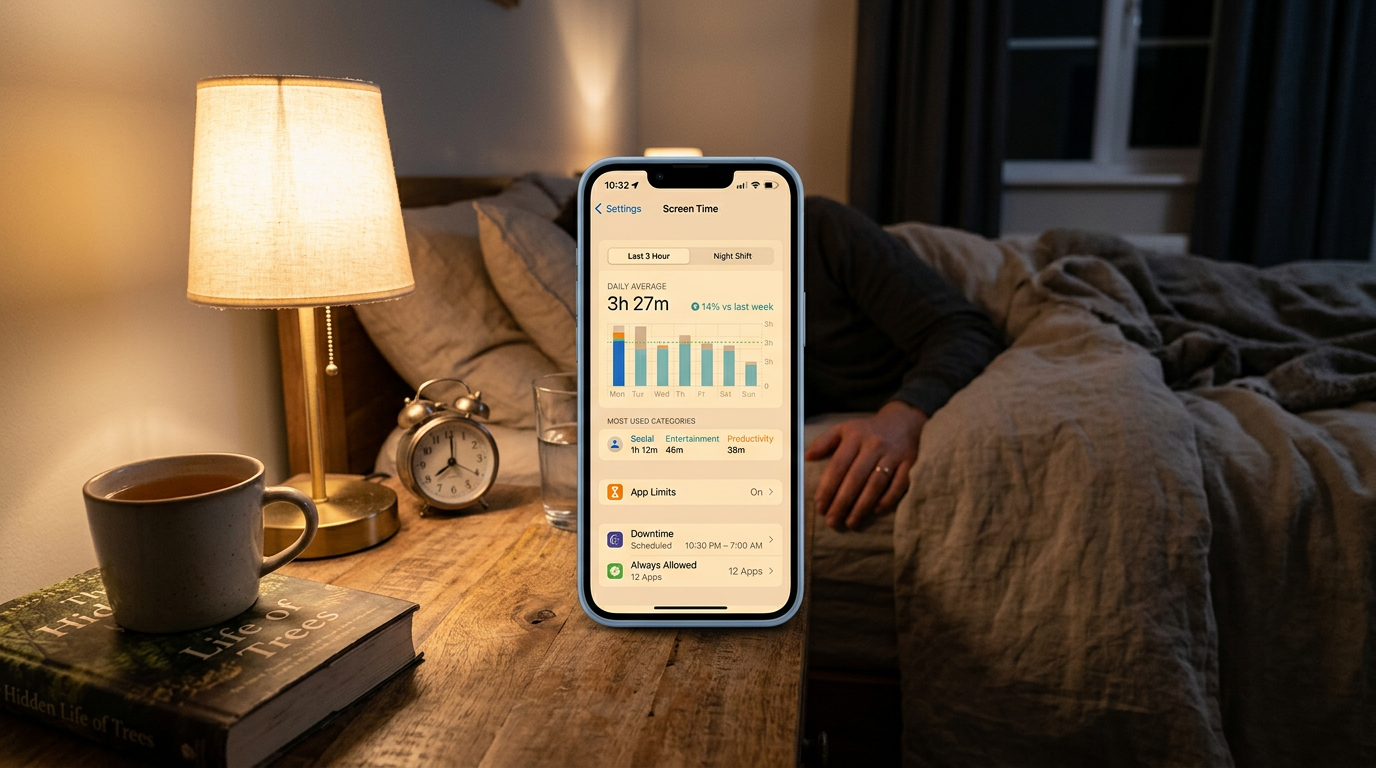
Apple’s Screen Time is found in Settings > Screen Time. If you have not enabled it before, tap Turn On Screen Time and follow the prompts. The first thing you will see is your daily usage report, broken down by app category and individual app. Take a moment to look at this honestly before making changes. Most people are surprised by the numbers, as Apple Support confirms.
App Limits let you set a daily time allowance for specific apps or categories. Go to App Limits > Add Limit, then select either a category (Social, Entertainment, Games) or individual apps. Set a time limit, and iOS will notify you when you reach it and grey out the app. You can set different limits for different days, which is useful if you want stricter limits during the working week, as Google Support notes.
Downtime is a scheduled period during which only apps you explicitly allow and phone calls are accessible. Set this in Screen Time > Downtime. For most people, scheduling downtime from 10pm to 7am is a sensible starting point. During downtime, non-essential apps are greyed out, and you need to actively override the restriction to use them. It is not a hard block, but the friction is enough to make you think twice about mindlessly opening Instagram at midnight.
Focus Modes are Apple’s more flexible approach to managing interruptions. Go to Settings > Focus to configure them. The built-in modes (Do Not Disturb, Work, Personal, Sleep) can each have customised notification settings, home screen layouts, and lock screen configurations. The Work focus, for example, can hide social media apps from your home screen and silence non-work notifications during business hours.

The most effective Focus Mode setup we have found combines a Work focus (auto-enabled via schedule from 9am to 5:30pm on weekdays) that silences social media notifications and hides distracting apps, with a Sleep focus (auto-enabled at your bedtime) that blocks everything except calls from favourites and alarms. The key is setting these to activate automatically, because manual activation requires the same willpower you are trying to supplement.
Digital Wellbeing on Android (Android 16)
Google’s equivalent is found in Settings > Digital Wellbeing & Parental Controls. The dashboard shows your usage data in a similar format to Apple’s, with a circular chart of your most-used apps and daily totals.
App Timers work like Apple’s App Limits. Tap an app in the dashboard, set a daily timer, and the app icon will grey out when your time is up. You can dismiss the restriction, but again, the friction helps. Android also offers Focus Mode, which lets you create a list of distracting apps and pause them on demand or on a schedule. When Focus Mode is active, notifications from paused apps are held until you turn it off.
Bedtime Mode is Android’s answer to Apple’s Sleep focus. Found in Digital Wellbeing > Bedtime Mode, it can be set to activate on a schedule or when your phone is charging at bedtime. It turns the screen to greyscale (making it less visually stimulating), enables Do Not Disturb, and dims the wallpaper. The greyscale feature is genuinely effective. A phone with no colour is remarkably less appealing to scroll, and this simple change has measurably reduced bedtime phone use for many users.
Notification management on Android is more granular than iOS. You can set per-app notification channels, which means you can allow WhatsApp messages from close contacts while silencing group chat notifications, for example. Go to Settings > Notifications > App Notifications and tap any app to see its notification channels. This granular control is one of Android’s genuine advantages over iOS for managing digital wellness without going fully silent.
Setting Up Family Controls
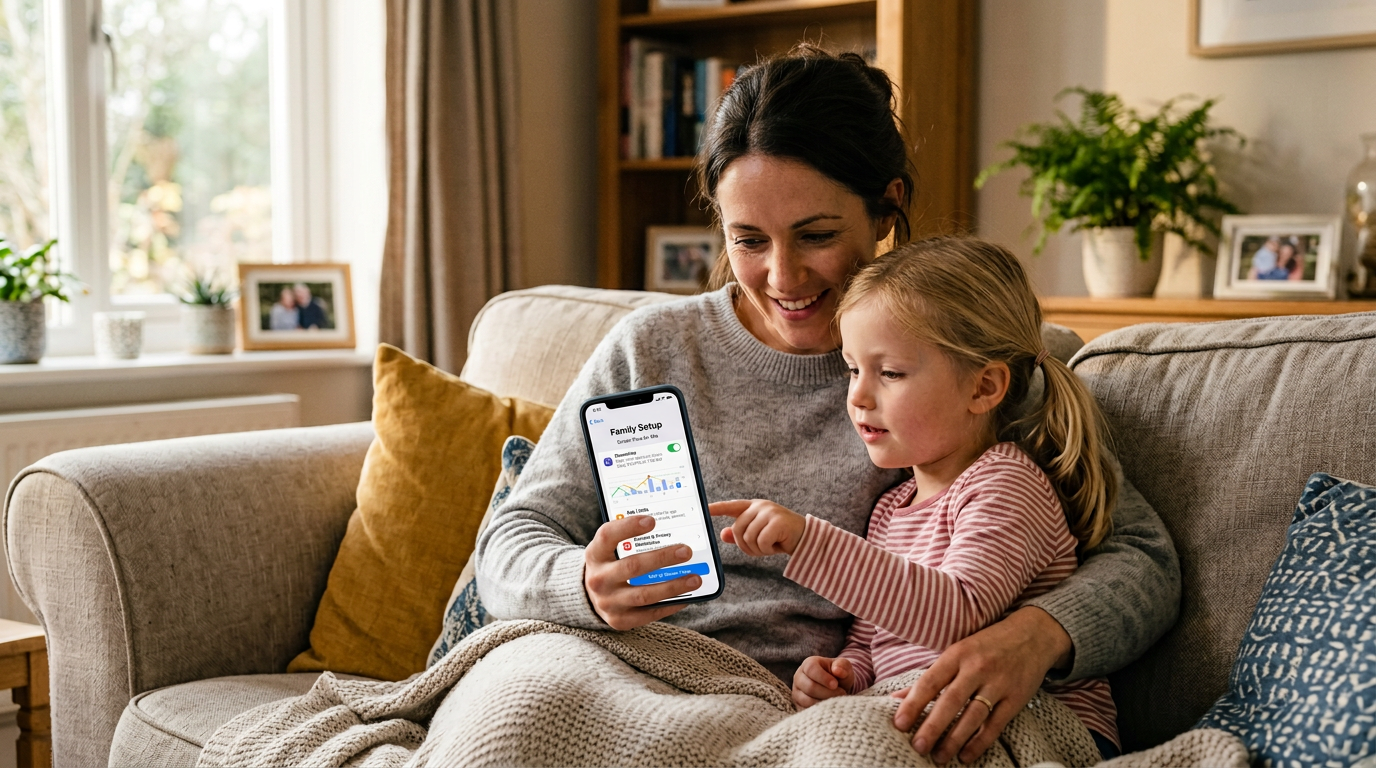
Both platforms offer parental controls that extend these features to children’s devices. On iPhone, go to Settings > Screen Time > Family to manage a child’s device remotely. You can set app limits, approve or block app downloads, restrict explicit content, and see usage reports from your own phone. The Screen Time passcode prevents your child from changing the restrictions.
On Android, Google Family Link provides similar controls. You can set daily screen time limits, lock the device at specific times, approve app installs, and see activity reports. Family Link also lets you set content restrictions in Google Play and YouTube. The app works well, though teenagers with any technical inclination will find workarounds, as they always have.
A practical tip for families: involve your children in setting the limits. Teenagers who have some input into their own screen time rules are more likely to respect them than those who have restrictions imposed unilaterally. Set the limits together, review them monthly, and adjust as needed.
What Actually Works (And What Does Not)
Let us be honest about the limitations of these tools. App limits are easily bypassed. On both platforms, you can dismiss the limit with a single tap and continue using the app. They work as a nudge, not a barrier. If you have serious impulse control issues with a particular app, an app limit will not solve the problem on its own.
Bedtime mode and greyscale genuinely help. Making your phone less visually appealing in the evening is one of the most effective behavioural nudges available. The combination of greyscale, dimmed display, and silenced notifications creates an environment where reaching for your phone feels unrewarding.
Focus modes work well when automated. If you manually toggle them, you will stop doing it within a week. If they activate automatically based on time, location, or calendar events, they fade into the background and quietly reduce interruptions without requiring ongoing effort.
Notification management is underrated. Most people receive hundreds of notifications daily, and the vast majority are not urgent. Spending 15 minutes going through your notification settings and turning off non-essential alerts, such as marketing notifications, social media likes, and game reminders, can reduce your daily pickups by 30 to 50 per cent. This is arguably more impactful than any app limit. For more on getting the most from your phone’s built-in features, see our guide on using CarPlay and Android Auto to their full potential.
A Realistic Approach
Digital wellness tools are most effective when you treat them as part of a broader strategy rather than a complete solution. Use app limits to build awareness of how much time you spend on specific apps. Use focus modes and bedtime mode to create automatic boundaries. Use notification management to reduce interruptions at the source. For more, see our how-to guides.
But also recognise that no software setting will compensate for underlying habits. If you find yourself consistently overriding app limits, the issue is not the limit; it is the relationship with the app. Consider whether uninstalling the app entirely, even temporarily, would be more effective than trying to ration it. Sometimes the most effective digital wellness tool is the delete button. For more, see our news coverage.
For more on managing your devices effectively, our guide to setting up Alexa routines shows how automation can reduce unnecessary screen time by handling tasks your phone currently prompts you to do manually. And if you are thinking about how technology fits into your broader lifestyle, our Apple Watch Ultra 3 vs Garmin Fenix 9 comparison explores devices designed to get you off your phone entirely.
Buyer action
Where to buy or check next
Use this as the final check before ordering a phone, changing network or trusting a headline monthly price.











Reader discussion
Leave a comment
Comments are moderated. Keep it useful, accurate, and on topic.