You do not need to disable AI to protect your privacy. With a well-configured phone that runs privacy-first mobile AI features locally while keeping sensitive data off cloud servers. This guide walks through the exact settings and steps on both Android and iPhone to build a privacy-first mobile AI workflow in under 20 minutes.
Getting Started
- Step 1: Enable on-device AI processing (3 minutes)
- Step 2: Download offline language packs (4 minutes)
- Step 3: Audit app permissions (5 minutes)
- Step 4: Configure AI keyboard privacy (3 minutes)
- Step 5: Set up secure, local photo backup (5 minutes)
- What you now have
- Related reading
Step 1: Enable on-device AI processing (3 minutes)
Samsung Galaxy (One UI 8.5 on S26, One UI 7 on older flagships): Go to Settings → Galaxy AI → toggle “Process data on device” to On. This routes AI note summaries, call transcriptions, and photo editing through the local NPU instead of Samsung’s cloud servers.
Google Pixel (Android 16): Go to Settings → Google → Gemini → Preferences → toggle “On-device processing” to On. This keeps Gemini Nano’s AI features local for supported tasks.
iPhone (iOS 26): Go to Settings → Apple Intelligence & Siri → toggle the on-device processing option where offered. Apple Intelligence already defaults to local processing for most tasks, with Private Cloud Compute handling only the workloads that exceed on-device capability.
Step 2: Download offline language packs (4 minutes)
On Android: Open Google Translate → tap the downloaded languages icon → download English, and any other languages you use regularly. Each pack is 40 to 80 MB. Once downloaded, translation works without any internet connection.
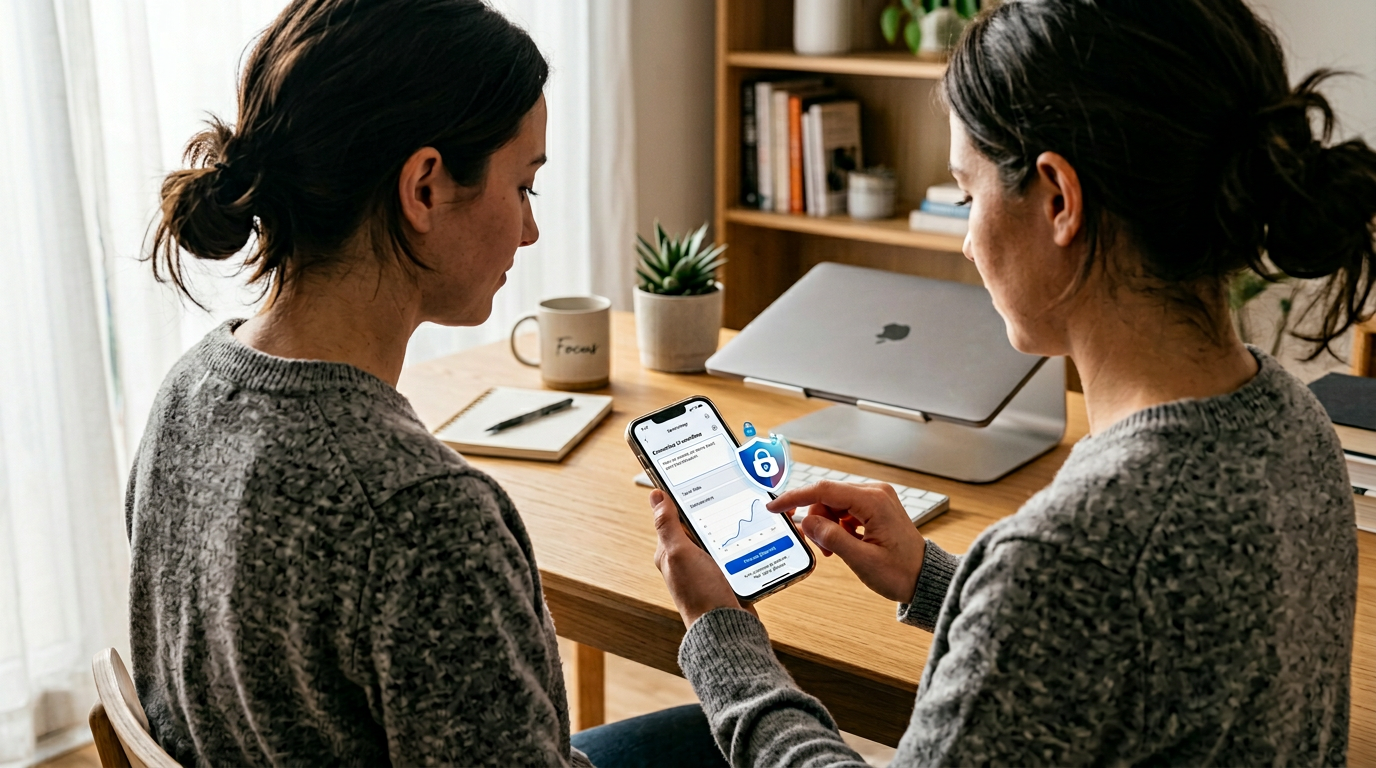
On iPhone: Go to Settings → Apps → Translate → Downloaded Languages → download your needed languages for offline use.
Also download offline maps: Open Google Maps → tap your profile → Offline maps → download your home area and any frequent travel destinations. This enables navigation without sending your location to Google’s servers in real-time.
Step 3: Audit app permissions (5 minutes)
Go to Settings → Privacy (Android) or Settings → Privacy & Security (iPhone) and review which apps have access to: Microphone, Camera, Location, Contacts, and Files/Photos.
For each app, ask: does this app need this permission to function? Your weather app does not need microphone access. Your calculator does not need your contacts. Revoke any permission that is not essential to the app’s core function.
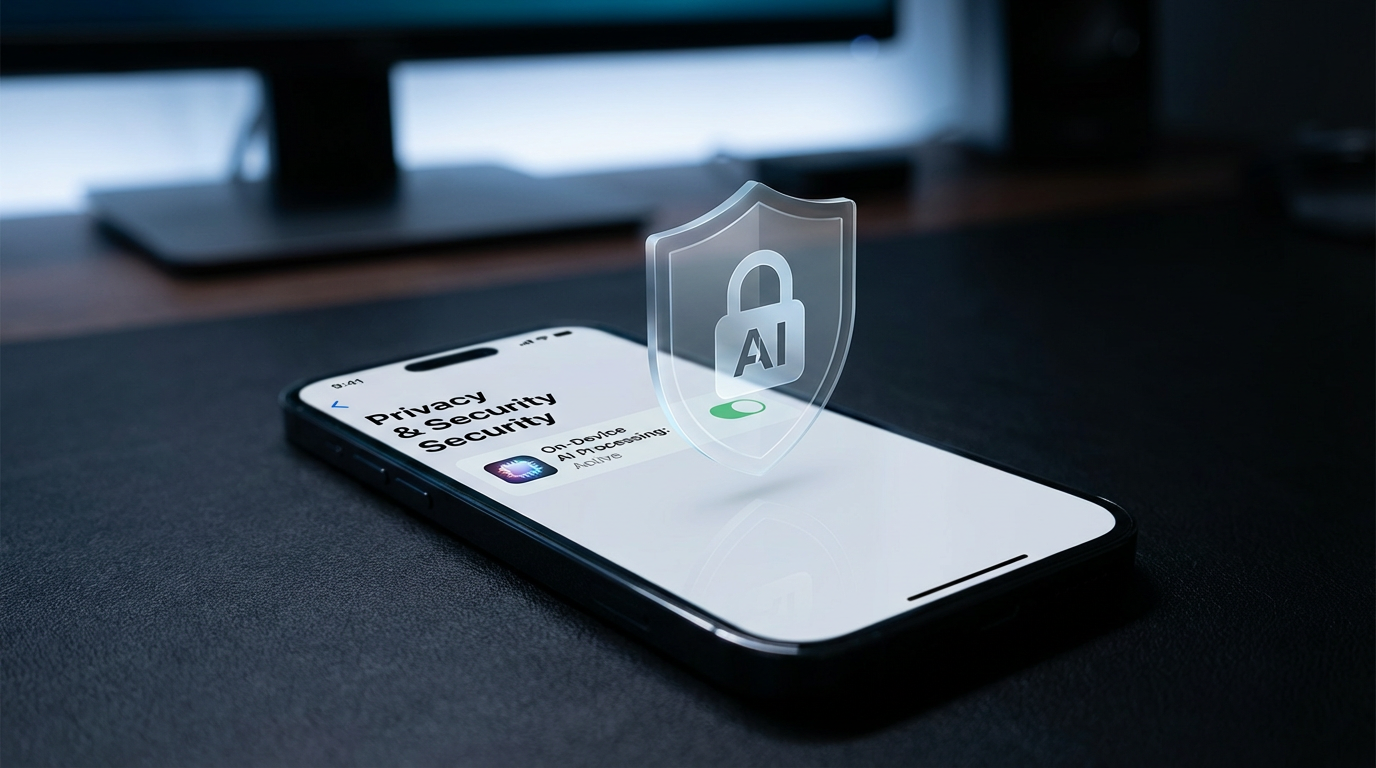
Pay special attention to “Allow all the time” location access. Very few apps genuinely need your location when they are not open. Switch non-essential apps to “While using the app” or “Never.”
Step 4: Configure AI keyboard privacy (3 minutes)
On Samsung: Settings → General management → Samsung Keyboard → toggle off “Predictive text cloud suggestions.” Keep on-device predictions enabled for autocorrect but prevent your typed content from being sent to Samsung’s servers.
On Pixel: Settings → System → Keyboard → Gboard → Privacy → toggle off “Share usage statistics” and “Improve Google typing.” On-device autocorrect continues to work.
On iPhone: Settings → General → Keyboard → toggle off “Improve Siri & Dictation” to prevent audio recordings from being sent to Apple.
Step 5: Set up secure, local photo backup (5 minutes)
If you want your photos backed up but not on a cloud server you do not control, use a local solution: Syncthing (free, open source) syncs photos to your home computer or NAS over your local network. No cloud intermediary.
If you prefer cloud backup, enable encryption: Google Photos supports backup at original quality with your Google account. Enable Advanced Protection on your Google account for additional security. On iPhone, enable Advanced Data Protection in iCloud settings, which applies end-to-end encryption to your photo library.
What your privacy-first mobile AI setup delivers
After these five steps (approximately 20 minutes total), your phone runs AI summaries, translations, and photo editing locally. Your keyboard does not send what you type to cloud servers. Your apps only access the sensors and data they need. Your photos are backed up securely. You have lost no useful functionality, you have only removed the silent data collection that most users never notice.
Four rules for a privacy-first mobile AI workflow that still gets work done
The first rule of a privacy-first mobile AI workflow in 2026 is to default to on-device processing and make cloud inference the explicit exception. Apple Intelligence, Samsung Galaxy AI and Google Pixel AI now all expose toggles that force local-only processing for the bulk of AI features. The cost is slightly slower response for long-context queries and the loss of the heavy frontier-model features, which for most day-to-day mobile use is a fair trade.
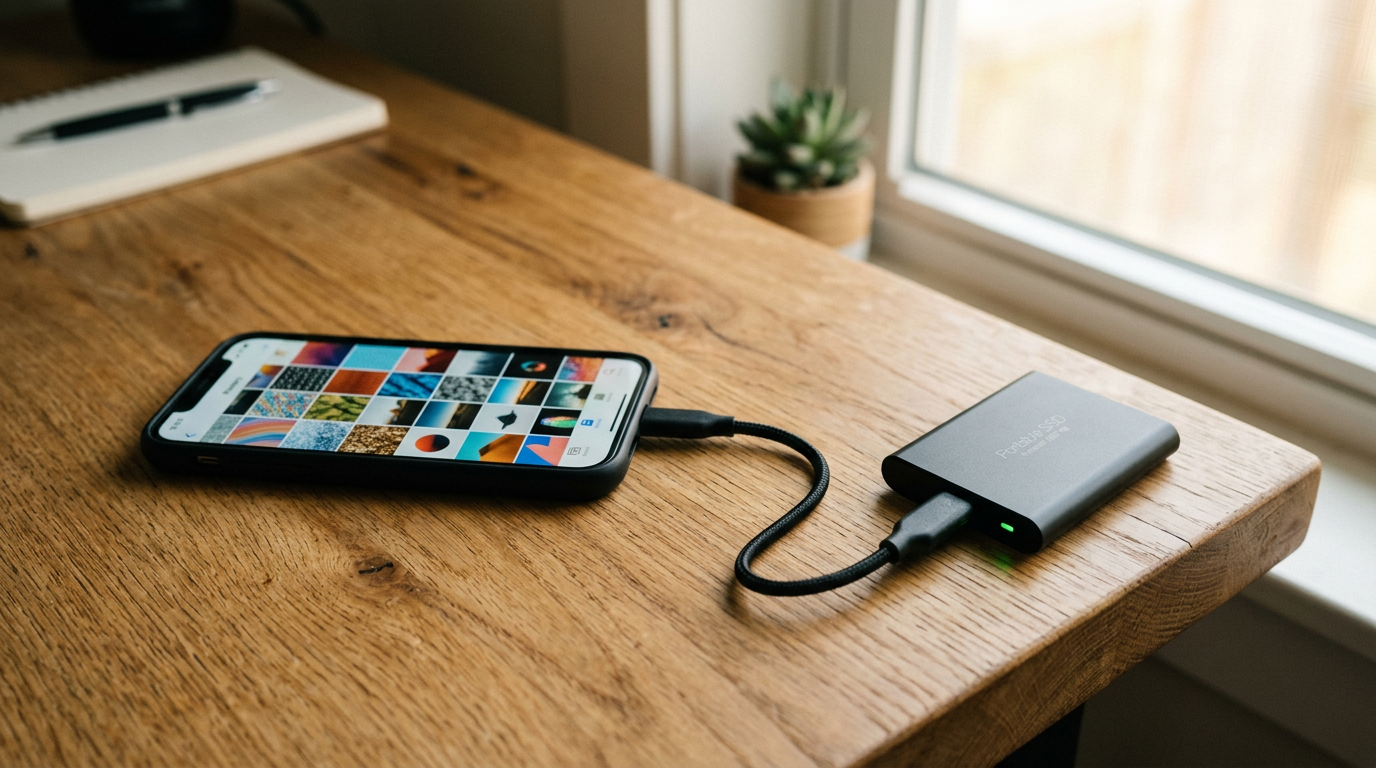
The second privacy-first mobile AI workflow rule is to audit what each assistant is allowed to touch. The default permission grants for Gemini, Siri and Copilot on mobile are quietly generous, calendar, contacts, photos, on-screen content, cross-app actions and, for the paid tiers, a rolling window of your browsing history. You almost never need the full set. Pare each assistant back to the minimum permission set that still solves the task you actually delegate to it, and revisit the permission grants every quarter.
The third rule is to keep a hard separation between your personal AI assistant and any work-provisioned assistant. Most employer Copilot and Gemini for Workspace deployments route queries through corporate-observed tenancies, which means any personal query you run against the wrong assistant ends up in logs you cannot see. The fourth rule is the simplest: never paste anything into a mobile AI prompt that you would not be comfortable reading aloud in a meeting with your regulator. That single filter eliminates the overwhelming majority of privacy-first mobile AI workflow mistakes.
Related reading
- Private AI Workflows on Phones: What You Can Do Offline
- Why Mobile Security Updates Matter More Than Benchmarks
Sources: ICO AI guidance (UK), Apple Privacy, Android Safety.
Buyer action
Where to buy or check next
Use this as the final check before ordering a phone, changing network or trusting a headline monthly price.










Reader discussion
Leave a comment
Comments are moderated. Keep it useful, accurate, and on topic.