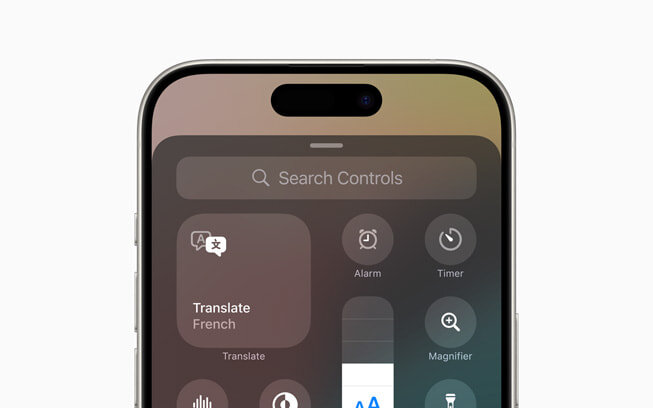
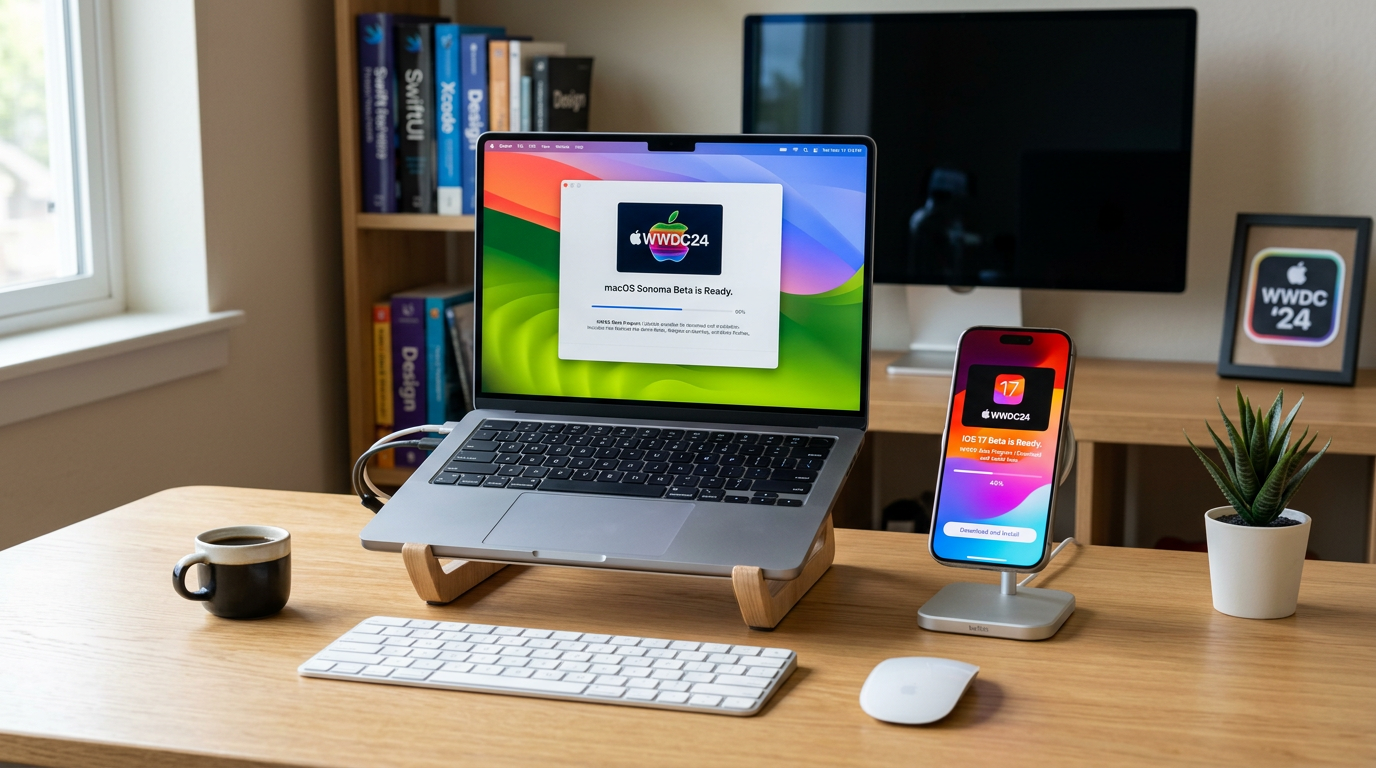
WWDC 2026 season is upon us. Apple has confirmed WWDC 2026 for 8 to 12 June, which means developer betas of iOS 27, iPadOS 27, macOS 27, watchOS 27 and the other Apple OSes will drop the same day under Apple’s year-based naming scheme. Prepare your iPhone and Mac now if you plan to install any of these, and millions of people do despite Apple’s warnings, rather than the day the beta appears. Public betas typically follow within two to four weeks.
Getting Started
- Back up everything properly
- Check your storage
- Decide which devices to sacrifice
- Prepare your Apple Developer account
- Know what to expect
- Set calendar reminders
This guide covers what to do in the weeks before WWDC season begins to ensure your devices are ready for beta testing without putting your important data at risk, as Apple Developer confirms.
Back up everything properly
This is the most important step and the one most people skip. A beta backup is not the same as your regular iCloud backup, you need an archival backup that you can restore to your current OS version if the beta breaks something critical, as 9to5Mac reports.

For iPhone, create an encrypted local backup using Finder on Mac or iTunes on Windows. Encrypted backups include passwords, health data, and Wi-Fi credentials that non-encrypted backups skip. Connect your iPhone, select “Back up all of the data on your iPhone to this Mac,” check “Encrypt local backup,” set a password you will remember, and let it complete. Store this backup somewhere you will not accidentally delete it.
For Mac, use Time Machine to create a full backup to an external drive. If you do not have a Time Machine drive, any USB-C external SSD will work, a 1TB drive costs under £60 and is worth every penny as beta insurance. Additionally, consider cloning your boot drive using a tool like Carbon Copy Cloner or SuperDuper, which creates a bootable copy of your entire system.
Check your storage
Beta updates are larger than regular updates because they replace more system components. Ensure your iPhone has at least 10–15 GB of free space before attempting a beta installation. On Mac, aim for at least 30–40 GB free.
If you are tight on space, now is the time to offload unused apps, clear old photos from the Recently Deleted album, and review large files in Settings → General → iPhone Storage. On Mac, use the built-in storage management tool (Apple menu → About This Mac → Storage → Manage) to identify and remove large files you no longer need.
Decide which devices to sacrifice
The golden rule of beta testing: never install a beta on your only device. If you have an older iPhone that still receives updates, use that as your beta device. If you have only one iPhone, seriously consider waiting for the public beta, which is typically more stable, rather than installing the developer beta on day one.
For Mac, the stakes are even higher. A broken Mac beta can prevent you from working. If you have a secondary Mac, use that. If you only have one Mac, use a separate APFS volume (Disk Utility → Add Volume) to install the beta alongside your current macOS installation. This lets you boot into the beta for testing and back to your stable system for work.
Prepare your Apple Developer account
You no longer need a paid Apple Developer account ($99 (around £79)/year) to install developer betas. Since 2023, Apple has allowed anyone with a free Apple ID to enrol in developer betas through Settings → General → Software Update → Beta Updates. However, if you want access to the beta on the same day as the WWDC keynote, ensure your Apple ID is set up correctly now, not when the servers are overloaded on June 8.
If you prefer to wait for the public beta (typically late June or early July), you can enrol through beta.apple.com when Apple opens registration.
WWDC Season: What to Expect
First developer betas are rough. Apps will crash. Battery life will suffer. Some features will not work. Banking apps, two-factor authentication apps, and health-monitoring apps may behave unpredictably. This is normal and expected, a beta is unfinished software.
Apple provides a Feedback app on beta devices for reporting bugs. Use it. The quality of the final release in September depends on beta testers reporting issues throughout the summer. If you are going to run the beta, participate in the process. For more, see our how-to guides.

Set calendar reminders
Mark these dates: WWDC keynote on June 8 at 6 PM UK time (10 AM Pacific). Developer betas available immediately after the keynote. Public beta registration likely opening the same week. Public beta 1 typically arriving in late June or early July. Final release in September alongside new iPhone hardware. For more, see our news coverage.
Between now and June, keep your backups current, clear storage space, and decide which devices you are willing to dedicate to beta testing. WWDC season excitement about installing a new OS on day one is real, but so is the frustration of losing data because you did not prepare properly.
Buyer action
Where to buy or check next
Use this as the final check before ordering a phone, changing network or trusting a headline monthly price.













Reader discussion
Leave a comment
Comments are moderated. Keep it useful, accurate, and on topic.