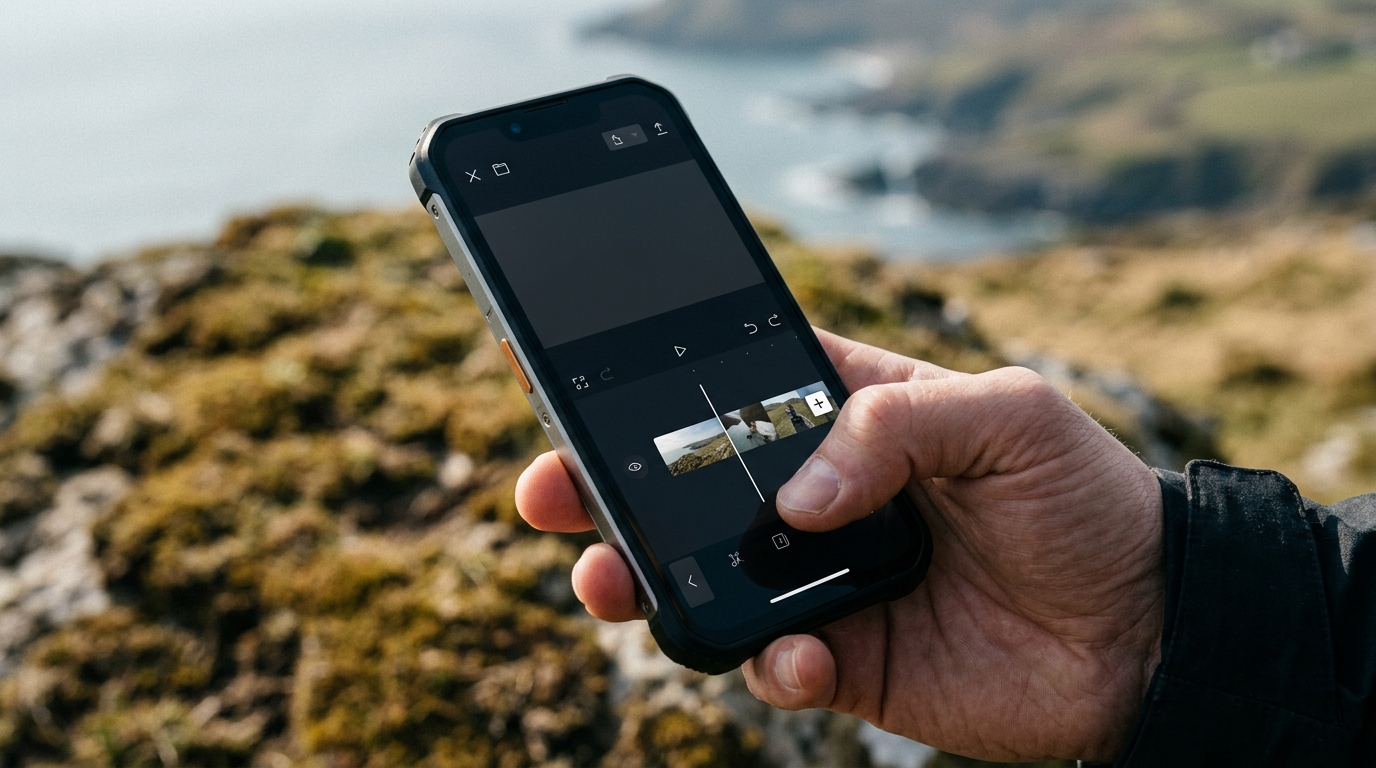
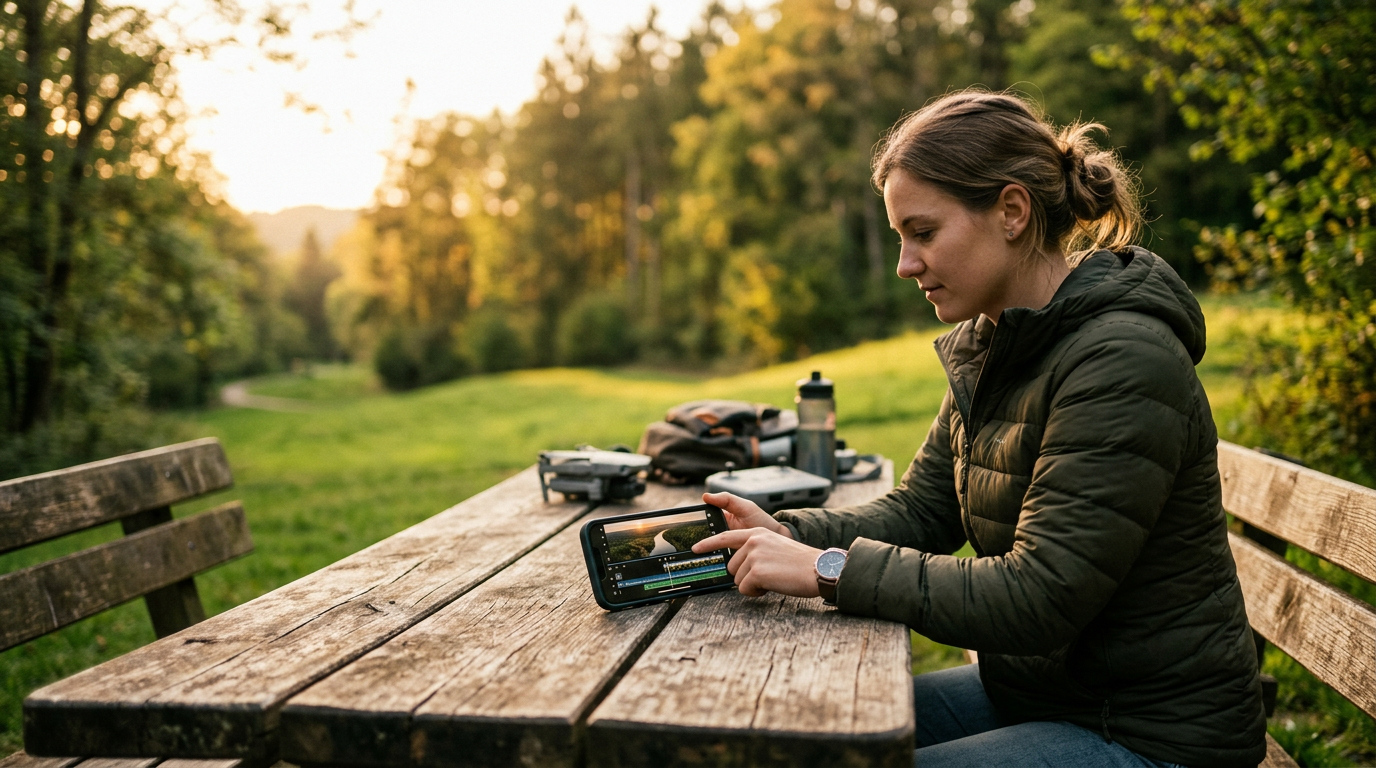
You have flown your drone, captured stunning footage, and now it sits on an SD card waiting to be edited into something worth sharing. The good news is that you no longer need a desktop computer to turn raw clips into polished video. Modern phones have enough processing power to handle 4K drone footage, and several apps make the editing workflow practical. Here is how to edit drone footage on your phone from start to finish.
Edit Drone Footage: Contents
- Getting Footage onto Your Phone
- The Editing Apps
- Workflow Tips
- Export Settings by Platform
- Managing Phone Storage
Getting Footage onto Your Phone
Before you can edit, you need to transfer your clips. There are two main paths.
Via the DJI Fly app: If you fly a DJI drone, the Fly app can download clips directly from the drone to your phone over Wi-Fi. This is convenient for short clips but painfully slow for large 4K files.
Via SD card reader: The faster option. A USB-C SD card reader costs under £15 and lets you import files directly into your phone’s storage. This is the method to use if you have more than a couple of clips to work with.
The Editing Apps
DJI Fly App for Quick Edits
DJI Fly includes a basic editor that is useful for simple cuts and quick social media posts. You can trim clips, apply colour presets, add music from a built-in library, and export directly. The colour presets are designed specifically for DJI camera profiles, which means they work well with footage shot in Normal colour mode.
Limitations: No multi-track timeline. No manual colour correction beyond presets. No keyframing or advanced transitions. If you shot in D-Cinelike or D-Log, the presets are insufficient for proper colour grading.
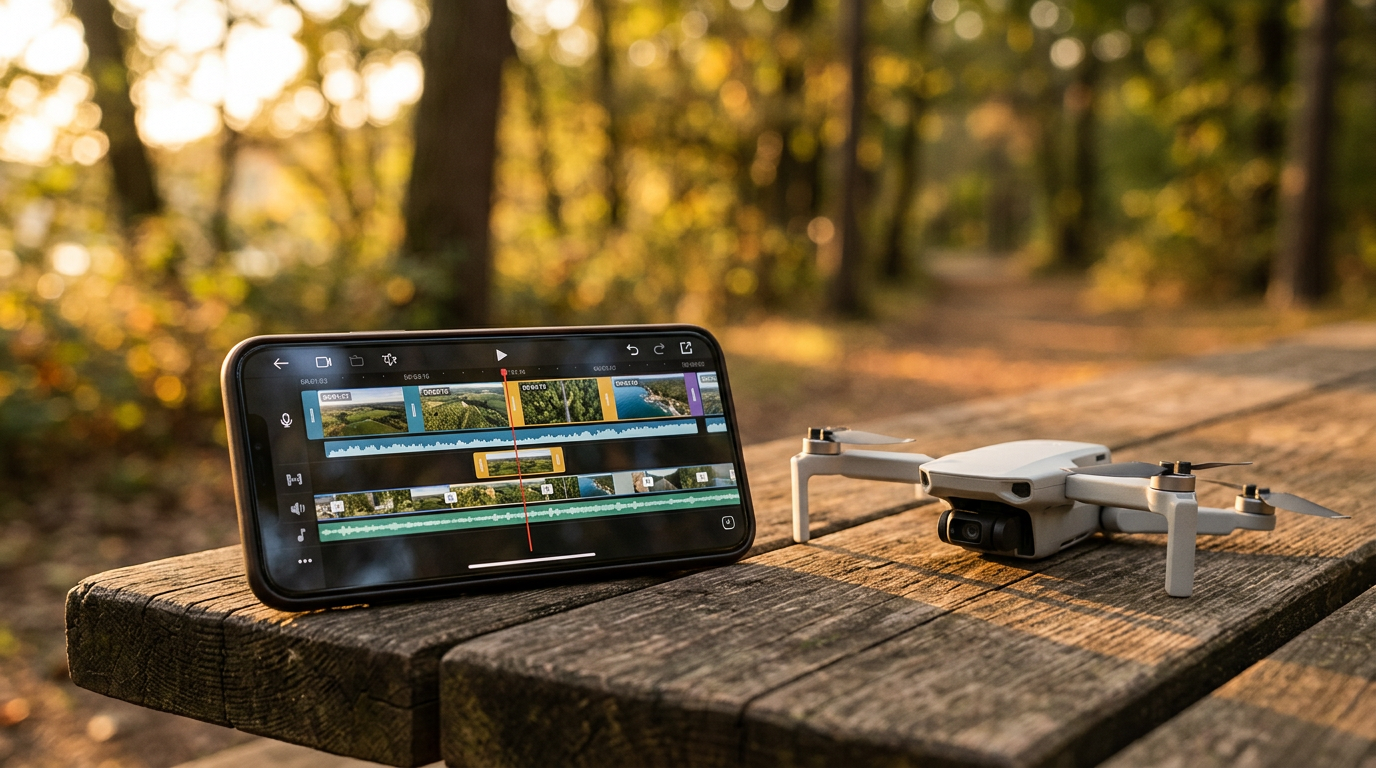
Best for: Quick turnaround clips where you want something shareable within minutes of landing.
LumaFusion for Full Editing Power
LumaFusion was iOS-only for years but is now available on Android and ChromeOS as well, with the Android build v2.5 hitting feature parity with iOS in early 2026. It sells for around £29.99 on both platforms.
Strengths for drone footage: Proper colour grading tools that can handle D-Log footage. Stabilisation filter for gimbal micro-jitters. Speed ramping for dramatic reveals. The timeline interface works surprisingly well on iPhone and Android flagships alike, though an iPad or a large Samsung Galaxy Tab is more comfortable for longer edits.
Limitations: The learning curve is steeper than casual editing apps. 4K multi-track editing is noticeably slower on mid-range phones than on recent flagships.
CapCut for Free and Social-Ready Edits
Strengths: Automatic beat sync matches cuts to music. Text and caption tools are polished. Export presets for specific platforms simplify the final step. The auto-captions feature is genuinely useful for voiceover-style drone tours.
Limitations: Colour correction tools are basic. 4K export is available but the compression can be heavy.
Adobe Premiere Rush for Cross-Platform
Premiere Rush works on iOS, Android, and desktop, with projects syncing across devices via Creative Cloud. This makes it the best option if you want to start an edit on your phone and finish it on a computer later. The interface is simplified compared to Premiere Pro but retains enough control for competent edits.
Strengths: Cross-device project sync is seamless. Colour and audio tools are more capable than CapCut. Built-in motion graphics templates add production value.
Limitations: Requires a Creative Cloud subscription (free tier limits exports). Performance with 4K footage on phones can be sluggish.
Workflow Tips
Colour correction basics: Most drone footage benefits from a small boost in contrast and saturation. If you shot in a flat colour profile like D-Log, start by adding contrast and adjusting the white balance before touching saturation. Over-saturated drone footage is the hallmark of amateur edits.
Stabilisation: Even with a gimbal, drone footage can have subtle vibrations. LumaFusion and Premiere Rush both offer stabilisation filters. Apply them conservatively, because over-stabilisation creates a watercolour effect that looks worse than the original shake.
Export Settings by Platform
YouTube: 4K 30fps if your phone can handle the export time. H.264 codec, high bitrate. YouTube re-compresses everything, so upload the highest quality your phone can produce.
Instagram Reels and Stories: 1080×1920 vertical, 30fps. Keep clips under 90 seconds for Reels. CapCut’s platform-specific export presets handle this automatically.
TikTok: 1080×1920 vertical, 30fps. Similar to Instagram but TikTok’s compression is more aggressive, so slightly higher sharpness in your export can compensate.
Managing Phone Storage
4K drone footage is large. A 10-minute flight can produce 5 to 10GB of raw files depending on bitrate. Before starting an edit session, check your available storage. Delete or transfer completed projects regularly. Use an external USB-C drive to archive raw footage after editing. If you are working with footage from a beginner drone, our best drones for beginners guide covers which models produce the most manageable file sizes.
Cloud backup is worth considering for finished projects. Google Photos, iCloud, and Dropbox all support video uploads, though free tiers fill up quickly with 4K content. The DJI Avata series produces particularly large files due to its stabilisation data, so plan storage accordingly.
Phone-based drone editing is not a compromise anymore. It is a legitimate workflow that produces results good enough for professional social media and personal projects alike. The limiting factor is usually patience with the smaller screen, not capability.
Buyer action
Where to buy or check next
Use this as the final check before ordering a phone, changing network or trusting a headline monthly price.




Reader discussion
Leave a comment
Comments are moderated. Keep it useful, accurate, and on topic.