
Getting Gemini in Gmail to actually draft a usable email, rather than a block of corporate filler, takes about ten minutes of setup and a clear idea of which Google AI plan you are on. Google documents the side panel, the in-line drafting tools and the summarise buttons across Gmail, Docs and Sheets, but the help pages bury the one thing UK readers most need to know: for a personal Google account, the in-app features sit behind a paid Google AI subscription, and on a work account they depend on your Workspace edition. This guide walks through the real menu paths, the exact button labels and the plan gating, so you can set it up once and use it properly.
- The side panel is opened with the Ask Gemini button at the top right of Gmail, Docs and Sheets.
- In Gmail, the compose-window tool is labelled Help me write, with refine options including Formalize, Friendly and Shorten.
- For a personal Google account, Gemini inside Gmail and Docs requires a paid Google AI plan (Plus, Pro or Ultra); the free Gemini app does not unlock the in-app side panel.
- On a work or school account, availability depends on the Workspace edition and on what your admin has switched on.
What you will achieve, and on what kit
By the end of this you will have Gemini drafting and refining emails in Gmail, summarising long threads, answering questions about a document from the Docs side panel, and building a quick table in Sheets from a plain-English prompt. This works on the desktop web versions of Gmail, Docs and Sheets in a Chrome or Edge browser, and in the Gmail, Docs and Sheets mobile apps on Android and iPhone. The features are the same whether you are on a Pixel, a Galaxy or an iPhone, because they run in Google’s apps rather than in the phone’s operating system. If you have been weighing up whether the wider Gemini system on Android changes any of this, our explainer on the Gemini Intelligence Android UK rollout covers the device-level side; this guide is purely about the productivity apps.
Two things decide what you can do. The first is the account you sign in with: a personal gmail.com address behaves differently from a Workspace address ending in your company domain. The second is the plan attached to that account. Get those two straight before you start, because almost every “Gemini is not showing up” problem traces back to one of them.
Which plan unlocks which feature
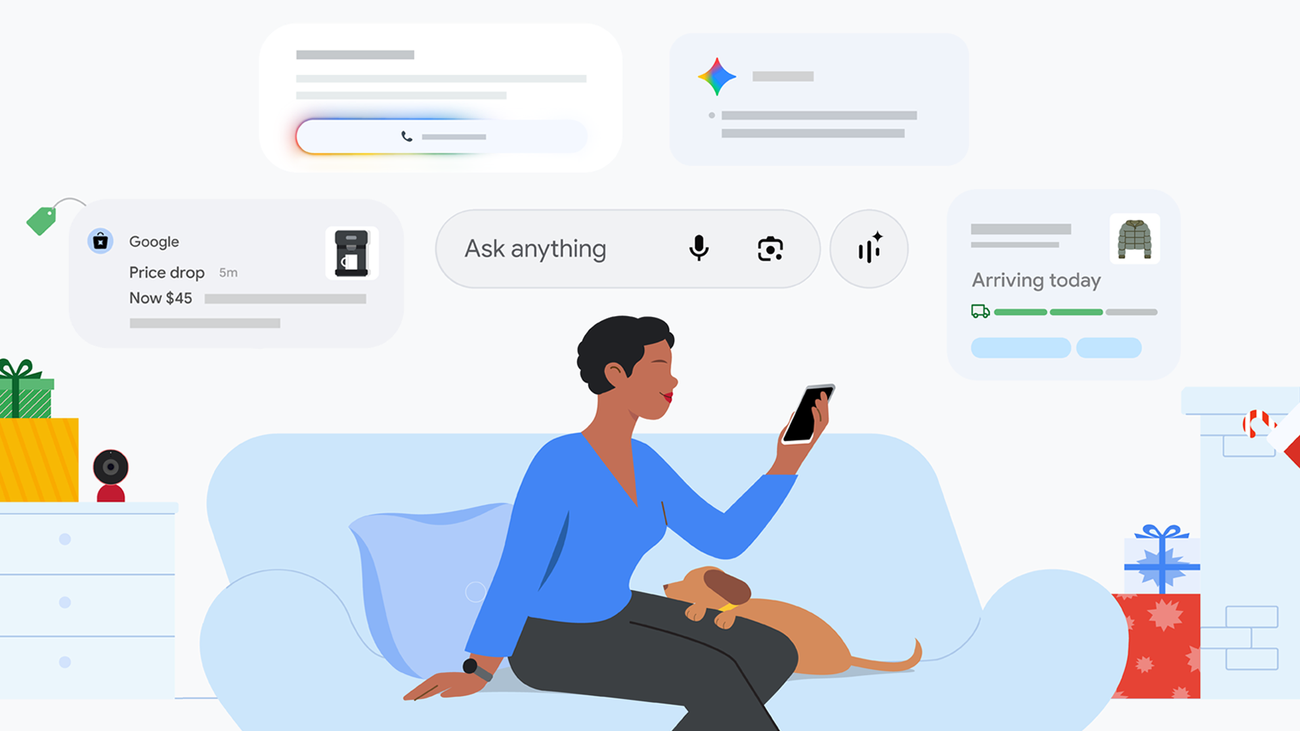
For individuals, Google sells three consumer AI tiers. Google’s plans page lists Google AI Plus, Google AI Pro and Google AI Ultra, and crucially it states that the in-app help is part of the paid offer: AI Plus includes Gemini to “help you proofread in Gmail”, while AI Pro extends that to “proofread in Gmail and work smarter in Docs and Sheets”. The free Gemini app and the gemini.google.com website are open to anyone with a Google account, but the side panel that lives inside Gmail and Docs is not part of that free experience for personal users. If you only ever use the standalone Gemini chat, you do not need to pay; the moment you want it embedded in your inbox and documents, a paid tier is the gate.
For a small business or anyone on a work account, the gate is the Workspace edition rather than a consumer subscription. Google’s admin documentation states plainly that “Gemini feature availability is based on your Google Workspace subscription”, with Gmail, Docs, Sheets, Drive, Chat and Meet all covered. In practice that means a Business Standard or Business Plus edition with Gemini, or an Enterprise edition, rather than the cheapest Business Starter seat. If you are comparing the cost of paying per seat for this against rival tools, our look at Microsoft 365 Copilot UK pricing is a useful side-by-side, because the two products are sold on almost identical per-user, per-month logic.
One UK-specific wrinkle is worth flagging before you commit. Some Gemini features roll out by region, and Google’s own pages note that a handful, such as AI Overview for Gmail, are currently US-only. The drafting, summarising and side-panel tools covered here are available to eligible UK accounts, but if a feature in a US tutorial is missing for you, regional staging is the likeliest reason rather than a broken setup. We have written before about how Google stages its assistant against rivals in our piece on Gemini versus GPT-5.5, and the same staggered approach applies inside Workspace.
Step by step: enable Gemini and write your first email
Start by confirming the plan. On a personal account, open the Gemini app or gemini.google.com, check your subscription under your profile, and upgrade to a Google AI plan if you want the in-app tools. On a work account, you do not buy anything yourself; your administrator assigns the licence, so if nothing appears, that is your first email to send. Once the plan is in place, the buttons appear in Gmail within a few minutes.
Open the side panel
In Gmail on the desktop web, look to the top right of the window. Google’s instructions say: “At the top right, click Ask Gemini.” That single button opens the side panel, which can be expanded, collapsed or closed. The same Ask Gemini button sits in the same place in Docs and Sheets, so once you have found it in one app you have found it in all three. The side panel is where you ask Gemini to summarise a thread, suggest a reply, search older emails or pull a detail out of a Drive file.
Use Help me write to draft an email
Click Compose to start a new message. The tool you want here is Help me write, which appears in the compose window’s prompt bar; if you do not see it, click the Help me write button to bring it up. Type a plain instruction, for example “Write a short, friendly email to a supplier asking for an updated delivery date for order 4471”, then click Create. Gemini drafts the message into the body. You then refine it with the labelled options Google provides, including Formalize, Friendly and Shorten, and you can step between versions with Undo and Redo. Treat the first draft as a starting point, not a finished email; the refine buttons are where most of the value sits.
There is an important UK caveat on Help me write specifically. Google’s support page notes that the feature is available globally on a Google Workspace or Google AI plan, but on a personal Google account it is currently described as US-only. The practical reading for a UK reader is that a paid Google AI plan or a Workspace licence is the reliable route to Help me write in this country; do not assume a free personal gmail.com account will show it. This is exactly the kind of plan-and-region detail that catches people out, and it is why we keep returning to it.
Summarise a long thread
Open any long email chain and look at the top of the thread. Google exposes a Summarize this email button there, and inside the side panel you will also see options such as What’s this email about? and Suggest a reply. For a twenty-message thread about a project, the summary turns minutes of scrolling into a few lines. When an email contains event details, an Add to calendar button appears above the message, which saves the copy-and-paste dance into Google Calendar.
Gemini in Docs and Sheets
Docs gives you two entry points. The Ask Gemini side panel handles broad requests, and Google says it can “write and refine content with context from your emails, chats, and files”, reference another file’s style, summarise a long document, and polish writing, grammar and formatting. For quick in-line edits there is a prompt in the bottom bar where you can ask Gemini to write, refine or edit a passage, and the @ menu in Docs lets you drop in a document summary. A realistic prompt: open a meeting note, type “Summarise the decisions and list the action items with owners” into the side panel, and you get a clean brief you can paste into an email.
Sheets is the one people underuse. Google describes the Sheets side panel as able to “quickly create tables like an expense tracker, generate insights based on spreadsheet data, perform actions, and more”. For a small business, that means you can type “Create a simple expense tracker with date, category, supplier and amount columns” and let Gemini build the structure, then ask it to flag the three largest costs in a populated sheet. It will not replace a spreadsheet expert, but for the routine table-building most owners dread, it removes the blank-canvas problem. If your day job involves a lot of long-form drafting rather than numbers, our comparison of the best AI writing assistant in the UK for 2026 weighs Gemini against Copilot and ChatGPT on exactly that workload.
A point on expectations: Google flags that these features are “subject to usage limits”, and that some sit in early-access programmes. If a tool stops responding mid-task, you may simply have hit a daily cap on your tier, which is one reason the higher AI Pro and AI Ultra plans advertise multiplied usage limits over the entry tier.
Real example prompts that earn their place
Vague prompts produce the bland output that gives these tools a bad name. Specific ones do not. In Gmail, instead of “reply to this”, try “Reply to accept the meeting, suggest Thursday at 2pm as an alternative, and keep it to three sentences.” In Docs, instead of “improve this”, try “Rewrite this paragraph for a non-technical reader, British English, and cut it by a third.” The pattern that works is task, audience, constraint: say what you want done, who it is for, and one hard limit such as length or tone.

The side panel’s real advantage over the standalone chat is context. Because it can draw on “your emails, chats, and files”, you can ask “Find the last email from our accountant about the VAT return and summarise what they need from me” without opening anything. For a sole trader juggling clients, that grounding in your own data is the feature that justifies the subscription, far more than the novelty of generated text. Saved prompts, which Google calls Gems, let you keep a reusable instruction such as a standard client-onboarding email so you are not retyping the brief each time.
Data, privacy and UK GDPR considerations
This is the section small businesses skip and later regret. Under UK GDPR, the Information Commissioner’s Office expects you to know what happens to personal data you put into any tool, and an email thread or a client spreadsheet is full of it. The reassuring part is that Gemini’s enterprise and paid use inside Workspace is governed by your existing Google account agreement rather than the consumer chatbot terms, but you should still confirm, in your admin console or your plan details, whether your prompts are used to improve models. Treat any client’s personal data as something you are accountable for the moment it enters a prompt.

Before you let Gemini loose on a personal account, walk through the privacy switches Google provides. We have a dedicated companion piece on the Gemini app privacy settings UK users should check before turning on personalised features, and it pairs directly with this guide. The short version: review your Gemini Apps Activity setting, understand that turning on personalisation lets Gemini reference more of your Google data, and decide that trade-off deliberately rather than by default. For a regulated UK profession, that decision should be documented.
Admin controls for small teams
If you run a Workspace tenant for a small team, the controls live in the Google Admin console. Google’s admin documentation lists the ability to “turn the Gemini app on or off”, to “manage access to Gemini features in Workspace services”, and to “turn access to Alpha features on or off” separately. That separation matters: you can give your team the stable Gemini tools in Gmail and Docs while keeping experimental alpha features switched off until you have tested them. The same console controls availability across Gmail, Docs, Sheets, Drive, Chat and Meet, so you set policy once rather than app by app.
For a business owner, the sensible order is: enable Gemini for a single test user, confirm the data-use settings meet your obligations, write a one-page internal note on what staff may and may not paste in, then roll it out. If you are still deciding whether to standardise on Google’s stack or pay for a rival assistant, our editorial on the Google AI Ultra UK pricing question is worth reading before you sign anyone up to the top tier, because the highest plan is rarely the one most small teams need.
Common problems and what to check
If the Ask Gemini button is missing, the cause is almost always the plan. On a personal account, confirm you are on a paid Google AI plan; on a work account, ask your admin to confirm your licence and that Gemini is switched on for your organisational unit. If Help me write does not appear in compose on a personal account, remember it is described as US-only there, so a Workspace or Google AI plan is the fix. If a feature works for a colleague but not you, check you are both on the same edition and that you are signed into the correct account, not a second personal address in the same browser.
If summaries or drafts stop part way, you may have hit your tier’s usage limit for the day; the entry plans cap harder than Pro or Ultra. And if you want the deeper setup walkthrough for Google’s premium assistant, our step-by-step on how to set up Gemini Spark covers the AI Ultra side in detail.
Our verdict
Gemini in Gmail and Docs is worth turning on if you already pay for a Google AI plan or a Workspace edition that includes it, and if your work involves a steady stream of emails, meeting notes and simple spreadsheets. The summarise and Help me write tools save real time once you learn to write specific prompts, and the side panel’s access to your own Gmail and Drive context is the genuine advantage over a standalone chatbot. Our view is that most individuals do not need to rush to the top AI Ultra tier; AI Pro covers Gmail, Docs and Sheets comfortably for everyday use. The one thing we would not skip is the privacy pass: before you let it read client data, confirm your data-use settings and, if you run a team, set the admin policy first. The risk that would change our recommendation is a tightening of how prompt data is handled; check that before you commit a regulated UK business.
Gemini in Gmail and Docs: frequently asked questions
Related reading on MTW
Buyer action
Where to buy or check next
Use this as the final check before ordering a phone, changing network or trusting a headline monthly price.


















Reader discussion
Leave a comment
Comments are moderated. Keep it useful, accurate, and on topic.