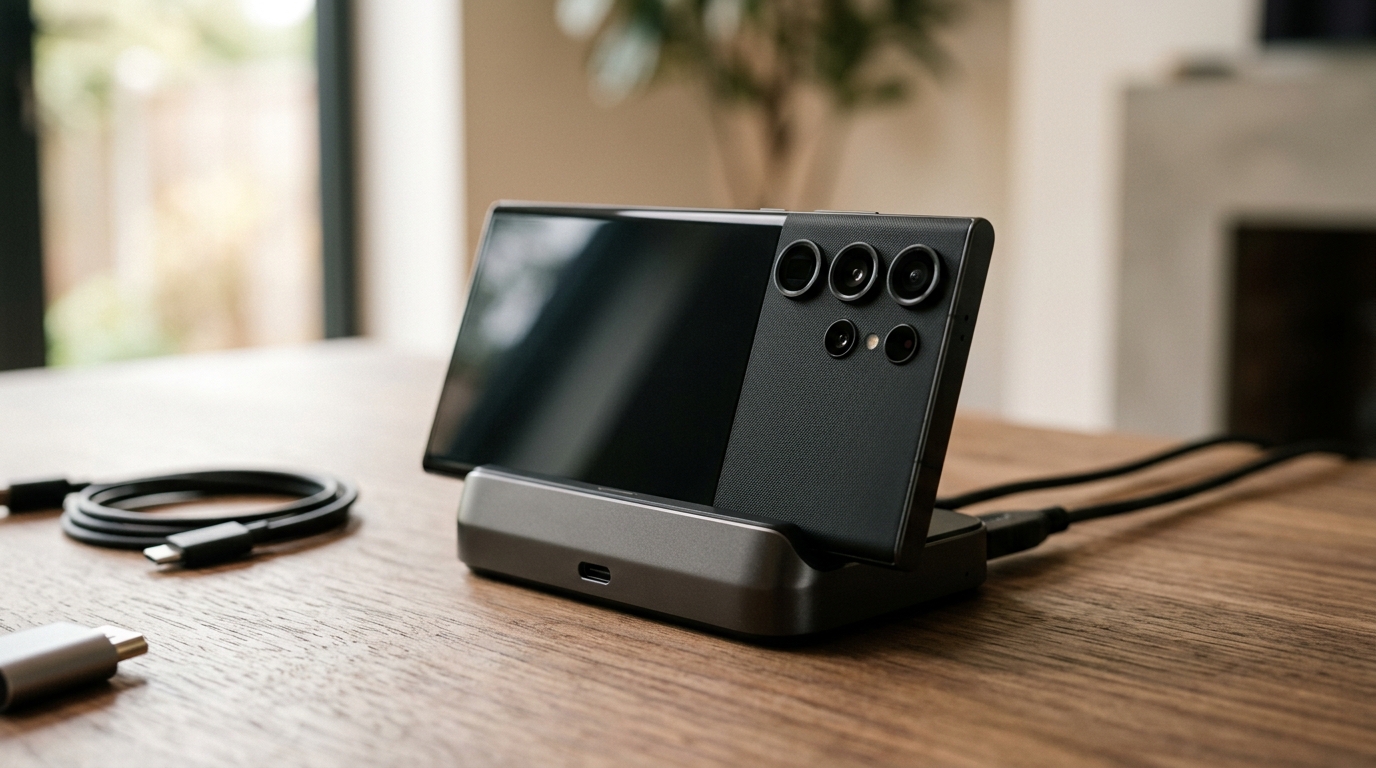
Samsung DeX is one of the most underused features on modern Samsung phones. It turns your Galaxy device into something resembling a desktop computer, with a taskbar, resizable windows, and a full desktop browser, all powered by the phone in your pocket. For light productivity work, it is genuinely capable, and for anyone curious about whether they can ditch a secondary laptop for basic tasks, it is worth testing before spending money on new hardware.
Samsung Dex: Contents
- Which Samsung Phones Support DeX?
- What You Need
- Step-by-Step Setup
- What Works Well in DeX
- What Does Not Work Well
- Useful Tips for Daily Use
- How Does It Compare to Motorola Ready For?
Which Samsung Phones Support DeX?
DeX is available on most Samsung flagship phones from the Galaxy S9 onward. That includes the entire Galaxy S20 through S26 series, the Galaxy Note series from Note 9 to Note 20, and the Galaxy Z Fold 2 through Z Fold 7. Among the Galaxy A-series, only the Galaxy A90 5G is on Samsung’s official DeX-supported list, so mid-range A-series buyers should confirm support before relying on it.
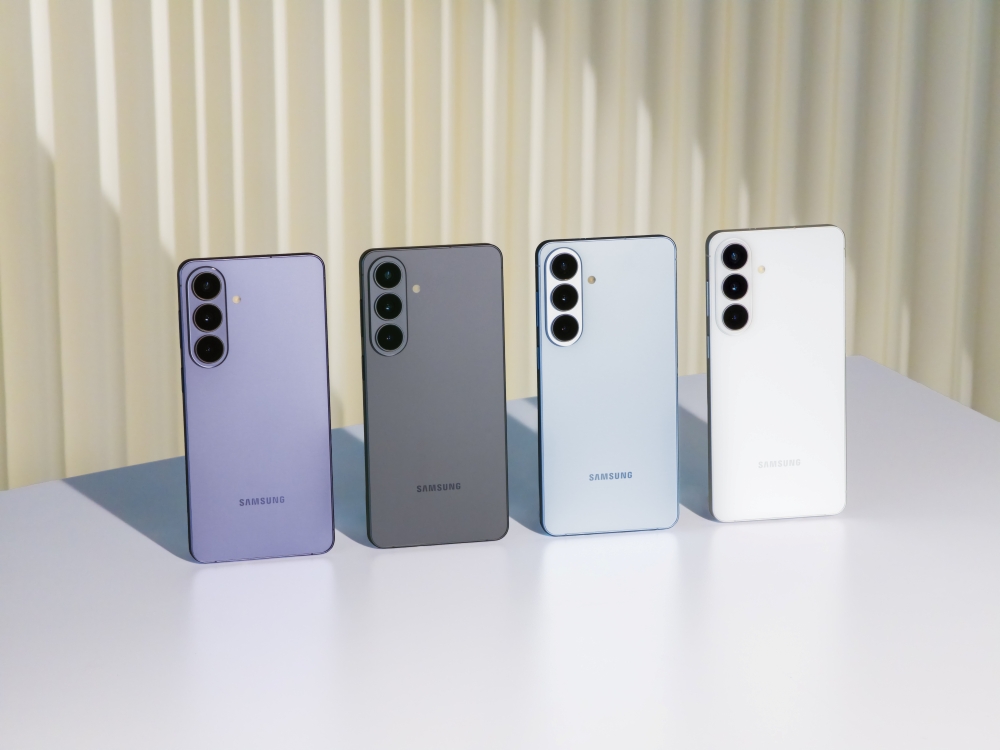
The Galaxy Z Fold series offers the best DeX experience because the larger internal display serves as a useful touchpad or secondary screen while the external monitor handles the desktop interface. On the Galaxy S26 series, DeX gained a refreshed interface with support for up to four desktop spaces, each able to run five apps at once.
What You Need
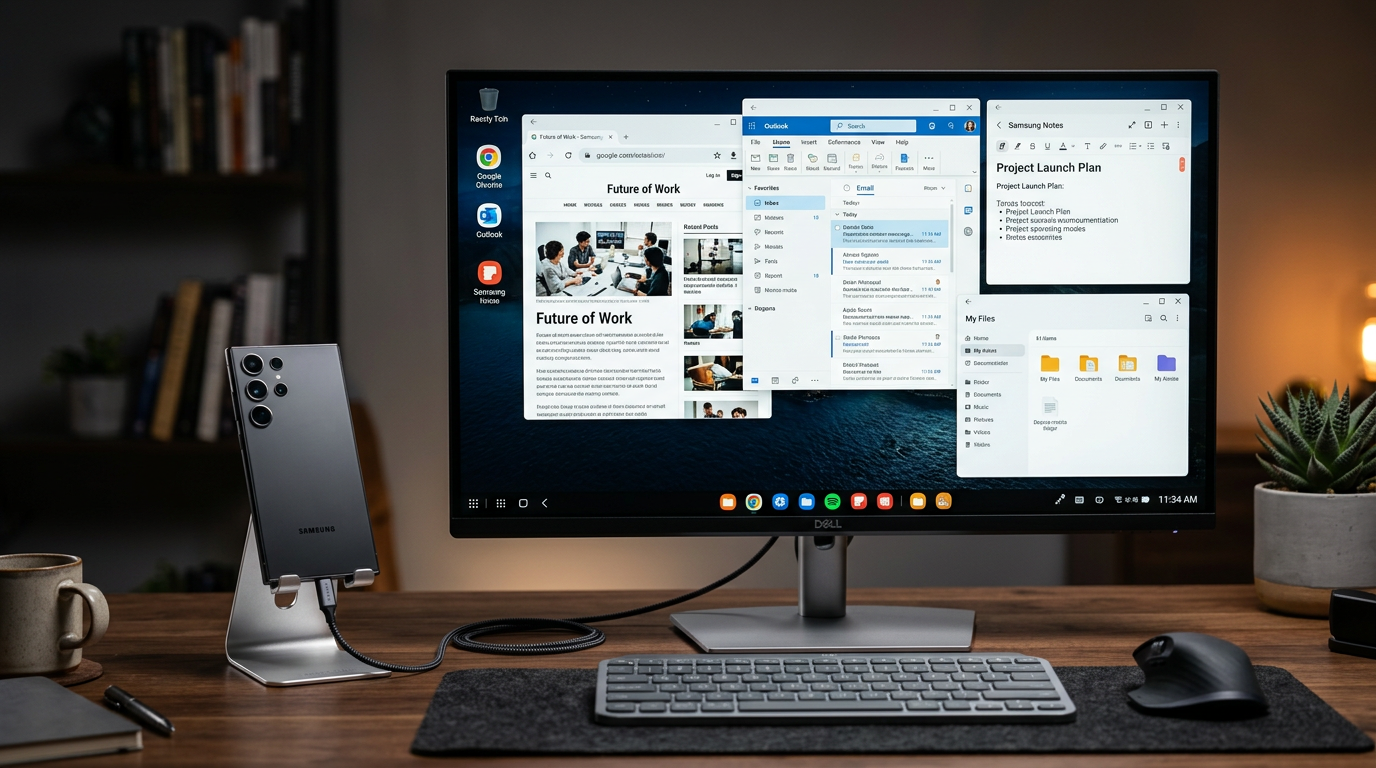
Wired connection (recommended for reliability): A USB-C to HDMI cable or a USB-C hub with HDMI output. Samsung’s official DeX cable works, but any high-quality USB-C to HDMI adapter will do. A USB-C hub that includes HDMI, USB-A ports, and power passthrough is the most versatile choice, as it lets you charge the phone while using DeX and connect a wired keyboard and mouse simultaneously.
Wireless DeX: If your monitor or TV supports Miracast, or if you have a compatible Samsung Smart TV, you can launch DeX wirelessly. Go to Quick Settings on your phone, tap DeX, and select your display. The convenience is real, but expect occasional latency, with typing and mouse movement feeling sluggish over wireless, particularly on congested Wi-Fi networks. Note that on the Galaxy S26 and Z Fold 7, DeX for PC is no longer supported, so a display or TV is now the only target.
For input, you will want a Bluetooth keyboard and mouse. Any standard Bluetooth peripherals will work. Samsung’s own Smart Keyboard Trio and the Logitech MX Keys Mini are both excellent choices that pair quickly and reliably.
Step-by-Step Setup
Step 1: Connect your USB-C to HDMI cable or adapter to your phone and plug the HDMI end into your monitor. DeX should launch automatically, displaying a desktop interface on the external screen while your phone screen becomes a touchpad.
Step 2: Pair your Bluetooth keyboard and mouse from the DeX taskbar by tapping the Bluetooth icon. Most keyboards will pair within ten seconds.
Step 3: Open DeX Settings via the gear icon in the taskbar and choose whether DeX should lock the phone screen when you connect, or keep it active as a touchpad. For most users, locking the phone avoids accidental input.
Step 4: Adjust the display resolution. Most monitors work best at 1920×1080, though DeX supports up to 2560×1440 on recent Galaxy S and Z Fold models.
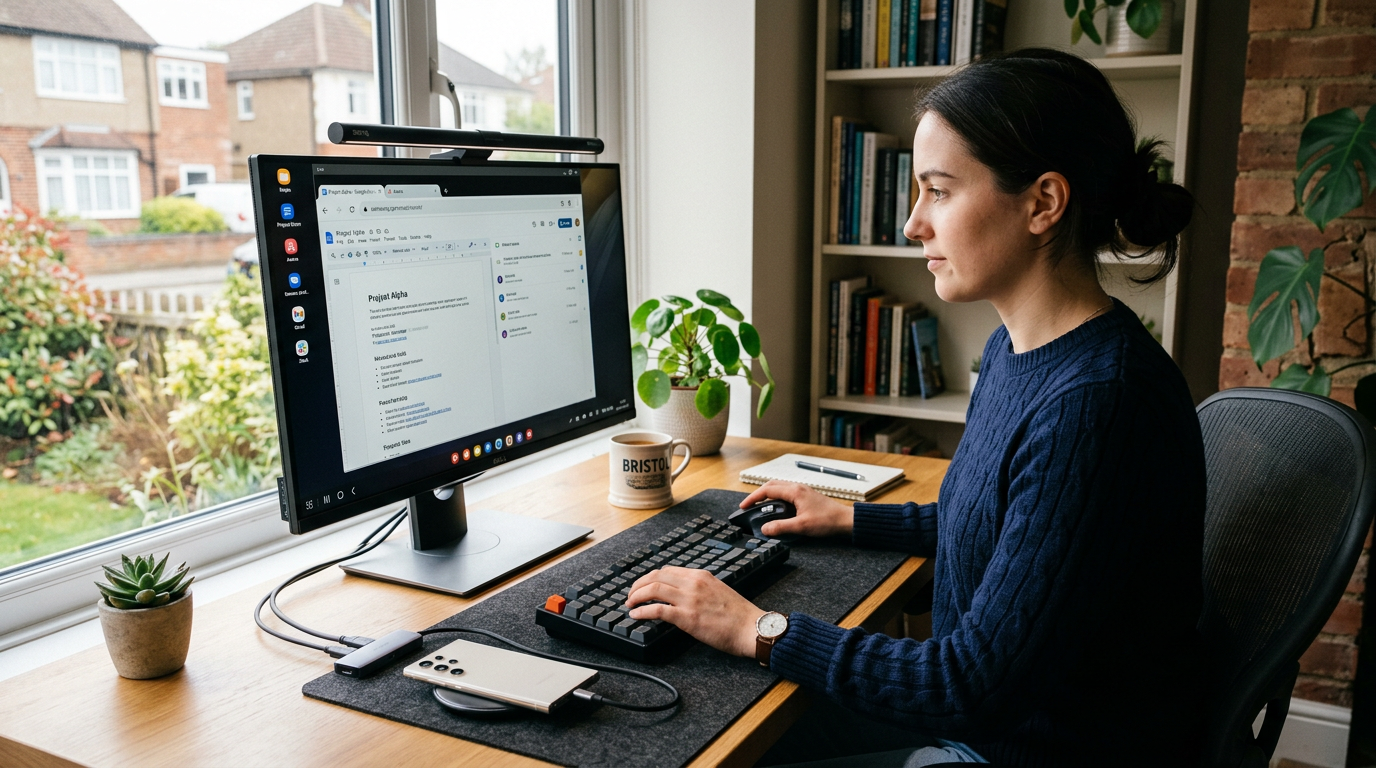
Step 5: Pin your most-used apps to the taskbar. Right-click any app icon and select “Pin to Taskbar” for quick access, just as you would on Windows or macOS.
What Works Well in DeX
Web browsing: Samsung Internet and Chrome both run in full desktop mode, loading desktop versions of websites rather than mobile layouts. For research, email via Gmail or Outlook web, and general browsing, the experience is nearly identical to using a laptop.
Office productivity: Microsoft Word, Excel, PowerPoint, and Google Docs all run in resizable windows and support keyboard shortcuts. Document editing is smooth, and formatting is consistent with what you would see on a computer. For anyone who primarily works in documents and spreadsheets, DeX is a viable daily driver.
Video calls: Microsoft Teams, Zoom, and Google Meet all work in DeX mode. The phone’s front camera handles the video, and audio routes through the phone’s speakers or any connected Bluetooth headset. Call quality is comparable to using a laptop webcam.
Media consumption: YouTube, Netflix, and Samsung TV Plus all work in windowed or full-screen mode on the external display, making DeX a competent media hub as well.
What Does Not Work Well
App scaling: Not every Android app is optimised for DeX. Some apps, particularly games and certain social media apps like Instagram, launch in a fixed phone-sized window that cannot be resized. Samsung has improved compatibility over the years, but you will still encounter apps that simply refuse to fill a desktop-sized display.
Gaming: DeX is not a gaming platform. Most mobile games either do not support mouse and keyboard input or run with noticeable latency on an external display. If gaming is important, a dedicated device is still necessary.
Heavy multitasking: While DeX now supports multiple desktop spaces on the Galaxy S26, running more than four or five apps simultaneously on an older model will cause performance to degrade. Memory management is aggressive, and background apps may refresh when you switch back to them.
Useful Tips for Daily Use
Keyboard shortcuts: DeX supports many familiar shortcuts. Alt+Tab switches between apps, Alt+F4 closes the active window, and Ctrl+C/Ctrl+V handle copy and paste. These small touches make the desktop experience feel natural for anyone coming from Windows.
Multi-window layouts: Drag app windows to the left or right edge of the screen to snap them into split-screen mode, just like Windows snap assist. This is particularly useful for referencing one document while writing in another.
Presentations: DeX is excellent for presentations. Open your slides in PowerPoint or Google Slides, connect to a conference room display, and present directly from your phone. Your phone screen shows presenter notes while the external display shows the slides.
How Does It Compare to Motorola Ready For?
Motorola’s Ready For offers a similar concept but with a less polished execution. The interface is simpler, app compatibility is more limited, and Motorola does not invest in the feature with anywhere near Samsung’s level of ongoing development. DeX is meaningfully ahead in reliability, app support, and overall usability. If desktop mode from a phone matters to you, Samsung is the clear choice.
For those considering a dedicated portable display for DeX or laptop use, our guide to the best portable USB-C monitors covers the current options. And if you are evaluating whether DeX could replace a budget laptop entirely, it is worth comparing the experience against something like the £475 (about $599) Apple MacBook Neo, which offers a full desktop operating system at a competitive price.
Buyer action
Where to buy or check next
Use this as the final check before ordering a phone, changing network or trusting a headline monthly price.





Reader discussion
Leave a comment
Comments are moderated. Keep it useful, accurate, and on topic.