You do not have to click a link to get hacked in 2026. The most effective ways to protect your phone from spyware are now baked into iOS, Android and the main messaging apps, but almost nobody turns them on. TechCrunch published a 23 May 2026 walkthrough that put the four switches you need in one place. This guide turns those switches into a checklist.
- iOS Lockdown Mode blocks unknown FaceTime calls, attachments in iMessage and 2G/3G connections.
- Android Advanced Protection auto-reboots after 72 hours and blocks unknown-source app installs.
- WhatsApp Advanced Privacy hides your IP in calls and silences unknown numbers.
- Google Advanced Protection Program requires a hardware key or passkey for Google account sign-ins.
Why you need to protect your phone from spyware in 2026
The reason you cannot ignore this in 2026 is that exploit chains no longer require user interaction. Commercial spyware vendors like NSO, Cytrox, Quadream and at least three new entrants documented in the past year now deliver zero-click attacks through iMessage, WhatsApp, Telegram and SMS. The target receives the message, the spyware runs, and the device is compromised without the owner doing anything. To protect your phone from spyware in this environment, you have to turn off the attack surface, not just be careful with links.
Most readers are not personal spyware targets, but you do not get to know that in advance. Journalists, activists, lawyers, executives and family members of any of the above have all been hit by the commercial spyware industry between 2022 and 2026. The mitigations below cost nothing, take about five minutes per device, and the trade-off in convenience is small enough that we now recommend Lockdown Mode and Advanced Protection by default on any iPhone or Pixel.
How to protect your phone from spyware on iPhone: Lockdown Mode
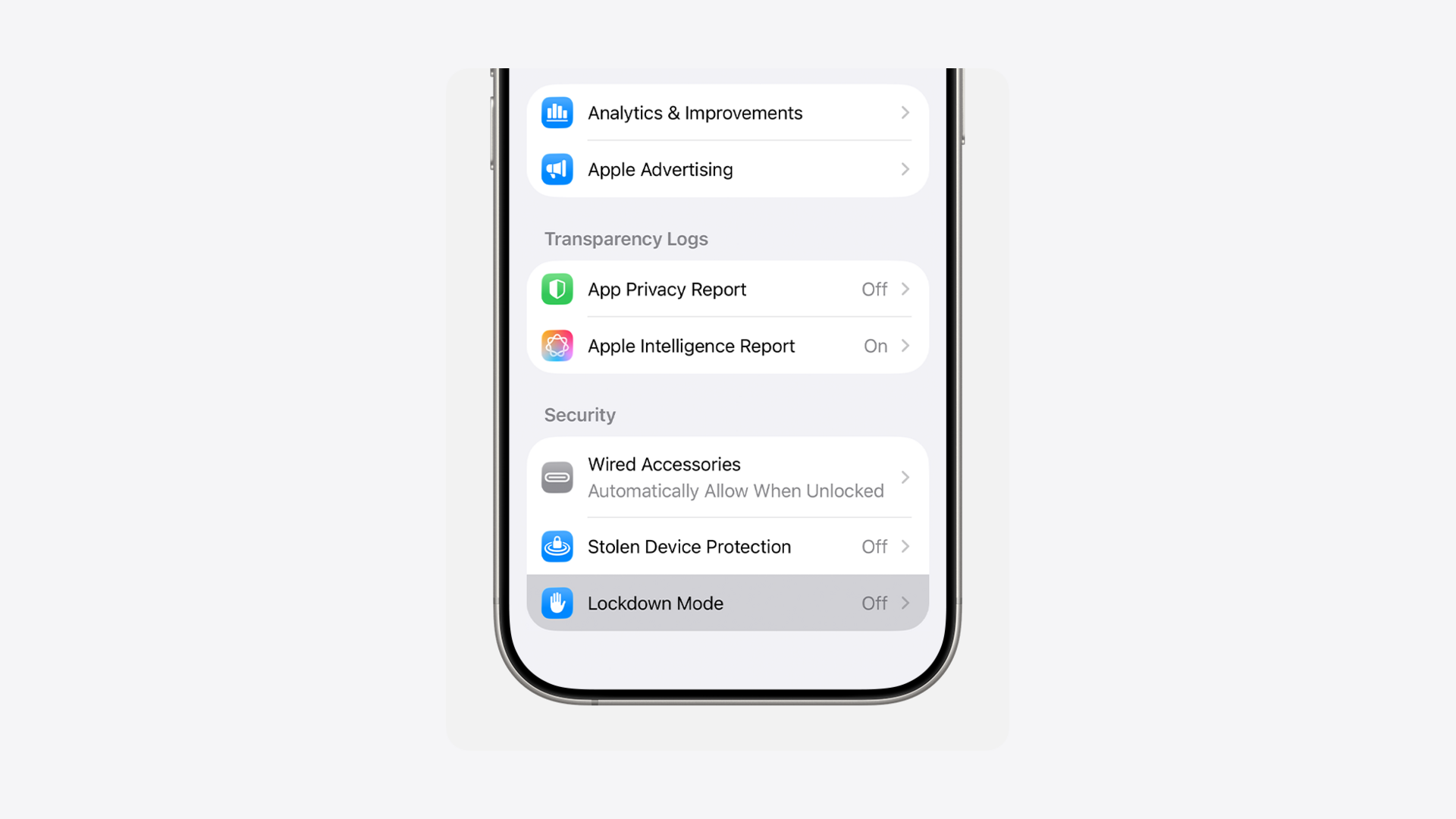
Open Settings, tap Privacy and Security, scroll down to Lockdown Mode and tap Turn On Lockdown Mode. Restart your iPhone when prompted. That is it. Once you turn the switch on, Apple’s documentation confirms iMessage attachments other than some image, video and audio types are blocked by default. Links and previews in iMessage are blocked and appear as non-linked web addresses. Incoming FaceTime calls are blocked if you have not contacted that person in the last 30 days. The phone also disconnects from non-secure Wi-Fi networks and refuses 2G and 3G cellular connections.
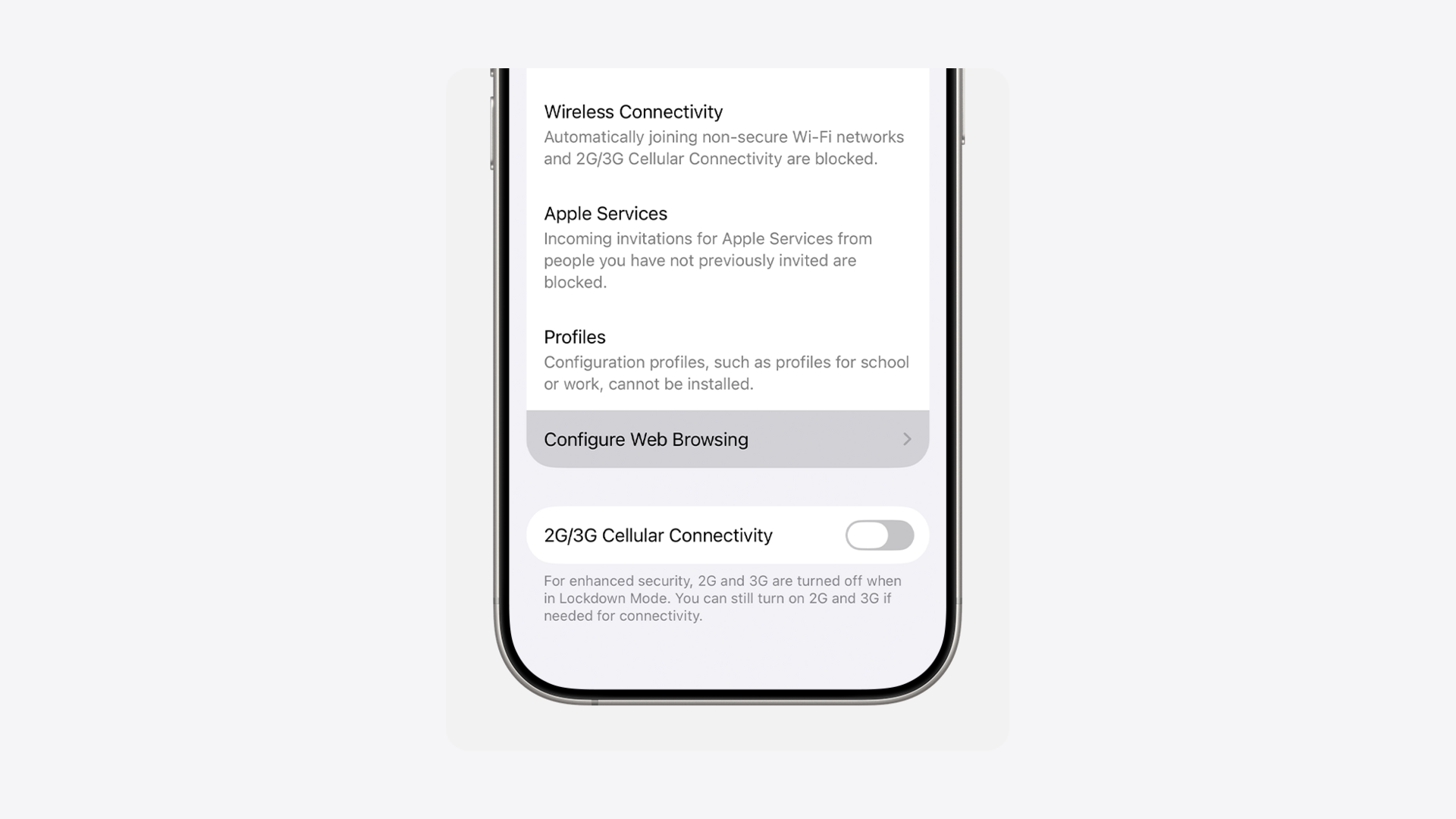
The trade-off to protect your phone from spyware via Lockdown Mode is real: some websites with custom fonts or JIT JavaScript will not render correctly, some configurable accessories will not pair, and Photos will not pre-process shared albums. You can whitelist specific apps and sites that fail, which keeps the security benefit while restoring the few things you actually rely on. Apple ships a single toggle to do this in Settings – Privacy and Security – Lockdown Mode – Configure Web Browsing.
How to protect your phone from spyware on Android: Advanced Protection
Google’s equivalent on Android 16 is Advanced Protection. Open Settings, tap Security and Privacy, then Other Settings, then Advanced Protection and toggle Device Protection. Once it is on, apps from unknown sources cannot be installed, the device auto-locks during suspicious movement patterns, and the phone reboots itself if it has been locked for 72 hours – the latter being the single most effective countermeasure against forensic spyware extraction tools. USB connections are blocked when the device is locked, and on Pixel 9 and later, Memory Tagging Extension is enabled to harden Android against memory-corruption exploits.
The Advanced Protection toggle also blocks 2G network connections by default. This matters because most stingray-style cell-site spoofers force a target’s phone down to 2G to intercept calls and text. Turning 2G off at the radio level removes that downgrade attack path entirely. The trade-off is that in rural areas where only 2G coverage exists, you may briefly lose signal – but on a modern Pixel, 4G and 5G coverage is virtually universal in the markets where commercial spyware buyers operate.
Protect your phone from spyware in WhatsApp and Signal
Open WhatsApp, tap Settings, Privacy, Advanced, and toggle every switch on. WhatsApp will then block attachments and media from unknown senders, silence calls from unknown numbers, hide your IP in calls, disable link previews and restrict profile visibility to established contacts only. Enable two-step verification on the same screen. These four toggles together are the modern equivalent of locking the front door, full stop.
| Platform | What to enable | Time | MTW read |
|---|---|---|---|
| iPhone | Lockdown Mode | 2 min | Critical. Turn it on first. |
| Android (Pixel) | Advanced Protection | 3 min | Critical. 72-hour auto-reboot is gold. |
| Advanced Privacy + 2FA | 2 min | Critical. Hide IP in calls. | |
| Google Account | Advanced Protection Program | 10 min + hardware key | Strong. Required for journalists. |
The Google Advanced Protection Program adds account-level hardening
Account compromise is the other half of how attackers protect your phone from spyware – meaning, the other half of how they bypass it. Even with a perfectly hardened device, an attacker can move sideways through your Google account. Enrol in the Google Advanced Protection Program at landing.google.com/advancedprotection, which requires a physical security key (a YubiKey for £25 plus VAT is the cheapest credible option) or a software passkey on a managed device. Once enrolled, your Google account refuses sign-ins from anywhere without that key. You also lose the ability to install Chrome extensions outside the Chrome Web Store and Gmail blocks file types it considers risky by default.
For Apple users, the equivalent is Apple Account two-factor authentication with a hardware security key paired in Settings – Apple Account – Sign-In and Security. Apple now supports physical security keys natively. Both the Apple and Google flows take about ten minutes and pair perfectly with the device-level work above. Our coverage of the wider trust and safety problem at the AI infrastructure layer covered the same trend at the cloud level.
What to do this weekend to protect your phone from spyware
Three steps in this order. First, turn on Lockdown Mode (iPhone) or Advanced Protection (Android). Second, harden WhatsApp and Signal with the privacy toggles above. Third, enrol in either Google Advanced Protection or Apple hardware-key sign-in – whichever ecosystem you live in. Total time, with a security key purchased, is under thirty minutes. That investment is the difference between being a soft target and a hard one in the 2026 spyware landscape.
One follow-up: if you are journalist or work with sensitive sources, also consider switching to a dedicated phone for sensitive comms. Used iPhone 14 Pro units now sell for under £400 in the UK and run iOS 18 with full Lockdown support. Pair with a fresh SIM, fresh Apple ID and zero installed apps beyond Signal and Lockdown. This is the cheapest serious counter to the modern spyware market that exists, and we cover the broader case in our best iPhone UK 2026 guide.
MTW verdict
Three switches protect your phone from spyware in 2026: Lockdown Mode on iPhone, Advanced Protection on Android, WhatsApp Advanced Privacy on both. Turn all three on this weekend. Buy a YubiKey if you can afford it. Stop pretending you are not a target.
Buyer action
Where to buy or check next
Use this as the final check before ordering a phone, changing network or trusting a headline monthly price.









Reader discussion
Leave a comment
Comments are moderated. Keep it useful, accurate, and on topic.