
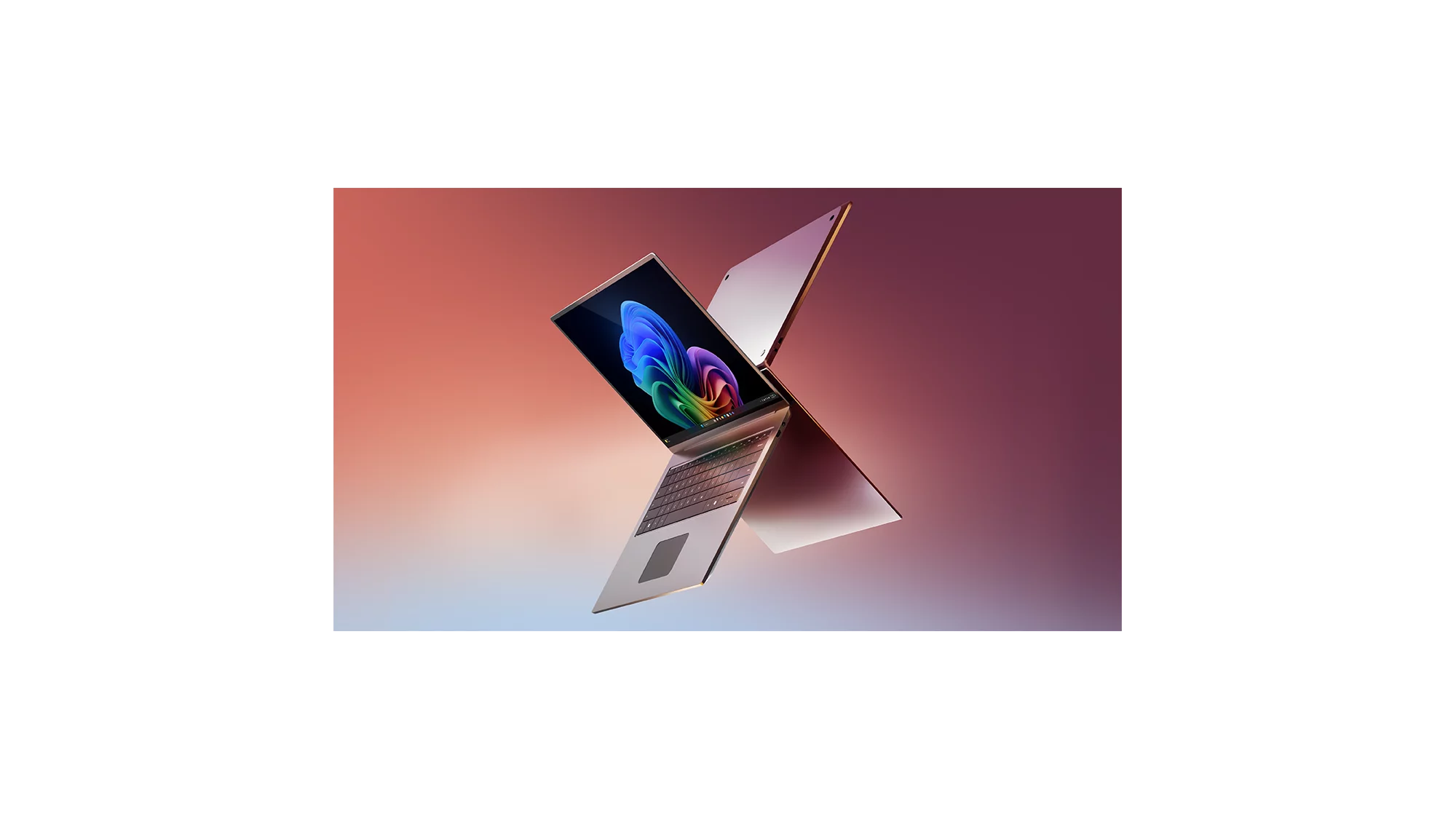
If you want to know how to use Microsoft Copilot Windows 11 properly, the single most useful thing to grasp in 2026 is that the assistant is now a real desktop app, not a sidebar bolt-on, and most of what made it worth paying for is now free. Microsoft’s own Getting started with Copilot on Windows support page, updated through 2026, confirms the Copilot app ships pre-installed on new PCs, launches with a dedicated Copilot key or Windows key plus C, and can now look at your screen with Copilot Vision. The free tier covers everyday chat, voice and Vision; the paid split is simpler than it was, because Microsoft retired the standalone Copilot Pro and folded its extras into Microsoft 365 Premium at £18.99 a month (last checked: 2026-06-12). This guide walks UK users through turning Copilot on, getting value from Vision on the desktop, the exact settings paths, what costs money, and how to switch it off entirely if you would rather it left you alone.
Key facts
- Launch it: the Copilot key on newer keyboards, or Windows key + C, opens the Copilot app on Windows 11 (Microsoft Support, 2026).
- Free covers a lot: chat, Copilot Voice, “Hey Copilot” wake word and Copilot Vision are available without a subscription (Microsoft, 2026).
- Paid tier: Copilot Pro is retired; its features now sit inside Microsoft 365 Premium at £18.99/month or £189.99/year in the UK (microsoft.com/en-gb, last checked 2026-06-12).
- Cheaper plans: Microsoft 365 Personal is £8.49/month (£84.99/year) and Family £10.49/month (£104.99/year), each with higher Copilot usage limits (Microsoft UK store, 2026).
- Turn it off: Settings > Personalisation > Taskbar hides the button; Settings > Apps > Installed apps uninstalls the Copilot app outright.
How to turn Microsoft Copilot Windows 11 on and open it
On a current Windows 11 PC, Copilot is already there. Microsoft’s support documentation states the Copilot app “should already be installed by default” on new machines and is pinned to the taskbar or sits on the Start menu. If you bought your laptop in the last couple of years, look for the small Copilot icon near the search box, or press the dedicated Copilot key that now sits where the right-hand menu key used to be on many keyboards. If your keyboard has no Copilot key, the shortcut Windows key + C does the same job. The first time you open it, sign in with a personal Microsoft account to unlock chat history, voice and the personalised home screen.
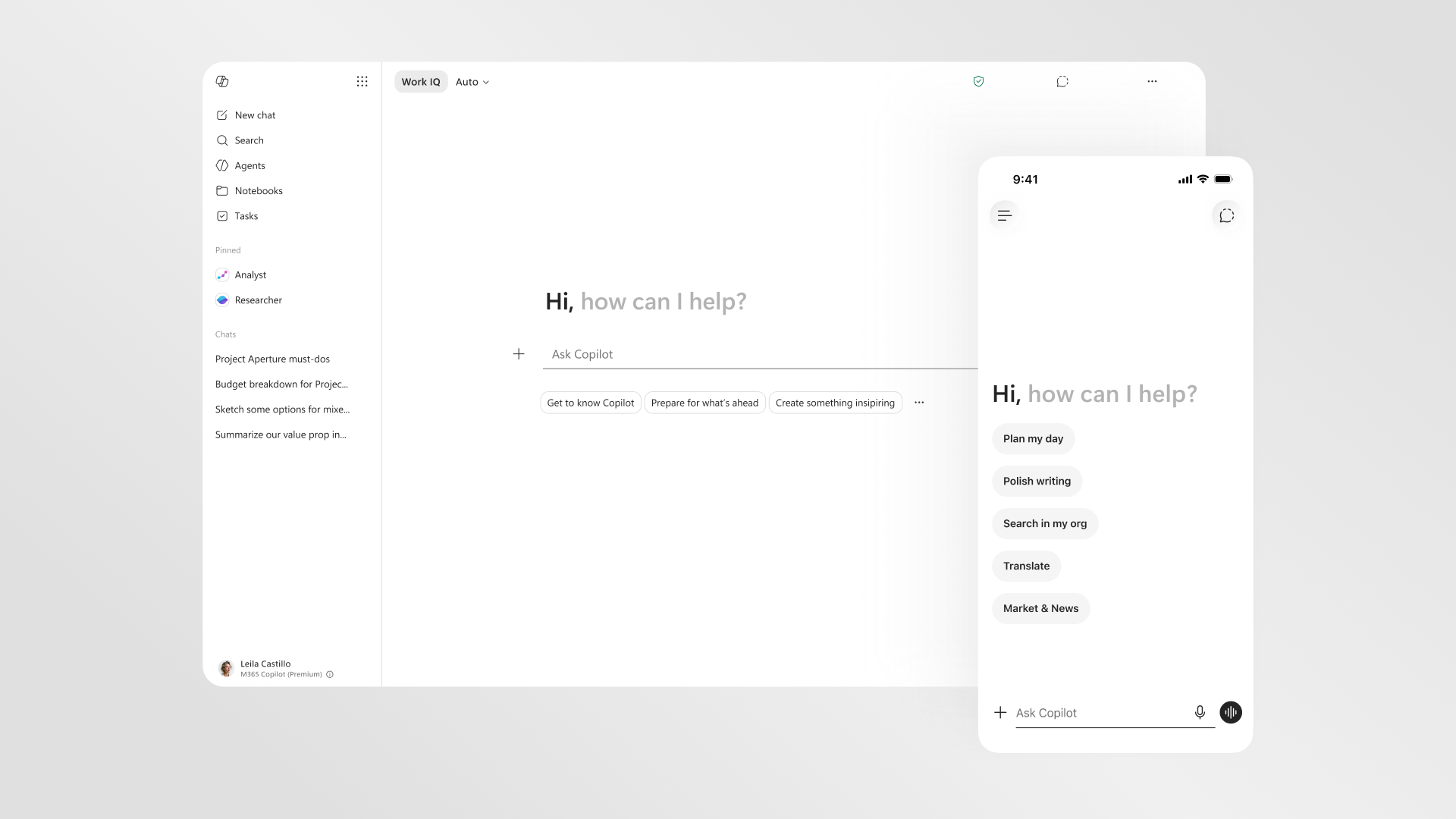
If you do not see Copilot at all, it may simply not be installed on an older build, or your employer may have removed it. You can install the free app from the Microsoft Store: search the Store for “Copilot” and pick the one published by Microsoft Corporation. On a managed work laptop you may find it greyed out, which usually means IT has applied a policy; that is a deliberate choice and not a fault. Once it is open you can resize it, pin it to one side of the screen, or let it float. The 2026 redesign turns Copilot into a proper window you can move and dock, rather than the fixed panel that shipped when the feature first arrived. For a wider look at how Microsoft is weaving the assistant through the operating system, our explainer on the Microsoft 365 Copilot redesign for UK users is a useful companion read.
The Copilot key and keyboard shortcuts, explained
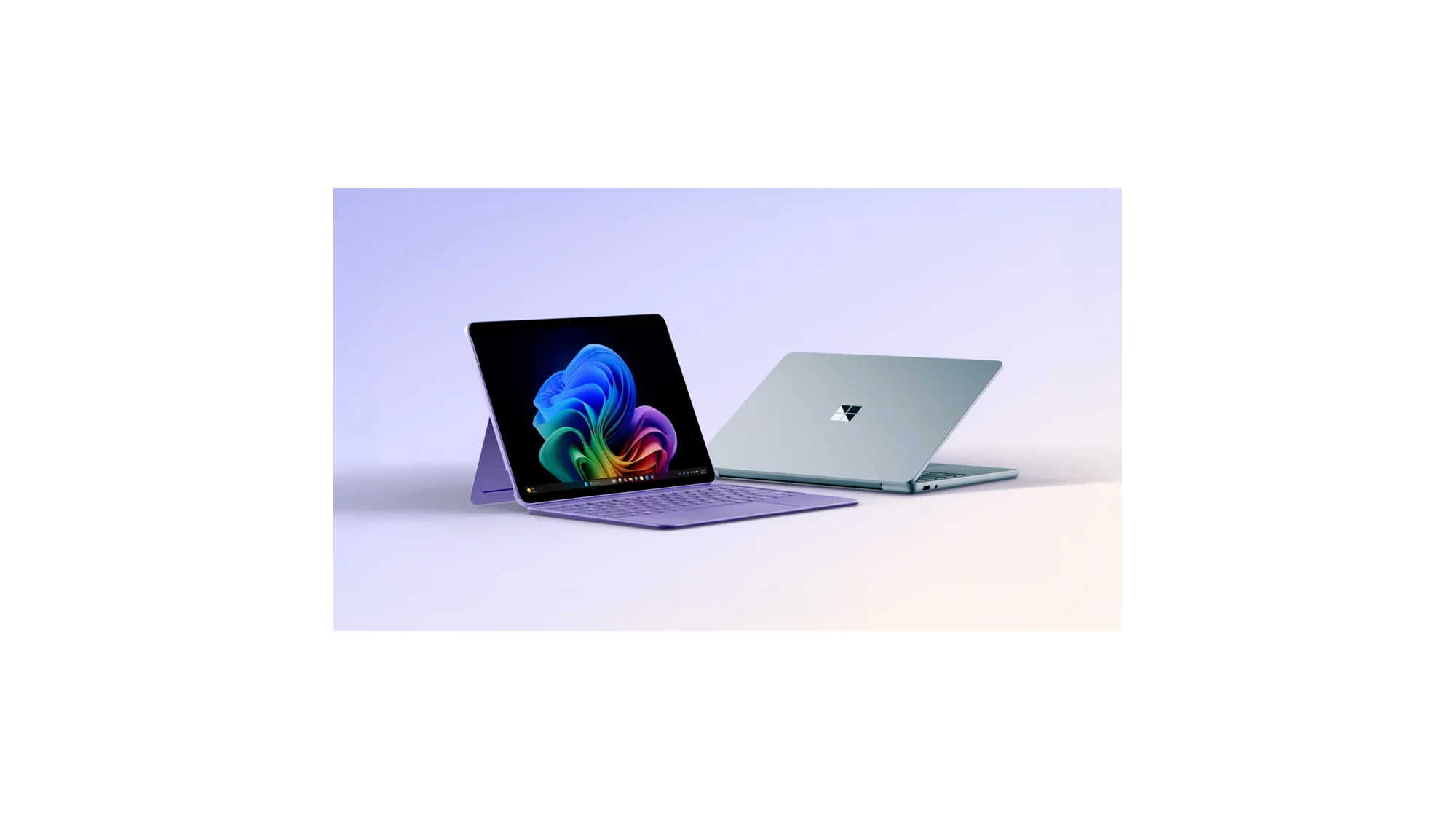
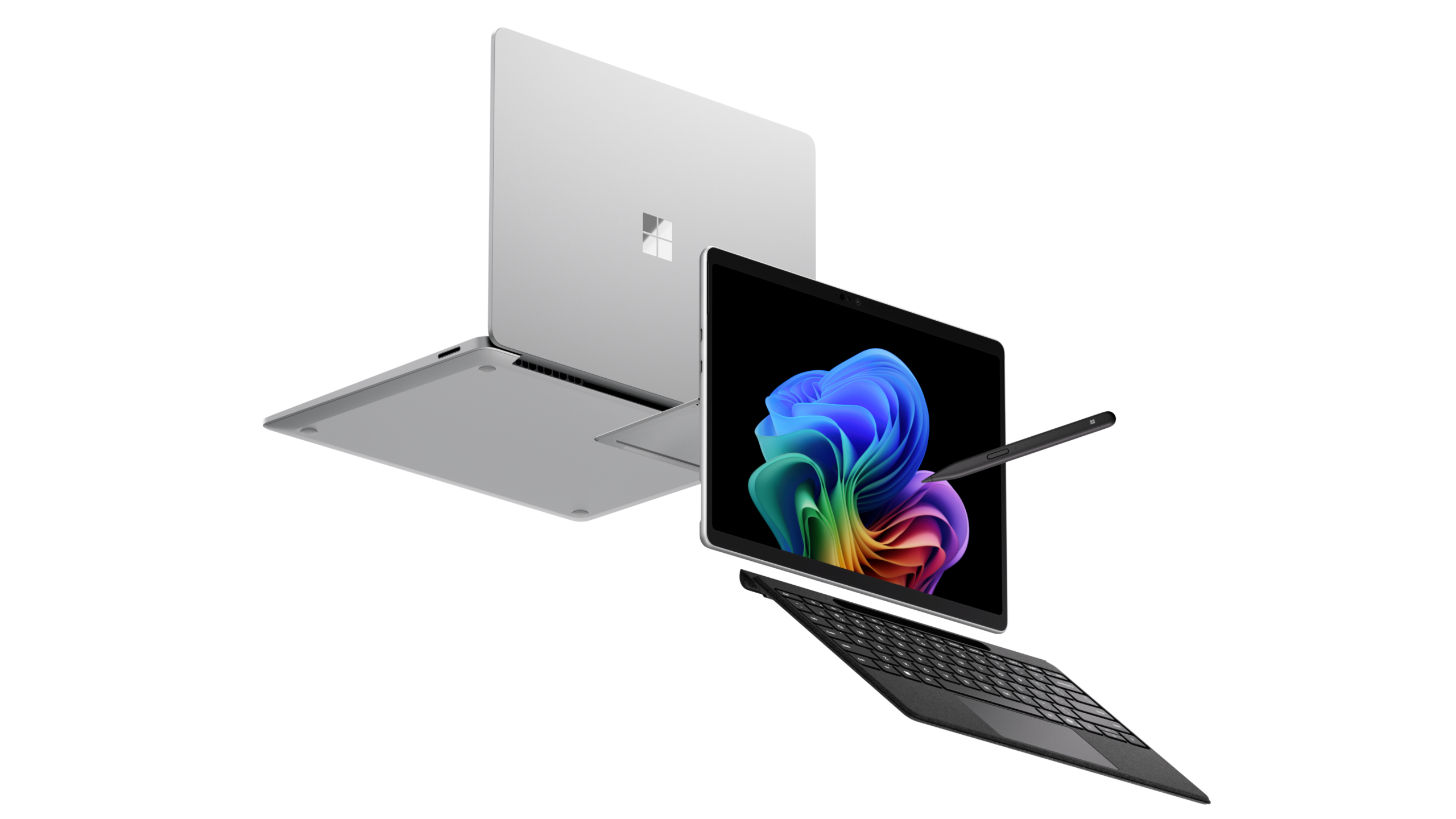
The Copilot key is configurable, which surprises a lot of people. By default it can either open the full Copilot app or a smaller “quick view” pane, depending on your preference. To change that behaviour, open Copilot, then go to Account > Settings > Copilot Keyboard Shortcuts. From there you decide whether a tap gives you the whole app or just a quick question box. This matters in the UK because plenty of laptops sold here, including Surface and many Copilot Plus PCs from Dell, Lenovo and Asus, ship with the key whether you wanted it or not, and a stray press in the middle of work is annoying if it throws the full app at you.
There is also a hands-free option. Saying “Hey Copilot” aloud wakes the assistant, the same way “Hey Siri” or “Hey Google” works on a phone. Microsoft describes this as an opt-in feature, so it is off until you enable it inside the Copilot app’s voice settings. If you share a desk or work in an open-plan office, leaving the wake word off is the polite default. If you are weighing Microsoft’s assistant against the alternatives before you commit, our piece on choosing between Claude, Copilot and Gemini for UK work lays out where each one is strongest.
Copilot Vision: the most useful thing on the desktop
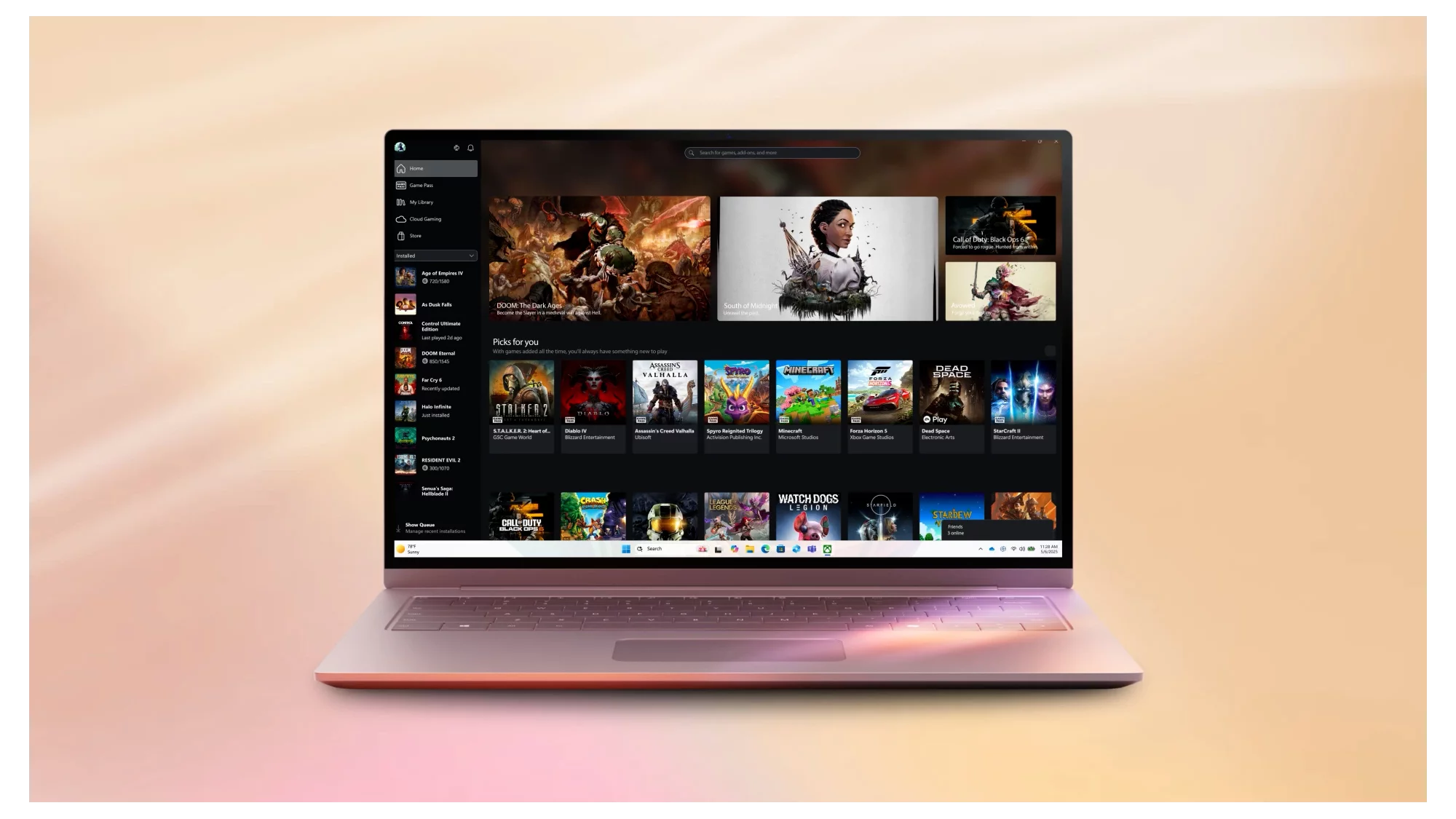
If you only learn one Copilot feature, make it Copilot Vision. This is the part that justifies the assistant for ordinary tasks. With Vision, you share a browser window or an app you have open, and Copilot can see what is on screen and walk you through it step by step. Ask it where a setting is buried in a fiddly program, get it to read a chart you cannot make sense of, or have it talk you through editing a photo while you actually do the editing. It is the difference between an assistant that answers questions in the abstract and one that helps with the thing in front of you. Vision is part of the free experience, so you do not need a subscription to try it.
Copilot Vision turns the assistant from something you ask questions of into something that helps with the exact window in front of you.
To start a Vision session, open Copilot, look for the glasses or “share screen” icon in the chat box, and choose the window you want Copilot to look at. You stay in control: nothing is shared until you pick a window, and you end the session with a single click. For privacy-minded readers, that explicit opt-in is the important detail, and it is worth reading alongside our look at whether Gemini is worth it in the UK if you are comparing assistants. Vision works best in Microsoft Edge and across desktop apps; results vary with how cluttered your screen is, so close what you do not need before you start.
Free Copilot versus paid: what £18.99 actually buys
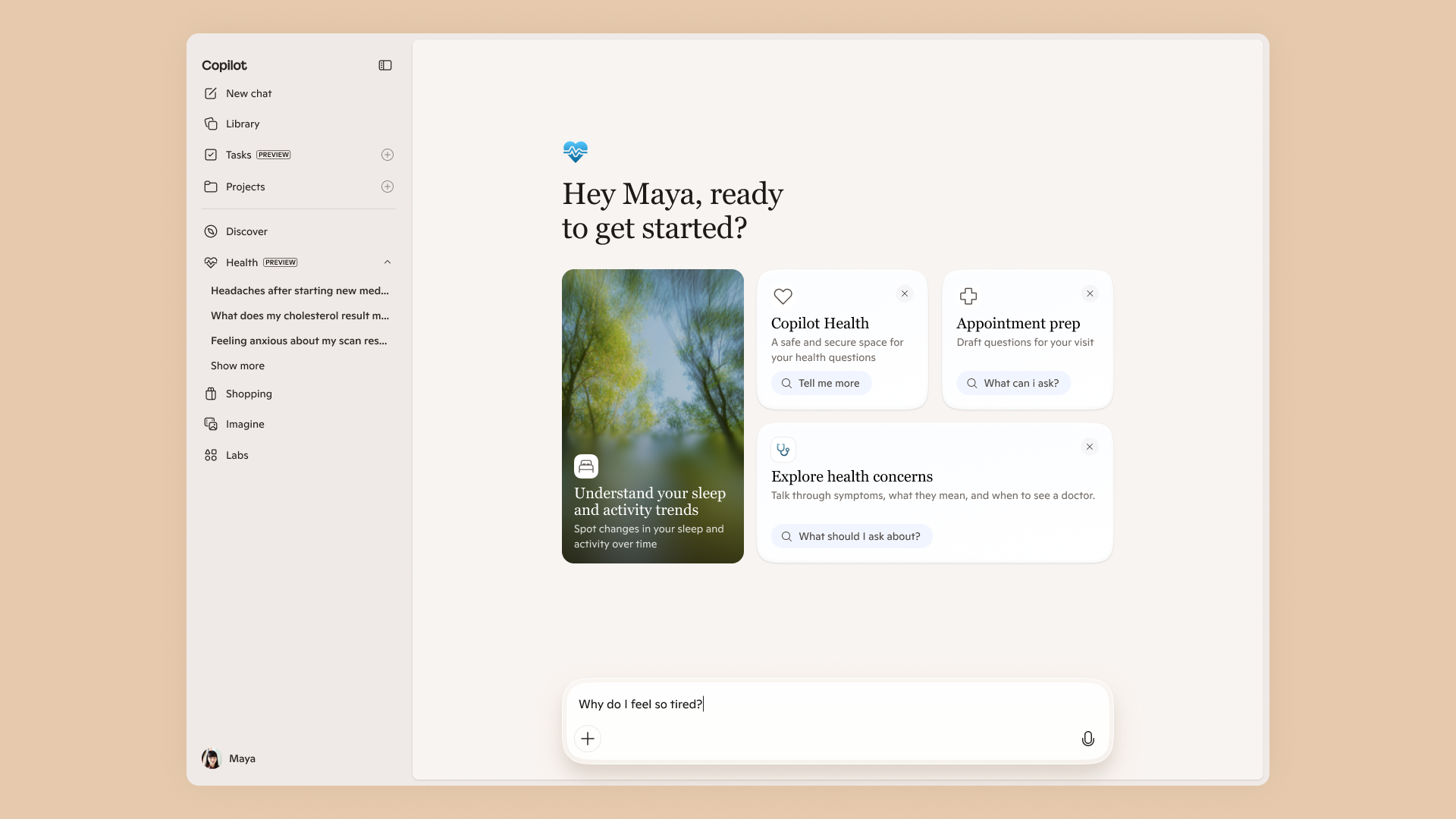
The pricing picture changed in late 2025, and it is now simpler. Microsoft retired the standalone Copilot Pro consumer plan and rolled its extras into a new top tier, Microsoft 365 Premium. In the UK that costs £18.99 a month or £189.99 a year (microsoft.com/en-gb, last checked 2026-06-12), and it bundles the Office apps, 1TB of OneDrive storage with Family sharing, and the heaviest Copilot usage limits, including advanced features and AI agents for complex tasks. If you previously paid roughly £19 a month for Copilot Pro on top of a separate Microsoft 365 plan, Premium is the replacement that combines both into one bill.
For most people, the free tier is enough. Free Copilot covers chat, image generation in chat, Copilot Voice, the “Hey Copilot” wake word, Vision and deep research. Where you start hitting walls is volume: generous but capped image generation, and lighter limits on the heaviest features. The two cheaper subscriptions sit in between. Microsoft 365 Personal is £8.49 a month or £84.99 a year, and Microsoft 365 Family (up to six people, though the AI extras go to the subscription owner only) is £10.49 a month or £104.99 a year. Both lift your Copilot usage and add Copilot inside Word, Excel, PowerPoint and Outlook. If you want the full breakdown in pounds, our standalone guide to Copilot UK pricing for free, Pro and Microsoft 365 goes tier by tier.
Worth saying clearly: the Copilot built into Windows 11 and the chat at copilot.microsoft.com are the consumer product. That is different from the work-grade Microsoft 365 Copilot that businesses buy per seat, which connects to company data through the Microsoft Graph. If your interest is the business version, our explainer on Microsoft 365 Copilot cost and value for UK small business covers that side, and we have a separate look at how it compares with Google Gemini for UK users.
Using Copilot for files and Office actions
On the desktop, the free Copilot app is mainly a conversational helper: drafting text, summarising something you paste in, answering questions, generating images and looking at your screen with Vision. The deeper Office magic, the kind where Copilot rewrites a Word document in place, builds a PowerPoint from a brief, or analyses an Excel sheet and explains the formulas, lives inside the Microsoft 365 apps and needs a Personal, Family or Premium subscription. That is the practical line between free and paid for most UK households: free gets you the assistant, a subscription gets you Copilot working directly inside your documents and spreadsheets.
You can still get a lot done for nothing. Drag a PDF or an image into the Copilot chat box and ask for a summary or a translation. Ask it to draft an email, then copy the result into Outlook yourself. Use Vision to have it read a spreadsheet on your screen and explain what a column means, even if you are not paying for the in-app Excel features. If you live in the wider Microsoft world, it helps to see how the assistant stacks up for everyday writing: our roundup of the best AI writing assistant in the UK for 2026 weighs Copilot against the rivals for UK readers.
Privacy and data settings for UK users
Before you lean on Copilot for anything sensitive, spend five minutes in its settings. Consumer Copilot conversations can be used to improve Microsoft’s models unless you opt out, so open the Copilot app, go to your account privacy controls and look for the model-training toggle; turn it off if you would rather your chats stayed out of training. You can also view and clear your Copilot conversation history from the same area. Under UK GDPR you have the right to access and delete the data Microsoft holds about you, and Microsoft’s privacy dashboard at account.microsoft.com is where you exercise that. Treat the consumer assistant the way you would any cloud service: do not paste in passwords, bank details, or anything covered by a confidentiality duty at work.
The five-minute privacy check is the same as any cloud service: find the training toggle, clear your history, and never paste in anything you would not email.
If you use a work or school account, the rules are different and usually better for you: data handled through Microsoft 365 Copilot at work is covered by your organisation’s enterprise agreement and is not used to train the foundation models. That distinction trips people up, so it is worth being clear which account you are signed in with. If you are choosing hardware to run it on, our guide to the Surface Pro 12 with Snapdragon X2 Elite for UK buyers is a useful next step, and readers comparing AI assistants on privacy grounds may also want our notes on UK GDPR considerations for AI tools.
How to turn Copilot off or remove it entirely
Plenty of people simply do not want it, and Windows 11 lets you go from a light touch to a clean removal. The quickest fix is to hide the button: open Settings > Personalisation > Taskbar, and under Taskbar items switch Copilot off. The icon disappears and the change is reversible, though it does not stop the keyboard shortcut from launching it. To go further, because Copilot is now a standard app, open Settings > Apps > Installed apps, find Microsoft Copilot, click the three dots and choose Uninstall. That removes the app itself.
On Windows 11 Pro, Enterprise or Education there is a sturdier option through Group Policy. Open the Group Policy Editor and navigate to User Configuration > Administrative Templates > Windows Components > Windows Copilot, then enable “Turn off Windows Copilot”. That blocks the main launch paths as well as hiding the button, which is the route most UK IT teams take on managed fleets. Home edition does not include Group Policy, so the uninstall route is your main lever there. Bear in mind Microsoft has reworked how Copilot is delivered more than once, so an approach that holds today may need revisiting after a major feature update.
Where to buy or check next in the UK
A short checklist for UK readers, with prices last checked on 2026-06-12:
- Microsoft Store UK (microsoft.com/en-gb): the official source for Microsoft 365 Personal at £8.49/month, Family at £10.49/month and Premium at £18.99/month, plus the free Copilot app download.
- support.microsoft.com: the “Getting started with Copilot on Windows” page for the latest official steps on the Copilot key, Vision and voice, which Microsoft updates as features change.
- account.microsoft.com: your privacy dashboard to review, export or delete the data Microsoft holds, and to manage any subscription you take out.
- Currys, John Lewis and Amazon UK: retailers selling Copilot Plus PCs from Surface, Lenovo, Dell, Asus and HP if you want the dedicated Copilot key and on-device AI hardware.
- blogs.windows.com: the official Windows blog, where Microsoft announces Copilot changes such as the mid-2026 taskbar Ask Copilot experience before they reach your PC.
Our verdict
Copilot in Windows 11 is in a much better place than it was at launch. It is a real, movable desktop app, the genuinely useful bits, chat, voice and especially Copilot Vision, are free, and the pricing has been simplified down to one clear premium tier at £18.99 a month for people who want Copilot working inside Office. Our take, from setting it up and poking at the settings, is that the free tier is enough for most UK households, and the headline skill to learn is Vision on the desktop, because that is where the assistant stops being a novelty and starts saving you time. The flip side is choice: if you find it intrusive, Windows 11 now lets you hide it, uninstall it, or block it with policy, and you should not feel any pressure to keep it. Set the privacy toggles the way you want them, learn Vision, and decide later whether a subscription earns its place.













Reader discussion
Leave a comment
Comments are moderated. Keep it useful, accurate, and on topic.